sudo -i
**Step 1.** Add Anydesk repository key to the Trusted software providers list.wget -qO - https://keys.anydesk.com/repos/DEB-GPG-KEY | apt-key add -
**Step 2.** Now add the repository to the sources list. Below command will put the repository entry in a new file under /etc/apt/sources.list.d/ directory. \* Execute as single commandecho "deb http://deb.anydesk.com/ all main" > /etc/apt/sources.list.d/anydesk-stable.list
**Step 3.** Update the apt cache by running below command.apt update
**Step 4.** Now install the software. This command will download and install Anydesk from repository along with dependencies.apt install anydesk
### Issues After installing AnyDesk, the following error is presented: [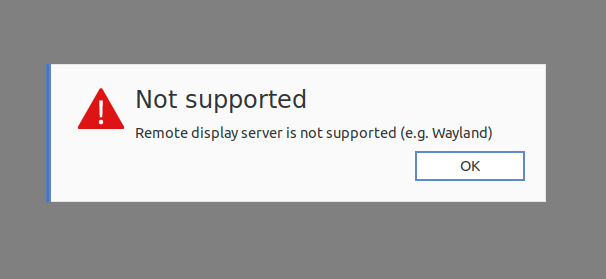](https://bsa.lynops.com/uploads/images/gallery/2024-03/Lgmimage.png) #### To fix the problem, we have to edit a file.sudo gedit /etc/gdm3/custom.conf
[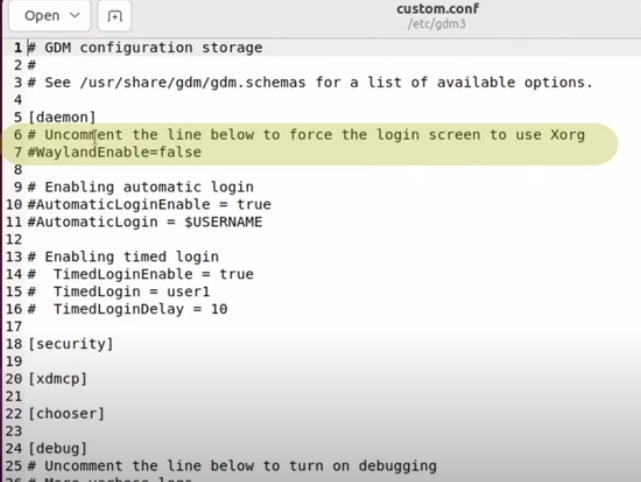](https://bsa.lynops.com/uploads/images/gallery/2024-03/GkKimage.png) - Uncomment line 7 "WaylandEnable=false" - Uncomment line 10 "AutomaticLoginEnable = true" - Uncomment line 11 "AutomaticLogin = **$USERNAME**" (note change to $USERNAME if a different value was there) ##### Then re-boot the Linux machine. # Auto Upgrade Produced White Screen ### Issue Victoria's computer was restarted and updates took place automatically. When restarting there was a white screen and so little contrast that the computer was unusable. [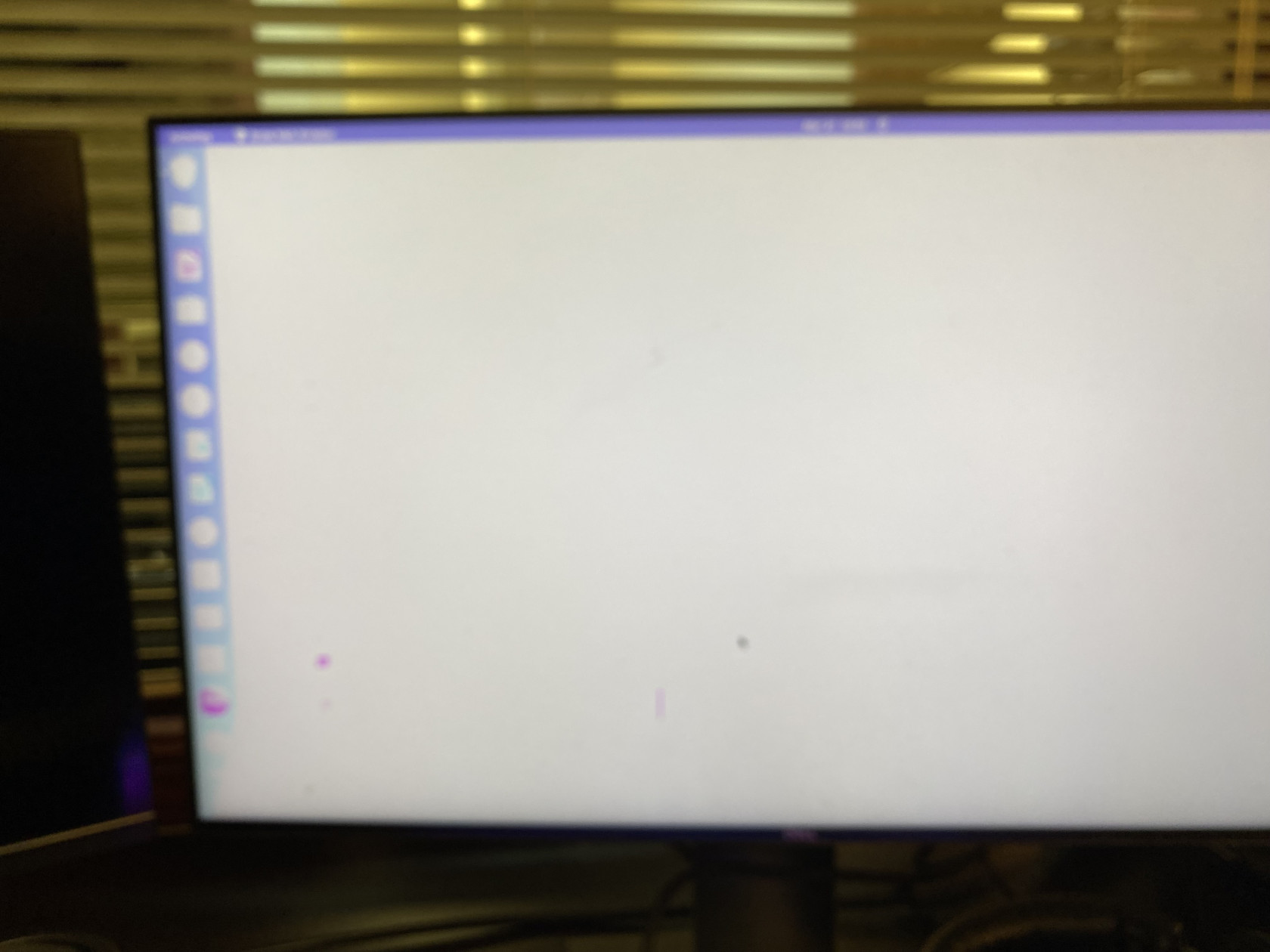](https://bsa.lynops.com/uploads/images/gallery/2024-03/img-0780.jpg) ### Resolution Graphics card needed a specific driver, not the generic driver that was in the auto-upgrade file. ### Steps taken Pressing the right shift button repeatedly brought me into the grub menu, I could select to start in recovery mode. Launching the older version of Ubuntu produces a normal contrast screen but it was stretched and could not be fixed using the display settings (locked/non responsive). I rebooted and next time selected the newer operating system in recovery mode. In recovery mode, I selected package repair, then grub menu then proceeded. Screen was stretched and unable to fix with resolution. Under Settings/about/software updates/ additional drivers, I selected a proprietary graphics driver, then re-started. All was normal.