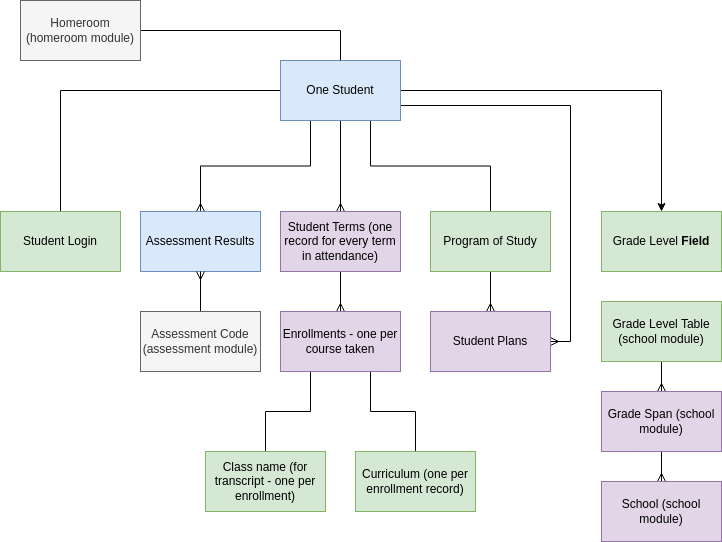
11 FEB - there is no lookup of the current program field, hence the student is not linked to the program plan, which is necessary for the transcript view
### Workflow Based on Start Date and Start Grade Level, the student's first term, graduation date, remaining year, enrollment year terms, and total remaining terms are automatically calculated. These fields are updated when there are any changes to the input fields. The student's current grade level is increased every year on the date specified by the school administration. Unless the user selects the Promotion field to be "repeat" all students are automatically promoted to the next grade level. The grade span field represents a planning horizon. In general, students are assigned a specific plan that specifies classes to be taken for the entire grade span. The grade span is determined and updated based on the student's current grade level. All new student records have status = planned. When the student is updated to active, the start date is set to the day the status field is changed, and student accounts are made throughout the system so that the student is granted full access to the system. The current program is the active plan the student is working on. Plans may be assigned, and deactivated, but PEMS still keeps track of any plan the student worked whether or not that plan was completed. Once the student has a plan assigned, PEMS auto-enrolls the student in all the classes specified under that plan. ### Student Record GPA Logic There are four GPA fields to calculate in the student record. Calculate them all the same, recalculate when ever there is a change in the fields. Student GPAs are calculated at the close of a term. The school term status will change to past triggering the GPAs from the student terms to be included here. If a student term status changes to past, recalculate all these fields. For each student term, multiply the Grade Points field times the Student Term | Units Earned field Sum all the values above Sum all the units earned field from associated student terms. Divide: (Grade Points x Units Earned ) / Units Earned Enter into the respective GPA field in the student term record. ### Action Items JAN 2024| 1-MVP | TRANSCRIPT | Add the fields alternate GPA and alternate Weighted gpa - COMPLETED. Link student record to program plan table with look-up field - REMAINING. Implement GPA calculation logic - REMAINING
2-MVP | HOMEROOM| Remove link to Group record - enrollments specify group, not student records
2-MVP | HOMEROOM | Add link to Homeroom record
3-MVP | INTAKE | Complete auto-calculation of grade span, school, student code, graduation date, remaining years, enrollment year terms, total remaining terms, and link to school start term. Per [2. Student Intake Functions](https://bsa.lynops.com/books/personal-education-management-system/page/2-student-record-intake-functions "2. Student Intake Functions")
3-MVP | INTAKE | deleted
# Student Terms Table **[Student Terms](https://cs.studianova.org/admin/studentterms)** ### Relevant Topics {{@90#bkmrk-a-term-is-the-divisi}} {{@90#bkmrk-the-names-of-the-ter}} {{@90#bkmrk-a-student-term-recor}} {{@90#bkmrk-in-summary%2C-enrollme}} ### Student Terms Table Overview Student terms are records created for each student for each term they are enrolled in the school. Where there is one school term record with a specific start and end date, there are multiple student term records with the same start and end date that are related to each individual student. Student Term records are child records to term, and also the student. They describe the many to many relationship between students and terms. The student term records provide information on the student's academic performance in each school term, and stores the GPA achieved for that term. ##### ##### ### Data Relationships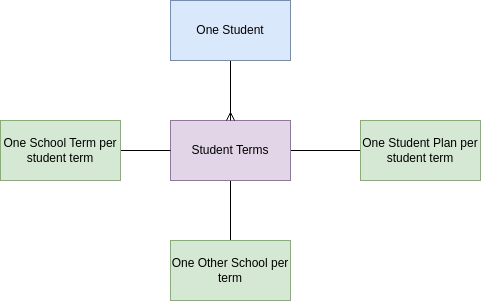
| There are four GPA fields to calculate in the student term record. Calculate them all the same, recalculate when ever there is a change in the fields. |
| If enrollment status is complete and if there is a change to any enrollment grade point field, then: |
| For each enrollment, multiply the Grade Points field times the Units Earned field |
| Sum all the values above |
| Sum all the units earned field from associated enrollments. |
| Divide: (Grade Points x Units Earned ) / Units Earned |
| Enter into the respective GPA field in the student term record. |
1-MVP | TRANSCRIPT | Add Student term Status, Alternate GPA and Alternate Weighted GPA fields to student term table.
1-MVP | TRANSCRIPT | Calculate all GPAs for the Transcript using the GPA Logic. Update student terms status based on school term status.
# Student Plan Table **[Students Table](https://cs.studianova.org/admin/students)** *Note: student plan and student program are used to mean the exact same table* The student plan table keeps track of what plans have been assigned to the student over time. Student Plan records specify the program of study and keep track of the start date, end date, and status of the plan. The “Student Program” table keeps the history of what program(plan) the student was completing over the years of study. Every time the current program field in the student record is changed, a record is created in the “student program” table. The “student program” record stores the program(plan) name as well as the planned start and end dates of the program. The student program table acts like a log file of changes made to the ”current program” field in the student record. The **student programs** table also stores the start and end dates of the plan. For example, if the student was assigned the plan half-way through the term, the exact date the student was assigned the plan is recorded. ### Data Relationships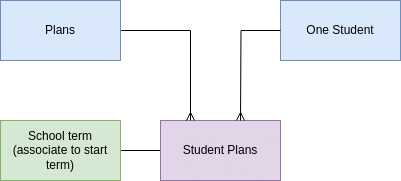
1-MVP | TRANSCRIPT| In the Student Plan record, deprecate Units Attempted
6-NV | ASSESSMENT | Calculate Units completed under the student plan when enrollments are complete, update units completed in the student plan record.
6-NV |ASSESSMENT |Calculate adherence by comparing the units completed in the enrollments to the student plan's template records to find if the student is staying on the plan.
6-NV | ASSESSMENT | Calculate the plan GPA from the completed student term data. NOTE, this GPA does not appear of the student transcript and is for decision making on which plan to assign in the future. There is no need to track 'other' GPAs in the student plan record in the MVP.
6-NV | ASSESSMENT | Calculate the student plan start and end dates from the status of the enrollment records.
# Enrollments Table **[Enrollments](https://cs.studianova.org/admin/enrollments)** ### Relevant Topics {{@90#bkmrk-this-is-the-list-of-}} {{@90#bkmrk-curriculum-generall-}} {{@90#bkmrk-the-term-course-is-n}} {{@90#bkmrk-in-summary%2C-enrollme}} {{@90#bkmrk-a-student-term-recor}} {{@185#bkmrk-moodle-course-id-is-}} {{@185#bkmrk-sections-are-used-to}} ### Enrollments Table Overview The enrollment record is key to tracking the courses a student takes, when they take them, and what grade the received in the course. The enrollment record is created and managed in the SIS, but controls all the information needed to automate the enrollment of the student in the correct Moodle course. The enrollment record also contains the correct information to be displayed on the student transcripts. ### Data Relationships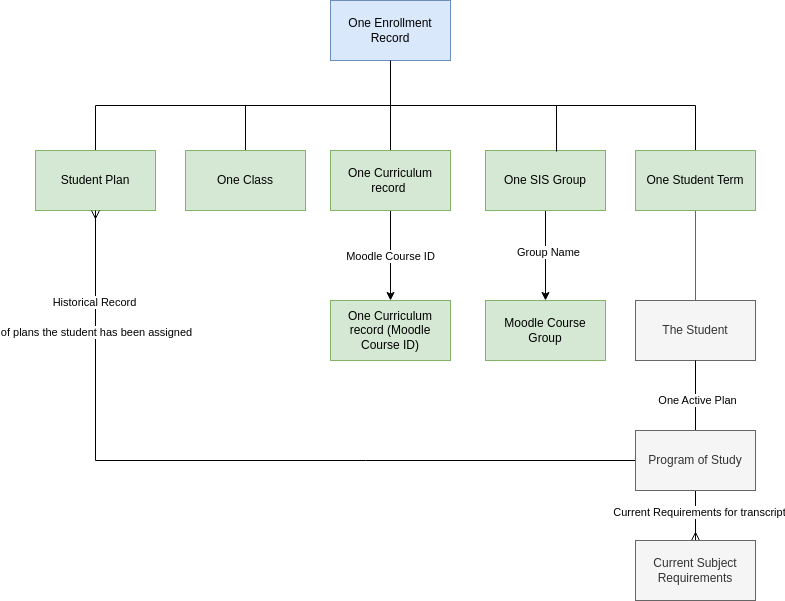
| All the grade points fields are entered based on the fields corresponding to the letter grade field in the Marking System table. |
| The transcript tag on the curriculum related to the enrollment record indicates whether the GPA can be increased (weighted). If it can be increased, then the weighted GPAs are from the Marks System Table are entered into the weighted points fields. |
| If the curriculum does not specify to weight the grade points, then the unweighted grade points from the Marking System table are entered into the enrollment weighted fields. |
| The class record controls whether the GPA should be excluded from the standard calculation or the alternate calculation. |
| If the class is to be excluded, then the grade points are zeroed. There are two types of exclusions, one for the standard and one for the alternate GPA. Both exclusions must be selected to exclude from both types of calculations. |
| To complete the logic - a student term level exclusion will need to be applied, where the term is excluded base on at\_grade. This has not been specified yet, but will be added after above logic is implemented and vetted. |
1-MVP | TRANSCRIPT | Create the fields: Weighted Grade Points, Alternate Grade Points, and Alternate Weighted Grade Points in the enrollment record. Change the name of numerical grade field to Grade Point. This will simplify creating the transcript. Change link in enrollment record to student plan, not programs of study.
1-MVP | TRANSCRIPT | Build Marks Rules to input all GPAs based on letter grade.
4-MVP | ADVANCEMENT | In the enrollment table - student plan field is linked to "Program of Study" This field should link to the **student plan table.** This issue does not affect transcript.
4-MVP | ADVANCEMENT | Status field - remove the option " not selected " (low priority clean up)
2-MVP | HOMEROOM | Deprecate link to Section - this has been replaced with SIS group (clean up)
4-MVP | ADVANCEMENT | Deprecate Curriculum Option, Class Option, Preference and Set (clean up)
2-MVP | HOMEROOM | Add association to SIS Group table, one group per enrollment, groups can be linked to multiple enrollments
# Business Rules for Student Terms and Enrollments ### Launching the Enrollment Process A new student record is made in the Student Table when the enrollment form has been approved. The status of all new student records in the SIS student table is "planned." The start\_date field is the student's first day of class. The start\_date may change after a new student record has been created as students sometimes start earlier or later than originally planned. However, once the student status has been changed to "active", the start date may no longer change. Also, if the start date has passed, it will be assumed that it will not longer change. ### Creating a Set of Student Term Records A **start date** and the student's **start grade level** is all that is required to make the student term records. The grade level determines the student's grade span. Student term records are created for the student through the end of the grade\_span. Student term records are created with new student record is created and these two essential fields are not empty. If a new student record is made that does not have a start date or does not have a current grade level, the student records will not be made automatically. For this reason, the UI provides the user a manual option to create student term records. ### Starting Mid-Grade Span Many students will start school in the middle of a term but also in the middle of a grade span. In this case, student term records are only made for current and future terms, they are not made for past terms in the grade span that a student was not in attendance. ### Selecting a Plan When the student status is either "planned" or "active", the student's program (plan) can be selected. Making the decision on what plan to assign to the student in is an important process, it involves discussions with the student and family as well as interpretation of assessment tests that may be taken prior to first day of school, or in the first few days of active school participation. Enrollment Records are created for the duration of the plan, not just fo the next term. So if a student is assigned plan that spans two academic years, the enrollment records are planned out for the next two years, and there are no decisions to be made on classes over this time period. Based on the enrollment records, the PEMS integration with Moodle will auto-enroll the student in the Moodle courses. The student will not be enrolled in Moodle courses until the beginning of the term. Enrollment records in the PEMS are created for the full duration of the plan, however, Moodle course enrollment is only term by term. ### Mid Plan Enrollment Each plan specifies a starting grade level and a starting term. So a student who joins the school late in the school year may be assigned a plan that has started in the previous term or even the previous year. These students will not complete the full plan as they will start the plan mid-way through. We do not want to create enrollment records for terms the student never attended at the school. PEMS creates enrollment records according to the template, but skips enrollments that required for past terms. Enrollment records are created only for the current term and future terms of the plan. ### Triggering the Plan When the student record is created, all the student terms are created until the end of the grade span. Then, when the program plan is selected, the enrollment records are automatically created. ### Changing The Plan Prior to Start Date Changing the plan prior to start date is straight forward, all the previous plan's enrollment records are deleted and the new plan's enrollment records are created. ### Changing plans very shortly after courses started A student may start the plan and decide the courses are not at all appropriate. A new plan must be selected. In a user-determined time frame, like less than two weeks for example. The plan may be changed, causing all related enrollment records to be deleted, and all corresponding Moodle Course enrollments to be deleted, and starting over with a new plan, new enrollment records and new Moodle course enrollments. None of the student's previous work will be saved or credit given. The user interface should require a reason for a plan being changed so soon after the student started the plan. *note: whenever there is a plan change, the plan change begin and end dates (how long the student was enrolled in that plan) is stored so that plan history may be viewed.* ### Changing plans after courses started and some completed Once the courses have been started, changing plans is more complicated since the the student will have completed some of the plan's courses. but not others. So enrollment records that have not yet started will be deleted, but enrollment records the student has already completed will not be deleted. # Business Rules for Managing Enrollments ### Dis-enrollment When a student is to be dis-enrolled, the administrator will trigger the action by changing the student status field in the student record. The date of dis-enrollment will be entered in the student record. All enrollment records will be marked complete, and the graded fetched from Moodle. Students will be dropped from any Moodle courses. Student access will be suspended in Key cloak. The current transcript will be created and emailed to the email of the guardian on record. ### End of Term Grading The admin triggers fetching the grades from Moodle. The numerical values are updated in the enrollment numerical grade field. Enrollments are linked to groups, which are linked to the teacher of record. Provide the teacher of record a table of all newly graded enrollments from Moodle. In this panel, teacher may change the grades. If the student has a poor grade, the teacher may choose the option to continue the enrollment, see below. After reviewing all enrollments, the teacher must submit all grades, after which the teacher may no longer change them. Admins can change grades at any time during the students participate in the school. When the grades have been submitted, and the student's enrollment is marked completed, the Moodle courses enrollment is also updated. If all the students enrollments are marked completed, PEMS changes the status of the next term's enrollment records and to current and triggers the enrollment in the Moodle courses. If any of the student's enrollment records were marked continued, then the administrator must manually change the status in the next term's enrollment records. ### Continue Enrollment Workflow Sometimes students do not complete all the assignments in a course, and so it makes no sense to promote them to the next course. PEMS provides teachers the ability to continue enrollment, awarding an appropriate grade but not all the units in the linked class record. If the the teacher select to continue the enrollment, PEMS will not dis enroll the student from the Moodle course. ### Promoting Students After grading is completed for the last term of the school year, all students who have completed a user-defined percent of the attempted units for the year will be automatically promoted to the next grade level. Student who did not complete all the attempted units, because they dropped classed or revived a failing grade will not be automatically promoted. The admin will be provided a means to review these students before choosing to promote the student to the next grade level. It may be a good idea to provide a user-defined field for the minimum percent of units completed to be automatically promoted. ### Promotion to New Grade Pan When a student's current grade level changes, then the student may be entering a new grade span. If a student is entering a new grade span, then new student term records will be made. ### Completing a plan If a student is entering a new grade span, a new plan will need to be assigned. Also, when a student completes a plan withing a grade span, the a new plan will need to be assigned. After grade promotion and the creation of all requisite student term records, provide the administrator the ability to assign a new plan. # Assessment Results Table ### Assessment Results Overview The administrator defines what the school will assess for in the Assessment Module, the assessment results table is in the Student module since an assessment result is the student's record on the assessment. Every time the student takes and assessment, an assessment result record is entered and related to the student. Assessment codes allow the administrator to string together student assessment results. Based on the code, the assessment result record can be analyzed to better understand how a student is performing over time. This table is fully described in [Assessment Result Calcuations.](https://bsa.lynops.com/books/personal-education-management-system/page/assessment-result-calcuations "Assessment Result Calcuations") # Student Logins Table **[Student Login](https://cs.studianova.org/admin/studentlogin)** The student logins table stores student login information for Keycloak and other technologies that the school provides their students. Create a new record, enter information, then use the GENERATE PASSWORD button to create the login. Workflow is triggered to create the student in KeyCloak and Moodle. ### Data Relationships
2-MVP | HOMEROOM| Dharm to Complete documentation of this table, VG does not completely understand it.
2-MVP | HOMEROOM| Evaluate login creation logic, in particular the website field, given the new homeroom module.
# Student Term Planner UI [Student Term Planner UI](https://cs.studianova.org/admin/studenttermplanner) The Student term planner UI was created to help the administrator review the terms the student attends the school and to manually update student terms as needed. The Student Term Planner UI is a two-level nested table with the student on the primary row. Using the plus button PEMS add a related student term record. The following Student information is mapped to the student term record: Student Name. Student Program is not mapped because the different student terms have potentially different programs When the user selects the school term, PEMS concatenated the name of the student term name field, so the student term name is not directly entered by the user. # Student Programs UI **[Student Planner UI](https://cs.studianova.org/admin/studentplanner)** The student programs UI is used to assign students a plan. The UI is a 2-level nested table with the student at the primary record and the student plans shown below the student. A plus button is provided to create a related record and student name is mapped from the student record to the student plan record. Filters are provides to sort by School and grade span. ### Action Items JAN 20244-MVP | ADVANCEMENT | Add more filters to the header, filter by homeroom once that module is built.
# Student Enrollment UI **[Student Enrollment UI](https://cs.studianova.org/admin/studentenrollment)** The Student Enrollment UI is used to create enrollment records for students and to trigger student enrollment in the Moodle Courses. The student's name must be selected from the filter at the top, this was implemented to reduce how much data is loaded in the view. The view is a two-level nested table. The primary row is a student term. When the student is selected in the filter, the associated student term records are loaded. The secondary row is the enrollment record. When the user clicks the plus sign, a pop-up window appears and the user may select from a set of template records. As of JAN 2023, all template records are displayed. In this view, template records should only be displayed if they are linked to the same plan as the student. If the user clicks the button next to the template, then an enrollment record is created and the information from the template is mapped to the enrollment record. # Transcript UI **[Transcript View](https://cs.studianova.org/admin/transcript/view)** ### Relevant Concepts [Student Records (SIS) Function](https://bsa.lynops.com/books/personal-education-management-system/page/student-records-sis-function "Student Records (SIS) Function") provides an overview of what a typical transcript requires. This is the most important aspect of the SIS. {{@90#bkmrk-a-transcript-is-a-re}} {{@90#bkmrk-a-student-term-recor}} {{@90#bkmrk-this-is-the-list-of-}} {{@90#bkmrk-curriculum-generall-}} {{@90#bkmrk-in-summary%2C-enrollme}} {{@90#bkmrk-subject-requirements-1}} {{@90#bkmrk-not-only-do-the-regu}} {{@90#bkmrk-the-grade-point-aver}} {{@90#bkmrk-if-students-take-mor}} ### Data Relationships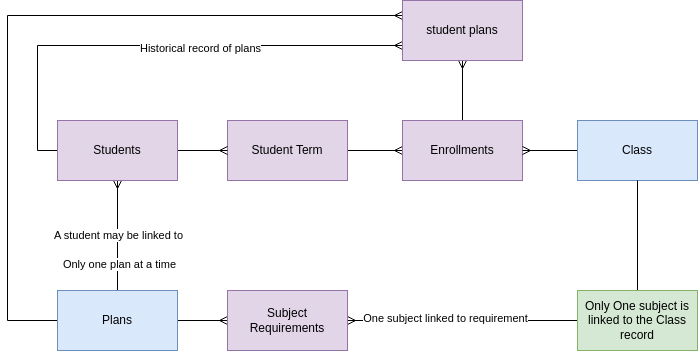
| **List subject requirements for student's current plan\*** | **Required** | **Earned** | **To Go** |
| [Subject Requirement ](https://cs.studianova.org/admin/subjectrequirement): Transcript Name | [Subject Requirement ](https://cs.studianova.org/admin/subjectrequirement): Units required | \*sum units earned for [enrollments ](https://cs.studianova.org/admin/enrollments)with same subject | Required - Earned, use zero if negative number |
| View [GoogleSheet Example Calculations](https://docs.google.com/spreadsheets/d/1mtVqaVWClRSZG9bTI8TkSPrs_d2aHzWQ87NbP9RRWks/edit?usp=sharing) of GPA |
| The [6. Transcript GPA Calculation ](https://bsa.lynops.com/books/personal-education-management-system/page/6-transcript-gpa-calculation) page describes detail on how to make GPA calculations. |
| The [Enrollments Table](https://bsa.lynops.com/books/personal-education-management-system/page/enrollments-table "Enrollments Table") describes the rules to update all the various Grade point fields in the enrollment record. This must be completed in order to run the transcript. |
| The [Student Terms Table](https://bsa.lynops.com/books/personal-education-management-system/page/student-terms-table "Student Terms Table") describes the rules to calculate GPA fields for the student term record. This must be completed in order to run the transcript. |
| The [Transcript UI ](https://bsa.lynops.com/books/personal-education-management-system/page/transcript-ui "Transcript UI")describes how to display Student Terms table GPA calculations as well as the student table GPA calculations on the Transcript. |
| The List of transcript tags to be displayed on the transcript is described in [Programs Table](https://bsa.lynops.com/books/personal-education-management-system/page/programs-table "Programs Table"). |
| The [Marks System](https://bsa.lynops.com/books/personal-education-management-system/page/marks-system "Marks System") table describes how this table is used to allow users to customize the GPA calculations. |
1-MVP | TRANSCRIPT | Victoria to complete data set for plans, link plan to student, create a subject requirement under every plan, and complete Marx matrix so that GPAs may be calculated. - DONE
1-MVP | TRANSCRIPT | Complete all other transcript actions in all other pages of the document - see action item summary for complete list.
1-MVP | TRANSCRIPT | Verify the method of calculating student progress is as described.
1-MVP | TRANSCRIPT| Complete the transcript page.
1-MVP | TRANSCRIPT| Provide a means to export to pdf.
1-MVP | TRANSCRIPT| Add filters to top of transcript to filter for only completed student terms, or include all terms.
### FEEDBACK 11 FEB 2024[Google Sheet Feedback](https://docs.google.com/presentation/d/1f7o0i_BrwRiJxqoUwv4Crv2w-Hq4LyeL1FYaR0xnbjQ/edit?usp=sharing)