Personal Education Management System
PEMS
- As Built
- Overview
- Concept of Operation
- Student Records (SIS) Function
- Programs of Study Function
- Assessment Function
- Teacher Certification Function
- Reference - PEMS Terminology
- Reference - Moodle Terminology
- Platform Strategy
- KEY WorkFlows
- Homeroom
- Homeroom Module Overview
- Homeroom and Proctor Tables
- Groups Table
- Applicants Table
- Suite CRM Integration
- School Module
- Calendar Module
- Programs of Study Module
- Program of Study Concept
- PEMS Programs Module Overview
- Programs Table
- Subject and Subject Requirements Tables
- Classes Table
- Curriculum Table
- Transcript Tag Table
- Templates Table
- Program Planner View
- Assessment Module
- Assessment Module Overview
- Assessment Result Calculations
- Assessment Codes Table
- Marks Matrix
- Competency Assessment Integration
- Teachers Module - TBD
- Students Module
- Student Module Overview
- Students Table
- Student Terms Table
- Student Plan Table
- Enrollments Table
- Business Rules for Student Terms and Enrollments
- Business Rules for Managing Enrollments
- Assessment Results Table
- Student Logins Table
- Student Term Planner UI
- Student Programs UI
- Student Enrollment UI
- Transcript UI
- Functions
- 1. Calendar Functions
- 2. Student Record Intake Functions
- 3. Create Student Term Records
- 4. Programs of Study and Subject Requirements
- 5. Create Set of Enrollment Records - TBD
- 6. Transcript GPA Calculation
- 7. Activate Next Student Plan - TBD
- 8. Groups Function
- 0.Add New Fields - Completed
- Moodle Considerations - NON DEV
- Archive
As Built
Assessment to Enrollment Update
Find the values that need to update the enrollment record
SELECT
assessment_results.students_id,
# grouping by subject ID, so these find the average for all assessment codes with same subject
avg(level_equivalent) as Final_LevelEq_enrollment ,
avg(dapdtterm) as APRate_enrollment,
avg(dapterm) as DAPDT_enrollment,
subjects.name, // why twice?
assessment_codes.subjects_id
FROM assessment_results
left join assessment_codes on assessment_results.assement_codes_id=assessment_codes.id
left join subjects on assessment_codes.subjects_id=subjects.id
left join student_terms on student_terms.id=assessment_results.student_term_id
# '$s..' Injects Assessment code ID, student ID and Term ID (variables passed to this subroutine)
# finds the set of assessment results for a given student, given term, and at final stage of the term.
where assessment_results.students_id=" . $sID . "
and assessment_results.student_term_id=" . $sTermId . "
and assessment_results.stage=266 // term final assessments (stage=266)
# find the set of final assessment results with matching subjects, as defined in the assessment code.
and subjects.id=(
Select subjects_id //filtering results where the id of the subject matches the result of the subquery
from assessment_codes //looks up the subjects_id from the assessment_codes table
where id=" . $sCodeId . " and exclude_results!=1 // sub
limit 1
)
group by assessment_codes.subjects_id, assessment_results.student_term_id;

Assessment Result Sample Data
| Raw Score | Student | Terms | Stage | Assessment Code | Assessmentcode.Subject | Assessmentcode.Exclude | Improvement |
| 540 | 183 | Spring 2025 183 | final | IXL.OP | Math | YES | calculated relative to other assessment records |
| 620 | 183 | Spring 2025 183 | final | IXL.MAT | Math | YES | |
| 530 | 183 | Spring 2025 183 | final | IXL.GRAM | English | YES | |
| 490 | 183 | Spring 2025 183 | final | IXL.VOCAB | English | NO |
Enrollments Sample Data
| Student | Terms | class.units | Class | curriclum.Subject | Curriculum | Average Metics |
| 183 | Spring 2025 183 | 5 | Math 4A | math | Math 5A | from assessment results |
| 183 | Spring 2025 183 | 5 | Math 4A | math | Math 5B | |
| 183 | Spring 2025 183 | 5 | English 4A | english | English 4A | |
| 183 | Spring 2025 183 | 5 | Science 4A | life science | Biology |
Overview
Introduction to the ideas and terminology of PEMS
Concept of Operation
Business Model
The Studia Nova Business Model is unique in the industry in that it encourages third parties to set up physical classroom locations for students to gather while Studia Nova, the private school of record, provides the virtual curriculum and record keeping. At these different locations, students can be any grade level and a single teacher can be trained to manage a mixed group of various grade levels. However, each location can be a separate client, and so it is essential that each location only see the student information pertaining to its own students.
Third parties manage the billing relationship with families and provide student oversight. Student oversight requires third party staff to view student progress on courses in the Learning Management System (LMS). Staff may also elect to grade assignments on the platform in exchange for reduced 'wholesale' prices.
Homeroom
Virtual learning allows families and communities to re-group themselves in unique ways to help students achieve their online learning goals. Read more about One Room School Houses. PEMS is configured to allow third parties to participate in the learning process. A homeroom can be a tutoring club with computers where students come to learn, or a homeroom may be a family with multiple students learning from home.
Enrollment Partner Website (Word Press)
PEMS allows commercial partners to enroll students into the Studia Nova SIS, allowing third parties to act as 'resellers' of Studia Nova private school. The partner is provided a Word Press Website to manage enrollment. Thrid party partners also act a supervisors of the student's learning, ensuring they are completing their courses and providing a basic level of help.
Partners must have access to basic information from the SIS, for example the student's enrollment status. The SIS shares this information with the partner website. Partners may also be provided log-ins to the LMS so that they may review their student's progress on courses.
Families or parents create user accounts on the partner website, then fill out forms to enroll students. Parents pay the partner tuition fees online, then the partner remits payment to Studia Nova. A key aspect of the partner relationship is that Studia Nova does not maintain the billing relationship with the student's guardian.
The flagship partner site is Freedom Library Club.
Learning Management System (Moodle)
Online or virtual courses are created in the popular, open source learning management platform called Moodle. Studia Nova builds courses using a variety of online sources, mostly open source material. The LMS is integrated with Big Blue Button (BBB) for open source video classes. The LMS also has a chat feature where students can chat instructors as needed so that qualified teachers may help students who are working remotely.
Student Information System (Custom Development)
The Student Information System (SIS) is a custom development in PHP on a laravel framework. The most basic functions of the SIS is to maintain student records and transcripts. However the PEMS SIS helps schools plan our sets of course a student must take to achieve their educational object, tracks student assessments, and tracks teacher credential status.
The SIS contains all the functions required to identify the correct courses a student needs to take on the LMS for each academic term, enroll students in those courses, keep historical grades, calculate GPAs, and produce transcripts on demand.
Single Sign On (Key Cloak)
Single Sign On (SSO) allows students to sign on to one software application, then the software manages the student's log in to other applications. PEMS uses Key Cloak for SSO.
eBook Publishing (BookStack App)
BookStack App is used for PEMS documentation. The application is fully searchable to help users find the information they need.
CRM
tbd
Student Records (SIS) Function
Relevant Definitions
A term is the division of the academic year into grading periods. Terms may be semesters or quarters. The term record is a record that indicates the start and end date of each term. Multiple terms are related to academic years. Terms are also related to a Term Label record.
Classes. The name of the Class appears on the student's transcript. Classes are sometimes called courses. However, PEMS does not use the term 'course' in any of its modules. In general, the word 'course' can refer to a specific class, like Algebra 1, or it may also refer to the set of classes that lead to a degree or certificate. For example, "I followed a course at the University in wine making" could mean a series of classes. The world "class" also has a secondary meaning. A student can be in the "second grade class" which would mean all students in a particular classroom. PEMS uses the word class to mean the subject of study for which units are earned, commonly called a course, such as "Algebra I". A class that is a subject of study for units can have different curriculum that fulfill it.
A transcript is a report of completed enrollments. Transcripts are formatted in various ways to use the minimum amount of paper. A transcript shows the classes the student has taken at the school, the grades received and the units earned.
The SIS
The Student Information System (SIS) manages all student records, which includes student biographical information like date-of-birth, and parent phone numbers as well as student academic information like that which appears on the student's transcripts. Moodle has course completion information, but not relate those courses to a specific school term.
A student record is created in the SIS for each student that attends the school. The record is created during the student Intake process.
SIS stores student record for each student.
Transcript
The most important function of the SIS is to provide a student transcript. The transcript shows the classes taken in each term by the student, the grades, and calculates the overall grade point average of the student as well as the term grade point average.
The following image shows a typical transcript document:
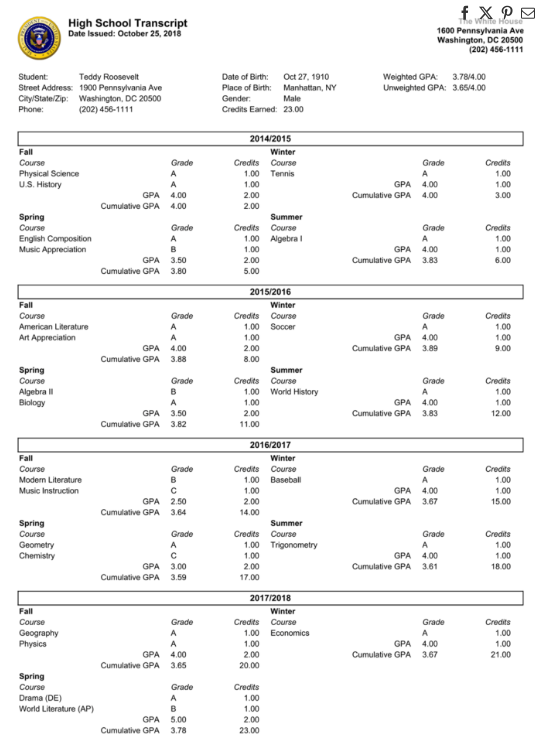
The header contains biographical information. The body of the document shows the specific year and term the classes were taken in and the grade the student achieved. Various Grade-point averages are calculated.
Student Term Records
Student Terms. There is one term record for every term the school operates. A student term record contains student-specific information about how the student performed academically in the term, such as the student's grade point average for that term. All the classes a student takes (enrollment records) are linked to the student term. A student has a term record created for each term they are in attendance.
PEMS develops the information required for the transcript by making a unique record for every grading period (school term) that the student attends the school. A diagram of the data relationship for school terms is shown below:

For each individual student, there are multiple student term records. Each student term record is related to only one (school) term record. However, when all the students are considered, the school term record will be related to multiple student term records, one for each student enrolled in that particular term.
(School) Term Table Example
| Fall 2022 |
| Spring 2023 |
Student Table Example
| Akash |
| Jagdish |
| Ishaan |
Student Term Table Example
| (School) Term | Student | Student Term |
| Fall 2022 | Akash | Fall 2022 Akash |
| Fall 2022 | Jagdish | Fall 2022 Jagdish |
| Fall 2022 | Ishaan | Fall 2022 Ishaan |
| Spring 2023 | Akash | Spring 2023 Akash |
| Spring 2023 | Jagdish | Spring 2023 Jagdish |
| Spring 2023 | Ishaan | Spring 2023 Ishaan |
Enrollments
Students take classes during each term. When a student is enrolled in a class, the record that represents the class that specific student took in that specific term is called the enrollment record. The enrollment record relates the classes a student takes to the student term record. The grades a student achieves, A, B, C, D etc. are recorded in the enrollment records. Class Names, from the related class records appear on the student transcript.

To create the transcript, PEMS creates a report of completed enrollments sorted by student term.
term
|
Terms |
| Fall 2024 |
| Spring 2025 |
student term
|
Term |
Student | student term |
| Fall 2024 |
Akash |
Fall 2024 Akash |
| Spring 2025 |
Akash |
Spring 2025 Akash |
Class List
| Class List |
| English 9A |
| English 9B |
| Indian History 1 |
| Indian History 10 |
| Algebra 1 |
|
Algebra 2 |
Enrollments
| Student Term | Class | At Grade-level (automated-calculation) | Grade (manual entry-Moodle) |
| Fall 2024 Akash |
English 9A |
9 | A |
| Fall 2024 Akash |
Indian History 1 |
9 | B |
| Fall 2024 Akash | Algebra 1 | 9 | A |
| Spring 2025 Akash | English 9B | 9 | C |
| Spring 2025 Akash | Indian History 10 | 9 | A |
| Spring 2025 Akash | Algebra 2 | 9 | F |
Programs of Study Function
Relevant Definitions
Enrollment is the process of signing up for a class. An enrollment record in the PEMS is the class as student takes in a specific term, and stores the student's final grade. The set of completed enrollments is the information displayed on the student's transcript.
Student Terms. There is one term record for every term the school operates. A student term record contains student-specific information about how the student performed academically in the term, such as the student's grade point average for that term. All the classes a student takes (enrollment records) are linked to the student term. A student has a term record created for each term they are in attendance.
Graduation Requirements
Most jurisdictions require students to take a certain number of units and certain types of classes in order to graduate with a degree. These requirements will be collectively called a program of study. Normally, students meet with a counselor, who explains to them the courses they need to take to meet their educational objectives, then it is the student's responsibility to enroll in the courses. The counselor provides oversight and checks the student is on track. This is time intensive and prone to error. In reality, the specific classes a student takes can be pre-determined based on the educational objective.
The image below shows a portion of information generally found on student transcripts:
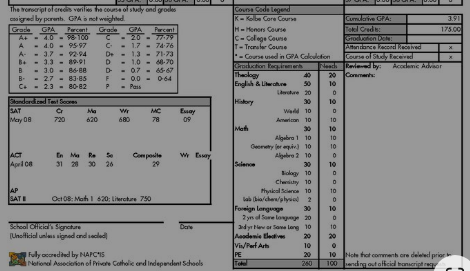
In the graduation requirements block, the units the student has already taken is shown along side the units the student must still take. An unfortunate disadvantage to allowing students to pick their own classes is that they might not meet all the graduation requirements.
Program of Study
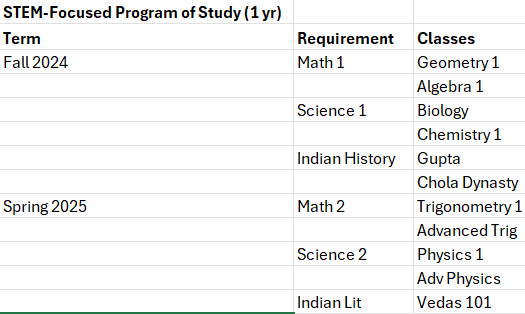
The PEMS was designed to allow administrators to plan out a set of classes (such at Algebra I, World History, English, and so on) that the student will take over a multi-year time frame. Once a student is assigned a plan, there is no need for the student to pick classes every term. The plan itself ensures all requirements and auto-enrollment ensures the student is taking the right courses when they need to. However, plans can be changed and manually adapted as students change their objectives.
The Programs of Study Function provides administrators the ability to pre-plan any number of "programs of study", which are called plans inside of the PEMS. The student can then be assigned a plan, which provides the information needed to auto-enroll the student in classes every term until the plan is complete.
PEMS makes an enrollment record for every required class under the plan, then relates that enrollment record to the future student term records. The status of future enrollments is 'incomplete.' When the student is ready to be enrolled in the class, PEMS auto-enrolls the student in the Moodle Course required for that class. At the end of term, the grade is updated by the course progress in Moodle and if the score is adequate, course credit is granted.
A plan is not just a list of courses required to meet graduation requirements, a plan sets out which class must be taken in which term.
When students are picking and choosing their classes, many technologies are unable to provide an instant assessment on whether the student will complete their graduation requirements. With this approach, at any point in time, a student's enrollment records can be viewed as a whole. And because each record is marked complete/incomplete, one can immediately asses a student's progress towards their academic goals.
In creating a plan instead of picking individual classes, the administrator can ensure that students are meeting their various requirements for graduation. And by enrolling a student in a plan, the administrator ensures the student meets the requirements.
Multiple Plans
There is no limit to the number of plans that may be created. This allows the PEMS to be deployed in a wide variety of educational systems or allow each school to effectively automate a high degree of customization without having to staff counselor roles.
By creating multiple compliant plans, a school can offer a great deal of customization in the program, while ensuring all requirements are met.
Assessment Function
Relevant Definitions
Curriculum generally refers to the books and exercises used by the teacher to further the student's knowledge. In Moodle, the curriculum is a Moodle Course. Any class may be taught with multiple curriculum, or different text books, and so there are multiple Moodle courses that may be used to teach a Class.
The Assessment Function
An assessment checks how a student is performing academically. Assessment in PEMS are used to track how the school's academic program is delivering results. Where many schools simply track the performance level of a student, PEMS tracks performance improvements. PEMS is a system that monitors how the school is functioning in such a way that the school can constantly improve.
Three Contributors to Student Performance
- Curriculum - did the curriculum, or Moodle course, provide a net improvement in academic scores.
- Engagement - did the student complete the course as planned.
- Program - does one set of courses provide better or worse outcomes than another set.
PEMS makes no assumptions about how the three factors above contribute to student academic performance. Certainly these factors are interrelated, a student that engages more in the course will most definitely show greater improvement.
Programs are created in the PEMS as a set of classes the student takes over a few years. Program placement, or the readiness of a student to complete the program is critical to the school's ability to tailor a program to a desired outcome. For example, it is generally believed that taking art classes may stimulate learning in broad areas of study. If this is true, then students will have better program-level outcomes if they are also taking art. Another example is the idea of writing-though-the-curriculum, which is an idea that if a student has writing assignments in every single class, learning outcomes will be superior. If this is true, then a program that focuses on copious writing assignments will produce better results.
Curriculum is created in Moodle and courses may differ in their level of intensity, once course may require more writing, another may only provide auto-graded quizzes. Some classes may have weekly teacher lectures, or weekly teacher check-in sessions. Other classes may require printout and hand writing, or proctored exams. There are a great many differences in curriculum.
Engagement is multifaceted, it includes the grade the student achieved in the course, the total time spent on the course, and how much of the course was completed on time. The environment a student studies in will also affect engagement, does the student do their work largely on campus or at home?
Every school will want to select what assessments matter to their own academic vision. In one school, they may only care about reading comprehension and math levels, in a different school they may prefer to test for spatial reasoning or artistic competence. In selecting what a school tests for, the school is setting the goals that their program will be trying to reach.
Two Assessment Type Metrics
Level Equivalent
Students are assessed for their progress towards acquiring the knowledge and skills of a high school graduate, a student who completed 13 years of schooling. Given enough time and effort, all students can reach this standard. Level equivalent is an approach that assesses if a student is progressing faster or slower towards their graduation. If the student is progressing slower, they are behind their grade level, if the are progressing faster, they are above their grade level. PEMS allows users to define the grade level equivalent for each score. As I understand it, this means that each school head can determine personally what it means to say be at a 6th grade level. Normally, how is the national grade level competency determined. Would most school heads go off a national standard determined by the Department of Education?
PEMS uses hundreds/tens place pattern for its Level Equivalent scoring. The grade level in in the hundred's place, and the month is in the tens place. For example 840 is eight grade 4th month. Withing a grade year, this is a quick visual reference for improvement, 800 compared to 860 represents 6 months of academic progress. Parents and student readily understand this system and it is easy to explain. A student starts a grade at 800, then increased by ten for every month in school. After the ninth month, the student has achieved 890. Then the student takes summer off and starts 9th grade at 900. 890 is the same as 900 under this system. This issue becomes important when calculating grade level differences in grade level achievement in some cases.
Percentile Ranking
Percentile ranking is another method of assessing student performance. With this method, students are ranked against their peers in a larger population, either state-wide or nationally. Traditionally, a student's grade in a course can be considered percentile ranked, for example only 10% of students should receive and A in the class. Percentile Ranked assessments are similar but across a larger population of students. For these types of assessments, PEMS stores a raw score and a percentile rank in the assessment result record.
Competency-Based Standards
Competency based tracking allows students to demonstrate mastery or competency in what they can do. The completion of a end of year essay with a passing grade of an B demonstrates the student can competently write an essay. Competencies may also be used to verify domain knowledge. A student may have a very high level of reading but very little domain knowledge of history for example.
Tracking Competencies allow schools to ensure students meet all their objectives. A student may score very high in reading competency, achieve a B in an English class, but has never turned in a reasonably well written essay. Alternatively, a student may archive a B in History with excellent knowledge of the Roman Empire, but with no domain knowledge of World War II. Good grades may not catch a lack of competency or domain knowledge in areas important the philosophy of the school requires.
When a school develops a competency list, the school is in fact developing their own, independent assessment system. Level Equivalent and Percentile ranking methods of assessment inherently compare the student to the greater world. Competencies are authored by the school itself and reflect the school's own academic standards. When well structured, competency tracking can reduce endless assessment. When a teacher grades an essay at A+, the writing competency is achieved and students do not need to take a writing exam. Regular day-to-day schooling reducing constant testing.
Competency tracking in PEMS is tightly integrated with Moodle. The school will develop a check list of competencies the student should be demonstrating at each grade level or grade span. In order for competency tracking to be effective, the school faces a rather intensive task of tagging activities across all the courses with the competency checklist. When a student passes the activity, they earn the competency.
This whole section is pretty straight-forward and makes sense.
Teacher Certification Function
Certifications
Teacher certifications are complex for any school to track. A teacher may be certified based on the State, subject, or grade level taught. The certification may or may not have an expiration date, and some specific classes may require higher certifications that other classes. Certification records include any process the teacher must go through in order to teach classes. Examples are college degrees, teaching exams, back-ground checks or any other security processes that have an expiration date. It is generally the case that any public funds will not be issued to schools if schools do not ensure teachers are properly certified and those certifications are maintained.
Authorizations
Certifications may be combined to create authorizations and in some cases, one certification may provide multiple authorizations. An authorization is permission to teach a subject or class for a specific grade span. An authorization record is linked to multiple certifications as needed, such as the teacher credential, the Security back-ground check, or the required on-going professional training, so that all the factors that go into 'green-lighting' the teacher to teach that subject are understood.
PEMS tracks teacher authorizations, and provides alerting to expiring credentials which may put the authorization in jeopardy. In this way, the administrator is aware of any concerns with teacher authorizations which can affect legal reporting, accreditation, and funding sources.
This is straightforward and makes sense.
Reference - PEMS Terminology
Letter Mark
Letter Mark. In the US, grades are usually awarded as letters, A, B, C, D and F. There is no grade of E. Other countries use a straight number system with a maximum of ten. It is normal to call letter marks just 'grades' in American English, but this can be confusing as a student's grade is also "kindergarten" or 6th grade. In other countries, this definition of grade is usually called a 'form', like the sixth form. Letter Mark refers the the letter given in the US for overall course scoring.
Grade Points
Grade Points. Because the US uses letter for marks, there needs to be a numerical system in order to determine how the student is doing over all. Grade points are awarded based on the letter grade. For example, 4 points are awarded for an A, 3 for a B, and so on.
Grade Point Average
Grade Point Average (GPA). The Grade Point Average is the unit-weighted average of the student's grades. Each class has a number of units (also called credits) assigned. If a student earns an A in a class worth 5 units, the total points awarded for that class is 5 (units) x 4 (points) = 20 points. For a given term all the points are added, then divided by the total units to arrive at the students GPA. In this example, 20 (total points) / 5 (units) = 4.0 GPA.
Weighted GPA
Weighted GPA. students take more advanced courses, the grade points may be increased. For example, if a student earns a A in an advanced English class of 5 units, the student earns a 5 instead of a 4 for grade points for weighted GPA. The total points for that class is 5 (units) x 5 (points) = 25 points (total). Then divide this by totals (5) for a GPA of 5.0. The higher number of points are used to calculate the student's weighted GPA. Lower number of points (4 instead of 5 points) is used for unweighted GPA.
Academic Years
Academic years are the specific years the school is in operation. Academic years can be defined before the school is in operation. In this case the academic years are used to keep records on classes a student wants to transfer into the school that were taken at other schools prior to enrollment.
Terms
A term is the division of the academic year into grading periods. Terms may be semesters or quarters. The term record is a record that indicates the start and end date of each term. Multiple terms are related to academic years. Terms are also related to a Term Label record.
Term Labels
Term Labels are the names of the terms a school is running, like Spring, Fall, etc. The number of Term Label records indicates the number of terms the school operates. Term Labels indicate if that term is required or optional, like a summer term.
Student Terms
Student Terms. There is one term record for every term the school operates. A student term record contains student-specific information about how the student performed academically in the term, such as the student's grade point average for that term. All the classes a student takes (enrollment records) are linked to the student term. A student has a term record created for each term they are in attendance.
Grade Level
A grade level is the student's year in school, first grade, second grade, third grade and so on. The term 'grade level is used to differentiate between the grade or mark a student received in a class and the year the student is in.
Grade Span
A grade span covers multiple years of school and can be defined by the administrator. A plan can not exceed a grade span. The purpose of defining grade spans is to help set academic goals and gates.
Schools
Schools refer to legal definitions in a jurisdiction of various grade levels. In the US this is Elementary School, grades K through 5, Middle School grades 6 through 8, and high school, grades 9 through 12.
Other Schools
Other Schools are the schools that student attend prior to starting at the school. Other schools will provide transcripts that must in incorporated into the student record. For this reason, each enrollment record on the transcript may be related to an 'other school' to show where the credit was transferred in from.
Classes
Classes. The name of the Class appears on the student's transcript. Classes are sometimes called courses. However, PEMS does not use the term 'course' in any of its modules. In general, the word 'course' can refer to a specific class, like Algebra 1, or it may also refer to the set of classes that lead to a degree or certificate. For example, "I followed a course at the University in wine making" could mean a series of classes. The world "class" also has a secondary meaning. A student can be in the "second grade class" which would mean all students in a particular classroom. PEMS uses the word class to mean the subject of study for which units are earned, commonly called a course, such as "Algebra I". A class that is a subject of study for units can have different curriculum that fulfill it.
Sections
In real life, Sections are a set of students taking a particular class. In a standard brick and mortar school, a sections are like the physical classroom. There may be multiple teachers teaching English 9 in a school, each with their own physical classroom number. There are no traditional sections in the PEMS universe since there is no needs to physically separate students into various classrooms. However, students from multiple learning locations can all be enrolled in the same Moodle Course, and only their own teacher should see their work. So PEMS uses the term groups to refer to a set of students assigned to a specific teacher. In Summary: 1) PEMS does not use the term sections. 2) Instead Moodle uses the term (virtual) groups.
Sections: More important in traditional school as it meant multiple classrooms but same subject. In virtual school, the concept of sections is no longer applicable and groups is used instead.
Groups: Students taking different classes on Moodle, but have the same teacher? Is this is right conception of groups?
Curriculum
Curriculum generally refers to the books and exercises used by the teacher to further the student's knowledge. In Moodle, the curriculum is a Moodle Course. Any class may be taught with multiple curriculum, or different text books, and so there are multiple Moodle courses that may be used to teach a Class.
Course
The term Course is not used in any technical sense in PEMS. Courses are created on the LMS (Moodle) platform for students to take online, but PEMS refers to courses as curriculum. For example, two different English teachers could be teaching English 9, but they assign different books to read. The class is the same as far as the school is concerned, the the material and activities the students turn in are slightly different, the classes use a different curriculum. If the teachers were making their own online courses, the activities would not be the same. Classes may use different Moodle courses to fulfill learning requirements, as they may use different curriculum.
Syllabus
The Syllabus is the outline of what a student will learn in the class our Moodle course. Usually this is handed out the first day of class and informs the students of the learning objectives. In the US, the course syllabus must be submitted to various regulatory organizations to gain approval. In PEMS, the class may have one syllabus, and the Moodle course may have a tailored syllabus for the specific curriculum. The administrator my use both or select one approach.
Subject
Subjects are families of classes. For example, Algebra I, Geometry, and Algebra II are all in the subject of Math. Schools can define any subjects they need, and identify any class as belonging to that subject area. Subjects are mainly used to assist the administration in checking the student is meeting requirements when creating a plan .
| Subject | Class | Course/ Curriculum |
| Indian Literature | Vedas 1A | Samhitas |
| Indian Literature | Vedas 1A | Brahmanas |
Teacher of Record
The Teacher of Record is the 'official teacher' of the student for a specific class, or for multiple classes. Various regulatory agencies require the teach of record to be in possession of certifications and credentials. PEMS is designed for virtual schools and so all Teachers of Record are virtual teachers. The teacher of record is legally responsible to give the student their grades.
Would we require all customers have their teachers be subject to regulatory certifications and credentials that traditional school teachers are subject to?
Enrollment
The term enrollment has two meanings in the USA.
- Enrollment is used to describe the process where a student joins the school
- Enrollment is also used to describe when a student enrolls in a specific class in a specific term
The term "Enrollment Process" will refer to the processes that are triggered with a student decides to come to the school.
The term "enrollments records" will describe the table in the database the keeps information of which classes students are taking in which term.
Enrollment is the process of signing up for a class. An enrollment record in the PEMS is the class as student takes in a specific term, and stores the student's final grade. The set of completed enrollments is the information displayed on the student's transcript.
Transcript
A transcript is a report of completed enrollments. Transcripts are formatted in various ways to use the minimum amount of paper. A transcript shows the classes the student has taken at the school, the grades received and the units earned.
Plans
The plans are sometimes referred to as "Programs of Study." Plans are defined by the administrator as a series of classes taken across all subjects to meet an educational objective or graduation requirements over a grade span. Any number of plans may be developed, and a student may be assigned only one plan at a time. The plan contains the information needed to auto-enroll student in their classes (create enrollment records) in each term covered by the plan.
Plans cannot go past a grade span and a grade span is determined by the administrator.
Templates
Templates are records that specify the sequence of classes to be taken under the plan. One plan will have multiple templates associated to that plan, each representing a class that must be taken to meet the plan's requirements. A template is a model of a student enrollment record. A template record specifies the class name, the corresponding curriculum, and the term the course should be taken in. PEMS copies all the template records associated with the student's plan to create the enrollment records for that plan. Enrollment records are copies of the template records that are associated with a specific student term (who and when).
As I understand it, a student plan can have multiple templates for various ways to achieve that plan? A student plant may have English and Math as a requirement while templates will have the sequences of classes (i.e. Old English, Shakespeare, Kipling) all required to meet the English portion of the plan?
Subject Requirements
Subject requirements are the number of units in total required in a subject area by a regulatory organization. For example, the NCAA may require 4 years of English and 3 years of math. The University of California may require 4 years of English and 4 years of math. The NCAA subject requirement for math is 3 years, the University of California subject requirement for math is 4 years. For University of California, the subject requirement is 4 years, the subject is math. Note: sometimes requirements are described in 'years' of study, sometimes in credits, and sometimes in units.
Subject requirements of different collegiate organizations are important for students who wish to qualify for those colleges and/or certain activities like collegiate athletics or a conservatory.
Compliance Tags
Compliance tags are used to help manage the different requirements of the various regulatory organizations. Not only do the regulatory organizations specify the subject requirements, they also must each approve the course description (syllabus). Students are not allowed to meet the subject requirements with any curriculum, they must meet the requirements with curriculum that has been submitted and approved to the organizations. The student's transcript must then show that the class & curriculum has been approved by the various regulatory organizations. So compliance is a property of the Moodle Course. The Moodle Course list in PEMS is called the curriculum table. There is one record in the curriculum table for each course available in Moodle. PEMS lets the administrator tag certain curriculum records with a compliance tag. If a student takes a class, English 9A, and is enrolled in a specific curriculum, or Moodle Course, the compliance tag from the associated Moodle course will appear on the transcript. Compliance tags are deliberately short to fit on the transcript pages.
Compliance tags populate on transcripts to show what collegiate regulatory body requirements the class has met.
Reference - Moodle Terminology
General Moodle Terminology
Moodle Activity - DLP
A Moodle activity is basically an assignment give to a student where the student receives a grade upon completion. The Moodle "grade book" lists the students scores on all activities.
| Moodle Activity | Gradebook |
| Algebra HW 1 | 100 (A+) |
| Algebra Quiz 1 | 90 (A-) |
Studia Nova refers to an activity as a DLP (Daily Learning Plan) because all activities are developed to be completed in a one-day assginement.
Moodle Course Organization
Moodle Course ID
Moodle Course ID is a unique value assigned to each course developed in Moodle. Any actions triggered between the SIS and Moodle require matching on the Moodle Course ID. In PEMS the Moodle Course ID is stored in the Curriculum table "Code" field.
Moodle Category
Courses are organized into categories in Moodle. Moodle can perform various batch functions on all courses within a category.
Moodle Student Groups
Moodle Groups
In Moodle, Groups are used to break up groups of students enrolled in a course. Moodle can enroll hundreds of students in one course, but the teacher would be overwhelmed to grade all the work. Therefore Moodle provides the group option. When teachers and their students are enrolled in the same group, the teacher only sees their own students. In PEMS, Moodle groups are used to block teachers from seeing students that belong to a different location. However, Moodel groups are not defined at the system level in Moodle, they must be defined in each and every course. In Summary: 1) Moodle uses Groups to hide students enrolled in the same course from other teachers. 2) Both the teacher and the student have to be in the same group. 3) Groups MUST be defined for each and every course, Groups can not be defined at the system level.
| Student | Teacher | Course | Group |
| Akash Singh | Gandhi | Indian Literature 1A | 1 |
| Jagdish Singh | Gandhi | Indian Literature 1A | 1 |
| Ishaan Vaidya | Nehru | Indian Literature 1A | 2 |
| Vivek Rao | Nehru | Indian Literature 1A | 2 |
The groups must be done manually in the course
Moodle Cohorts
In real life, a cohort is a set of students at a specific grade level. All ninth graders in 2023 form a set of students, as they move through the various grade levels, we refer to those 2024 ninth graders as a cohort. In Moodle a cohort is a set of students and a teacher(s). Cohorts are primarily used in Moodle for batch enrollment. For the use case that all students in 4th grade should be enrolled in 4th grade math. In this case a Moodle user would define a cohort of 4th graders, then assign the cohort to a specific course. However, using cohorts for enrollment is not useful in PEMS because each student is following a unique program. The unique program is managed in the SIS. In PEMS, all fourth graders are not enrolled in fourth grade math. However, cohorts are still useful for reporting. So in PEMS, Moodle Cohorts are used to identify a set of students under the supervision of a particular teacher (proctor). In this use case, students can be at any grade level since PEMS is designed for mixed grade-level student management. Unfortunately, Moodle Cohorts can not be used to block a teacher from seeing other student's work who are not in their own cohort. In summary 1) Moodle Cohorts are a set of students and their teachers (proctors) 2) the students in the set can be any grade level 3) Cohorts are useful for reporting 4) All teachers can see all students in any cohort.
All students in one schoolhouse are in a cohort. What is the difference between a group and a cohort? Aren't they both just ways to delineate all the students under a particular teacher?
Moodle Competency Tracking
Moodle Competencies
Moodle competencies are specified in the activity settings, internal to a Moodle course by the course creator. Each activity may be tagged with pre-defined competencies. When the student completes the activity, they earn the competency. The competency list is created in the admin panel.
In the Moodle Competency record, the ID number field uniquely identifies the competency. This field is used for integration with the SIS for tracking competency completion.
Moodle Competency Frameworks
Moodle Competency Frameworks are defined in the admin panel of Moodle. A framework is used only to organize the competencies and flow down settings. A framework can not be assigned to a student, each competency must be added to a template, then that template assigned to a student.
Isn't a template a sequence of courses that fulfill a specific requirement of a plan? I assume based on the above, it includes a list of competencies as well?
Moodle Learning Plans
In Moodle, a student can be assigned a learning plan, which is a group of competencies that may span multiple courses. The student can view their progress towards the learning plan in their profile.
Learning plan includes competencies and classes? Or is this different from student plan?
Moodle Learning Plan Templates
Moodle allows the admin to define Learning Plans, which are sets of competencies. Learning Plan templates are use to assign learning plans in bulk to students. Templates may be assigned to a Cohort of students.
This sounds like learning plan templates are different than student plan templates. Did I understand that correctly?
Platform Strategy

School-In-A-Box
Word Press - Website pre-configured website for online enrollment ans tuition payment.
SuiteCRM - CRM rto drive business and manage communication, contract and documentation workflow.
Asterix PBX - dial from CRM, inter office phone numbers (TBD)
Moodle - LMS pre-configured with all Studia Nova classes, third party subscriptions priced separately but bundled with the solution.
PEMS - fully integrated with Moodle for student Information management.
BookStack App - Pre-configured with required academic documentation for approvals (course syllabus) etc, shared book with master for technical documentation. Accreditation Work Flows, sample contract etc. With custom formatted export from HTML
Keycloak single sign on.
Hosted Solution - IONOS hosted solution, not a customer onsite deployed solution. Includes back ups and email.
Next Cloud - and Only Office - online files and productivity
Accounting System - TBD, multiple open source accounting systems will be evaluated.
KEY WorkFlows
The workflows describe how the user will interact with PEMS. Workflows integrate functions from multiple modules.
New Client On Ramp
| CRM | Enter lead into CRM, assign a unique client ID |
| CRM | Sign Contract and invoice |
| Word Press | Stand up Word Press Site |
| Word Press | Customize Website content with provided graphics. |
| Word Press | Customize forms that go into SIS so they all carry the Unique Client ID |
| Word Press | Client enters proctor information on their website using the provided from - goes into SIS (like student enrollment form). |
| SIS | Proctor information information goes into the 'proctor' table as unapproved |
| Moodle | Once approved, proctor account is created in Moodle |
| Word Press |
Client enters location information on their website using the provided form - |
| SIS | Home room location form is entered into homeroom table as 'unapproved' |
| Word Press | Once approved, then the location is available on the Word Press Site as an enrollment location option. |
New Student Intake
Intake Steps
Intake represents all the steps required to get a student assigned their first courses in Moodle. In PEMS, the HOMEROOM Module is primary used to complete this workflow. However, communication like sending signed contracts to parents and invoicing clients is completed in the CRM module. The PEMS SIS does not provide any capability to store or send (pdf) documents to and from parents or schools. The CRM is used for this function.
The trigger to start the intake process is a parent submitting an enrollment form (gravity form) on the Word Press site. The completion of the process is the assignment of courses in Moodle.
Part A - Parent Submits Form and is Accepted/Rejected into the SIS
Part A is triggered when a parent signs up for an account on a client(facility) Word Press website. The submitted enrollment form is reviewed and updated then accepted or rejected. Part A ends with the parent being prompted to pay tuition to the client (facility).
| Sequence | Application | Module | Description | TEST PLAN | Known Issues |
| 1 | Word Press |
USER Parent makes Account on enrollment website, verified by email |
Sign up for new account, check email received, verify account, check its verified in WP |
Email for new site not configured |
|
| 2 | Word Press | gravity forms | USER Parent logs in and completes form on Word Press Site to enroll student | Complete gravity form | |
| 3 | Word Press | gravity forms | USER Parent signs all legal forms to submit the forms, for both the enrollment client and Studia Nova | ||
| 4 | SIS | HOMEROOM | INTEGRATION - Form is entered into applicants table in the SIS | Check form in SIS | |
| 5 | SIS | HOMEROOM |
USER reviews the form on the dashboard - clicking the form opens the "applicant record" |
|
|
| 5.1 | asterix | USER to validate all information received in form by calling parent (make mobile phone required) | |||
| 5.2 | SIS | HOMEROOM | USER selects correct previous school (other school) in the SIS record. (WP does not have select menu, user types in previous school) | ||
| 5.3 | SIS & CRM | HOMEROOM& CRM Accounts | USER - If other school is not in SIS table, user enters new record and then selects the correct school in the SIS record before accepting the student. See Suite CRM Integration. | ||
| 5.4 | SIS | HOMEROOM | USER selects the correct Homeroom from menu (the parent selects location in the WP gravity form, but the location name in WP may not be exact same as homeroom name, therefore allow the user to select correct name) | ||
| 6 | SIS | HOMEROOM | USER - Accept / reject the Student | Check WP status is approved or disapproved. | |
| 7 | SIS | STUDENT | AUTOMATION - create the student record in SIS from the applicant record. | ||
| 8 | SIS | STUDENT | AUTOMATION - create all the student term records needed for the student until the end of their current grade span. 3. Create Student Term Records | ||
| 9 | Word Press | INTEGRATION - Parent is notified student is accepted, status is changed in the Parent's WP account. | |||
| 10 | Word Press | PayPal integration | USER Parent is able to pay with paypal the client (facility account). |
Part B - Gather Required Documents from Parents or Other Schools - Mainly CRM functions
Trigger - a new opportunity record is made in Suite when the student is accepted in the SIS. This function alerts the CRM user to start getting the required documentation from parents and schools to support the enrollment. Suite is also used to send invoices to the client(facility), ensuring that every students is billed for. Part B ends with a status change to the student record that allows the student to be provided log-ins to Moodle.
| Sequence | Application | Module | Description | TEST PLAN | Known Issues |
| 1 | CRM | INTEGRATION - When the student is accepted, Suite CRM records are created. The parent is a contact record the student is an opportunity . See Suite CRM Integration. | |||
| 2 |
CRM add $$ sig module to SUITE |
(no dev required) |
USER sends Parent an e-sign document to dis enroll student from previous school and enroll in Studia Nova (contract pdf template in Suite) | ||
| 3 | CRM | (no dev required) | USER Once above document is signed, an invoice is sent to the client (facility account) for the new student, and/or notification based on billing terms. | ||
| 4 | CRM | (no dev required) | After the parent esigns the document request, the pdf is emailed to the other school to request transcripts. | ||
| 5 | SIS | STUDENT | USER (or future INTEGRATION) updates the student record as active. | ||
| 6 | SIS | HOMEROOM | USER creates student logins | ||
| 7 | Word Press |
INTEGRATION - Update word press site with student logins so that they may be provided to the proctor who provides them to the student.
Also make the logins known to the parent account in the wordpress site. |
|
|
|
| 8 | SIS | AUTOMATION - Auto-assign the first course that provides students directions on how to use Moodle, and have them complete their initial assessment. |
PART C - Assessment and Course Assignment
Part C intakes the student's initial academic assessment scores and allows the admin user to select the correct program of study based on the student's assessment scores.
| Sequence | Application | Module | Description | TEST PLAN | Known Issues |
| 1 | Moodle or other??? | Students use the Edwiser in Moodle from to self-enter their scores from IXL. Use the Edwiser activity. Or there may be another way to do this. Make the proctor do this?? | |||
| 2 | SIS | USER - Admin reviews assessment data, makes determination on which program to assign. | |||
| 3 | SIS | AUTOMATION - Based on the assigned program, SIS automatically creates the student's enrollments. | |||
| 4 | SIS | INTEGRATION - After review of enrollments, the admin triggers the enrollments in courses in Moodle |
Student Intake UI
PART A - Applicant record to Student Record

PART B & C - Enroll Student in Courses

PART C VIEW P - Assign program:
Show:
- Student Name, grade level, first student term name
- Assessment data history:
Select:
- Program of Study [ programs menue ]
based on the selected program, list template records below:
| term 1 - grade x term x | button | <no student term found> | |
| template 1 | enroll> | create enrollment record based on template | delete/edit |
| template 2 | enroll> | ||
| template 3.. | enroll> | ||
| term 2 grade x term x | student term 1 | ||
| template 1 | enroll> | ||
| template 2 | enroll> | ||
| template 3.. | enroll> | ||
| term 2 grade x term x | student term 2 | ||
| template 1 | enroll> | ||
| template 2 | enroll> | ||
| template 3.. | enroll> | ||
SAVE PROGRAM
- When the user changes the program, change the list on the left side.
- If the user makes enrollment records, then changes the program, always show all enrollment records made on the left side
- Allow the user to delete/edit the enrollment record.
PART B View M - Moodle Enrollment UI - per Student View

- User can click each M button to enroll the student in the courses in Moodle, or the user can enroll on in a batch process.
PART B View M - Moodle Enrollment UI - All Students View
Show same as above but all student enrollments for current term
T - Enter Transcript -TBD
Advancement
Adjust Program of Study
Student Close Out
Homeroom
Home rooms are groups of students and teachers that form a private group in the same Moodle Instance.
Homeroom Module Overview
Relevant Topics
The Studia Nova Business Model is unique in the industry in that it encourages third parties to set up physical classroom locations for students to gather while Studia Nova, the private school of record, provides the virtual curriculum and record keeping. At these different locations, students can be any grade level and a single teacher can be trained to manage a mixed group of various grade levels. However, each location can be a separate client, and so it is essential that each location only see the student information pertaining to its own students.
Virtual learning allows families and communities to re-group themselves in unique ways to help students achieve their online learning goals. Read more about One Room School Houses. PEMS is configured to allow third parties to participate in the learning process. A homeroom can be a tutoring club with computers where students come to learn, or a homeroom may be a family with multiple students learning from home.
Terminology
In real life, a cohort is a set of students at a specific grade level. All ninth graders in 2023 form a set of students, as they move through the various grade levels, we refer to those 2024 ninth graders as a cohort. In Moodle a cohort is a set of students and a teacher(s). Cohorts are primarily used in Moodle for batch enrollment. For the use case that all students in 4th grade should be enrolled in 4th grade math. In this case a Moodle user would define a cohort of 4th graders, then assign the cohort to a specific course. However, using cohorts for enrollment is not useful in PEMS because each student is following a unique program. The unique program is managed in the SIS. In PEMS, all fourth graders are not enrolled in fourth grade math. However, cohorts are still useful for reporting. So in PEMS, Moodle Cohorts are used to identify a set of students under the supervision of a particular teacher (proctor). In this use case, students can be at any grade level since PEMS is designed for mixed grade-level student management. Unfortunately, Moodle Cohorts can not be used to block a teacher from seeing other student's work who are not in their own cohort. In summary 1) Moodle Cohorts are a set of students and their teachers (proctors) 2) the students in the set can be any grade level 3) Cohorts are useful for reporting 4) All teachers can see all students in any cohort.
In real life, Sections are a set of students taking a particular class. In a standard brick and mortar school, a sections are like the physical classroom. There may be multiple teachers teaching English 9 in a school, each with their own physical classroom number. There are no traditional sections in the PEMS universe since there is no needs to physically separate students into various classrooms. However, students from multiple learning locations can all be enrolled in the same Moodle Course, and only their own teacher should see their work. So PEMS uses the term groups to refer to a set of students assigned to a specific teacher. In Summary: 1) PEMS does not use the term sections. 2) Instead Moodle uses the term (virtual) groups.
In Moodle, Groups are used to break up groups of students enrolled in a course. Moodle can enroll hundreds of students in one course, but the teacher would be overwhelmed to grade all the work. Therefore Moodle provides the group option. When teachers and their students are enrolled in the same group, the teacher only sees their own students. In PEMS, Moodle groups are used to block teachers from seeing students that belong to a different location. However, Moodel groups are not defined at the system level in Moodle, they must be defined in each and every course. In Summary: 1) Moodle uses Groups to hide students enrolled in the same course from other teachers. 2) Both the teacher and the student have to be in the same group. 3) Groups MUST be defined for each and every course, Groups can not be defined at the system level.
Enrollment is the process of signing up for a class. An enrollment record in the PEMS is the class as student takes in a specific term, and stores the student's final grade. The set of completed enrollments is the information displayed on the student's transcript.
Why is the text for Relevant Topics and Terminology showing up in that code when it is in editing mode? Not that it's ultimately a big deal.
From the definition, cohorts and groups can be easily confused. They seem to have the same definition.
Problem of teachers being able to see the record of students who aren't in their cohort can be changed manually right? If so, that should be mentioned.
The Homeroom
Homerooms are a group of students under the supervision of a proctor. Homerooms are also Studia Nova's B2B clients. The Freedom Library Club (FLC) is the first homeroom client. Nova Schools is a second client.
An organization, club, or business may have multiple locations, but the client is provided a single recruitment website. Each physical location must identify at least one proctor to supervise the on-site students. Homerooms are the individual locations. the group of students under an identified proctor.
On the partner's enrollment site, prospective students complete an enrollment form. In that enrollment form, the submitter selects a location. This location in the enrollment is considered a homeroom in PEMS. When a club or organization adds new location, a new homeroom record must be added to the PEMS homeroom table.
In summary, homerooms are locations where students gather under the supervision of a proctor. The proctor grades the assignments submitted only by their students.
I'm tracking that proctors can only be assigned to one homeroom, and can review the work of students in their group. Teachers still have more administrative power, and proctors in the definition sound like a version of a TA; helping take load off of teacher.
Proctors
Where teachers are the qualified and certificated individuals that overlook many virtual students, PEMS allows proctors to supervise students and review their work in Moodle, helping to keep students on track. Proctors are not allowed any access to the SIS, but they are provided limited access to Moodle, and in this way, only see the work of their own group of students. Proctors may be volunteers working in a tutoring club setting, or may simple be a home school parent managing their own student's progress. A homeroom can have multiple proctors, but a proctors may only be assigned to one homeroom.
In summary, a proctor should only grade the assignments of their own students. A proctor does not required teacher certifications.
Groups
The Moodle Groups function is the only option to provide the capability to block teachers from seeing students that do not belong to them. Therefore, when the SIS enrolls a student in the Moodle Course, the SIS must have all the information required to create the Moodle Group at the course level, then add that student to the group.
To accomplish this requirement, the SIS has a groups table that mirrors the Moodle Groups. A Moodle course has multiple groups (one group for each homeroom). When a student is enrolled in the course, the student is assign to the group that corresponds to the student's homeroom.
Data Relationships

Note: above diagram shows one to many for proctors to Home rooms - this should be many to many.
The organization is provided a Word Press recruitment website, which allows students to enroll on their branded website. The website may have multiple locations. Each location from all the recruitment websites correspond to one homeroom record.
For every homeroom record there is a corresponding Moodle cohort. A Moodle cohorts do not limit proctors from seeing other student, but Moodle does provide cohort-level reporting, and so reporting for proctors is easier with cohorts.
^Confusing sentence about Moodle cohorts not limiting proctors from seeing other students. Other students from different groups, cohorts?
Each homeroom must have at least one Proctor. A homeroom is allowed multiple proctors, but a proctor may only be assigned to one homeroom.
Students are assigned to only one homeroom, there can be multiple students in a homeroom.
Only the Moodle Groups feature is able to limit which students a proctor can review. Groups must be defined in each and every course. The SIS Group table directly corresponds to Moodle Groups.
For example, a homeroom name might be FLC-Placerville, for a location run by the FLC organization. If there are 40 curriculum records, there will be 40 SIS Group records with the name of FLC-Placerville, but each SIS group record is linked to a unique curriculum record. While the groups and cohorts have the exact same name, they are very different types of records.
Reading up to this point, group vs cohort is still a little confusing for reader.
The SIS creates an enrollment record for each Moodle Course a student takes. With the implementation of the Homeroom Module, each enrollment record has a SIS group record identified. When that student is enrolled in the Moodle course, the enrollment record communicates to Moodle which group to put the student in.
Homeroom Module Workflow
When a new client is on-boarded, homeroom records are created for their launch locations. When they add a location, the client submits a form to the SIS, once approved, a new homeroom record is created.
As the client operates, the client adds and deletes proctors. The client submits a form to add a proctor and when approved, the SIS adds the proctor to the proctor table.
When new students are enrolled into the school, their student record is linked to the homeroom record that is specified in their enrollment form.
When students are assigned their classes, PEMS creates enrollment records in the SIS, one enrollment record for each class they take. The enrollment record specify the curriculum (Moodle Course) and is associated to the student term, which is linked to only one student.
When it is time to enroll students in their Moodle courses, the administrator triggers their enrollment based on their enrollment records. The enrollment record includes the name of the SIS Group, and so the student is assigned to the correct group in Moodle in the correct course.
So students in the same virtual school who are taking different classes can have the same teacher? The students in the same school, but taking different curriculums to fulfill the same requirement would be in different groups but the same cohort?
Action Items JAN 2024
1-MVP | HOMEROOM | Move the 'define groups' table from the school module to the Homeroom module
Homeroom and Proctor Tables
Homeroom Fields
Homeroom Name - the name of the location.
Website code - name that matches how the location is displayed in the partner website.
Homeroom code - an abbreviation for the site that is used to match to Moodle Cohort ID.
CRM Client ID - client ID uniquely identifies the organization that operates the homerooms in the CRM.
Enrollment website - the link to the provided enrollment site.
Proctor Fields
CRM Contact ID - the unique ID record in the CRM for the Proctor.
Contact detail: first. middle, last name, email address, physical address, cell phone number from CRM
Select homeroom - only one may be selected.
CRM Workflow
When a new contract is signed in CRM, an associated homeroom record is created for the client. The client ID is tracked in the homeroom record. As a clients adds or deletes locations contracts are updated and homeroom records are correspondingly updated.
In CRM, proctors are the client's employees, or contacts that are associated to the organizations. The client completes a form on their enrollment website to add a proctor. Once submitted the form creates/updates the CRM. The new contact record in CRM triggers the creation of a proctor record in SIS.
Action Items JAN 2024
1-MVP | HOMEROOM | Proctor and Homeroom tables do not exist yet, make tables in the homeroom module.
Groups Table
Groups Overview
PEMS must provde a means to limit a proctor's access to view other student work in Moodle. In Moodle, this feature in only available using Moodle Groups. Moodle Groups allow teachers (proctors) to see only their assigned students. A Moodle Group needs to be created for each course. Then the students and the teacher are assigned to that group during the enrollment process. If properly implement, a proctor will only see work from students in the same group as them in that particular course.
Using the Moodle interface, this is a tedious and error-prone process so this function will be driven by the SIS enrollment workflow.
In a virtual school, an unlimited number of students may take any online course at anytime. However, the teacher of record is still responsible for grade student work and assign final grades. Too many students in a course can overwhelm any online teacher, especially as some organizations have a requirement for the student to have virtual, synchronous lessons or for the teacher to hold office hours. Group management is used to track and limit the number of students a teacher-of-record must look after.
Data Relationships

Each curriculum record will be associated to multiple groups, as many groups as locations in operation. A location will have multiple student grade levels, any combination of K through 12 students, so the groups are not restricted to any specific grade level.
The groups are related to the homeroom. A group can have only one homeroom.
Each student enrollment records is related to one SIS Group record. Note there is no direct relationship between students, proctors, and Teachers, the relationship is created only through the SIS group record.
As a location (Homeroom) is allowed multiple proctors, multiple proctors need to be associated to the group. There is a many to many relationship between proctors and SIS groups, because multiple proctors review multiple courses.
The proctor does not fulfill the regulatory requirements of the teacher of record. There can be only one teacher of record for any class a student takes, so there is only one teacher of record for a group. The teacher of record may be related to multiple groups (for other classes the teacher teaches). The teacher of record is not related to the curriculum record, the teacher is only related to the SIS group record. In relating the teacher to the group record, SIS can better manage the reporting on which specific students took the course under what teacher.
The number of SIS Group records equals the number of (active) Curriculum records times the number of homerooms (locations.)
Fields
Group Name - Concatenate the Homeroom and Moodle Course ID.
Capacity - the maximum number of students allowed in the group, default to 40.
Action Items JAN 2024
1-MVP | HOMEROOM | Add Many to Many relationship to Proctor to current groups table.
1-MVP | HOMEROOM | Add Select one teacher of record in the group record
1-MVP | HOMEROOM | Add Select one Homeroom in the group- record
1-MVP | HOMEROOM | Add the ability to select one group in the enrollments record.
1-MVP | HOMEROOM | Add the field to indicate the Teacher of Record Authorization Status - options are "clear, unauthorized, expiration risk, temporary authorization" (same as the current sections table which will be deprecated)
1-MVP | HOMEROOM | Deprecate the Sections table in the teacher module, its function is replaced by this group table.
Applicants Table
tbd
1-MVP | HOMEROOM | Add the enrollment data from the word press site to a 'Applicants table' in the homeroom module.
Suite CRM Integration
Suite CRM is used primary to transmit the necessary documentation required to process a student's enrollment. The application is also used to track new 'homeroom' customers, or new businesses that want to open classrooms. Because we want to market the PEMS as a stand alone product, see the Product Marketing Strategy. This integration must be structured as optional.
The approach is used to map the data architecture between PEMS and Suite CRM.

Homeroom (classroom location)
PEMS can enter the homeroom directly when the Suite CRM is not used, but if Suite CRM is implemented, then the homeroom comes from Suite into PEMS.
The master list of homerooms is managed in PEMS. However, the homeroom record first enters the software universe through Suite CRM because a homeroom is a potential client of the School.
The homeroom is an opportunity record with type = homeroom. The opportunity record represents a classroom location linked to an account record with type = facility. A facility can run multiple homerooms, or multiple opportunity records.


The homeroom record is created in PEMS when an opportunity record with type = "homeroom" is closed.
Proctor
There is little need to have the proctors in the Suite CRM. Proctors are employees of the facilities. However a proctor can be an a one-person operation that is both the client and the employee, operating as a small business.
Proctors need to be in PEMS because they must be added to the Moodle Groups in order to view only their assigned students. Like homerooms, proctors begin as records in Suite CRM, if a CRM is being used.
However, a proctor is an account record with contact PEMS type = Proctor.
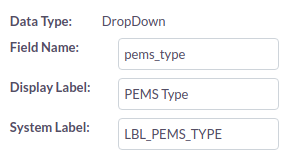

A proctor is a contact record that should be linked to the homeroom opportunity record and the facility account record. When the opportunity is closed, the proctor record should be made in PEMS.
When a new proctor is added to the closed opportunity record for the homeroom, the proctor is added to PEMS.
If the proctor contact record which is linked to the closed opportunity record for the homeroom is deleted, de-linked, in Suite CRM, the status of the proctor is updated in PEMS. (status fields are TBD).
Student (Enrollment)
PEMS sends the information from an enrolled student to Suite CRM. Student leads go into PEMS from the website, but untill the student is accepted, there is to transmission of information to Suite CRM.
Opportunities records in Suite CRM represent student enrollments in PEMS. They are created only after the enrollment form submitted on the website.
Student Name > Opportunity Name
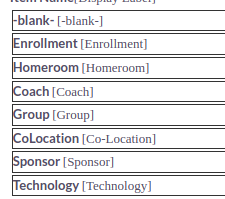
The opportunity type for a student enrollment being entered from PEMS is "Enrollment." The opportunity TYPE field and options are shown below:

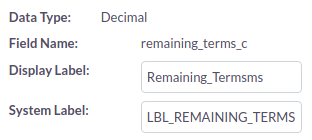
The remaining terms is imported in to Suite CRM so that the total revenue from the enrollment may be calculated. The customer field "Remaining Terms" has been created in Suite CRM.
Parents are contacts in SuiteCRM, so when a new student is entered from PEMS into Suite, the primary parent in only created if a contact record is not found.
Other Schools (Previous School)
In order to create an esign pdf from SuiteCRM, the previous school must also be an account record in Suite CRM. A contract record is created that is linked to the previous school account, the parent contact, and the student opportunity. From this contract, the data in the records request can be entered into the merge pdf.
The list of Previous Schools (Other Schools) in PEMS must be synchronized with the set of Account records that are type of registrars.
PEMS is to be sold as an add-on module to Moodle, and it should not require a CRM to function. Therefore, the list of previous schools must be self-contained in PEMS. When the student is accepted in PEMS, the user must select the correct name from the other schools table based on the text field completed in the enrollment form. The other school record must be entered in the enrollment process in PEMS before the student may be accepted.
When the SuiteCRM integration point is implemented, when every and opportunity record is created for a new student record, then the new other school must also be created as an account record with type = "Registrar". If the record exists already in Suite CRM, then no new other school record will be created.
The following fields are in the PEMS for other schools and should be mapped into the respective SuiteCRM fields.
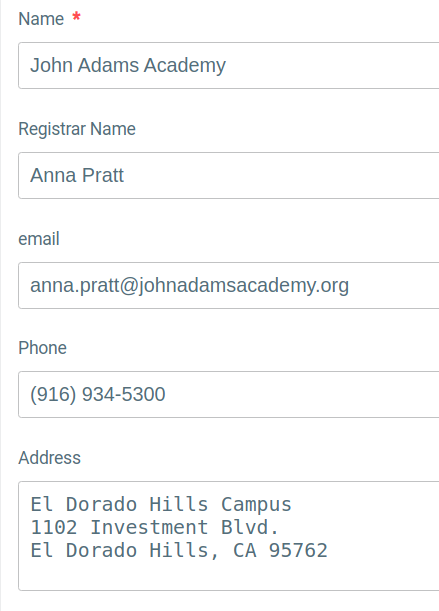
The Name is mapped to the Suite CRM Account Name.
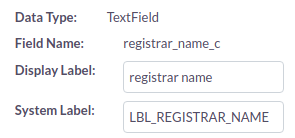
The Registrar name is mapped to the Suite CRM custom text field "Registrar Name"
The address is mapped to SuiteCRM Shipping address.
The email is added as the primary email (email1).
School Module
Building your school to reflect your mission and vision
Schools
Definitions
Schools refer to legal definitions in a jurisdiction of various grade levels. In the US this is Elementary School, grades K through 5, Middle School grades 6 through 8, and high school, grades 9 through 12.
A grade level is the student's year in school, first grade, second grade, third grade and so on. The term 'grade level is used to differentiate between the grade or mark a student received in a class and the year the student is in.
Schools Table
A "School" is a span of grade levels. The schools table is a list of the names of the various jurisdictional schools in a region. There are no additional fields in this table as the other data entities use this primarily as a reference.
To customize the PEMS, the administrator edits the list of schools. Out of the Box, the solution comes with Elementary, Middle, and High School defined.
Term Labels
Relevant Definitions
Term Labels are the names of the terms a school is running, like Spring, Fall, etc. The number of Term Label records indicates the number of terms the school operates. Term Labels indicate if that term is required or optional, like a summer term.
Term Label Table
The term label table contains a record for each term the school operates. If a school operates two terms, the Fall and Spring Semester, then the Term Label table contains only two records. To operate a summer term, the school can add another term label record.
If a school operates on a quarter system, the administrator will create 4 term label records. There is no configuration of 'semester system' or 'quarter system', there is only the number of records in the term label table.
Term label records are generalized without a specific start or end date, they linked to every actual term record to give the term its name and configuration parameters.
Fields
There is no automation for entering Term label records, the user manually sets all data.
The name field is the general name for the term, usually aligned with the season, such as Fall, Spring, Winter, etc.
Sometimes a letter is also used to refer to the sequence of terms in a school year, like semester A or B, and C if on the quarter system.
The sequence field specifies the order of the terms, Fall would be 1, Spring would be 2, and so on.
The term may be optional or required, for example summer term is usually an optional term while Fall and Spring are mandatory.
An active/deactivated field is provided so that the administrator does not have to delete terms to remove them from the planning processes.
Start month and end month are fields the user specifies to indicate the month the term usually starts/ends in. Start day and end day are the fields the user specified to indicate the day the term usually starts/ends in.
Connection to other Modules
The Calendar Module calculates the number of school days in a term. The Excluded days field allows the user to specify which regular days of the week should not be counted as a school day.
The Programs of Study Function uses information from the term label table to determine in which student term the student should be enrolled in the planned classes.
The Flag field notes if the term starts an academic year or ends and academic year.
End in same year - this radio button field is used to indicate if the term runs over the New Year, for example the Fall term may start in September of 2020 but end in January 2021.
The Assessment Function relates student assessment results to the actual test date. If the actual test date is within a term, then then the function relates the assessment result to that term.
The Assessment Window field allows the administrator to specific a window of time that would mark a type of assessment as 'beginning of term' or 'end of term.' For example if the window is 2 weeks, then the assessment dates that fall within a two-week window of the actual term start date are marked 'beginning of term' results.
Action Items JAN 2024
|4-MVP | ADVANCEMENT | Excluded days multi-select (for recurring weekend days) does not allow the user to select options that are not listed one after the other. User must be able to make any selection of combination of days.
Grade Levels
Relevant Definitions
A grade level is the student's year in school, first grade, second grade, third grade and so on. The term 'grade level is used to differentiate between the grade or mark a student received in a class and the year the student is in.
A grade span covers multiple years of school and can be defined by the administrator. A plan can not exceed a grade span. The purpose of defining grade spans is to help set academic goals and gates.
Grade Level Table and Fields
Grade levels are specified by creating records for the grade levels the school teaches. The records have a name, which could be "sixth" or "6th" or any user-entered name. The user must also assign a grade level number, such as 6 for the 6th grade, The records are sequenced to know which grade comes before which so that the name does not have to reflect the order of the grade levels.
The grade span of a grade level is determined from the grade span table, which indicates the start and end grade of the span. This is completed through automation.
Action Items JAN 2024
3-MVP | INTAKE | Confirm that the Grade Span Field in the Grade level table is being done by automation.
Grade Spans
Relevant definitions
A grade span covers multiple years of school and can be defined by the administrator. A plan can not exceed a grade span. The purpose of defining grade spans is to help set academic goals and gates.
Student Terms. There is one term record for every term the school operates. A student term record contains student-specific information about how the student performed academically in the term, such as the student's grade point average for that term. All the classes a student takes (enrollment records) are linked to the student term. A student has a term record created for each term they are in attendance.
Schools refer to legal definitions in a jurisdiction of various grade levels. In the US this is Elementary School, grades K through 5, Middle School grades 6 through 8, and high school, grades 9 through 12.
Grade Span Table
The grade span is used as a planning horizon for students. PEMS aims to automate enrollment in courses by assignment of a Program of Study. A program of study can not exceed the student's grade span.
Based on the student's grade level, the student is associated with only one grade span. Based on the grade span, PEMS creates past, current, and future school terms. PEMS does not create all future school terms for the student until graduation, but only until the end of the assigned grade span. These future term records are required in order to create future enrollment records for future classes.
Grade spans should not run over the end of a 'school' If an elementary school is defined as K6, and middle school defined as 6-8, then a grade span should not run from grade 4 to grade 6. Grade spans are subgroups of schools, or may be the exact same length of time as a school.
Fields
Grade Span name - any name the user would like to call the grade span.
Start grade and end grade are entered by the user. Based on the term label records, the user will specific the number of terms in the span. Only required terms should be entered in this field as other parts of the PEMS expects this value to exclude optional terms.
The school is selected as a drop down menu based on the records defined in the school table. There can be multiple grade spans per school, but there can only be one school per grade span.
Marks System
Relevant Definitions
Letter Mark. In the US, grades are usually awarded as letters, A, B, C, D and F. There is no grade of E. Other countries use a straight number system with a maximum of ten. It is normal to call letter marks just 'grades' in American English, but this can be confusing as a student's grade is also "kindergarten" or 6th grade. In other countries, this definition of grade is usually called a 'form', like the sixth form. Letter Mark refers the the letter given in the US for overall course scoring.
Grade Points. Because the US uses letter for marks, there needs to be a numerical system in order to determine how the student is doing over all. Grade points are awarded based on the letter grade. For example, 4 points are awarded for an A, 3 for a B, and so on.
Weighted GPA. students take more advanced courses, the grade points may be increased. For example, if a student earns a A in an advanced English class of 5 units, the student earns a 5 instead of a 4 for grade points for weighted GPA. The total points for that class is 5 (units) x 5 (points) = 25 points (total). Then divide this by totals (5) for a GPA of 5.0. The higher number of points are used to calculate the student's weighted GPA. Lower number of points (4 instead of 5 points) is used for unweighted GPA.
Marks System Table
The marks system table is used to configure the schools grading system. A record is entered for each type of mark (grade) that may be given to a student. If student are received and A-, the A- must be defined as well as the A. For each letter grade, the user must specify the grade points to be assigned for the letter grade.
If the school is not using letter grades and is on the 1-10 system, then 10 records must be defined. If the school is using a numerical system that include 9.5 for example, then a record of 9.5 must be created.
Fields
Letter Mark - letters grade like those used in the US system
Grade Points - numerical grades used, corresponding to letter grades if US or just numbers if international.
Weighted Grade Points - if the class is advanced and a letter grade assigned, the weighted grade points would be the additional points allowed for the advanced class, which is almost always plus 1.
Alternate Grade Points - grade points in the event a different grading system is used
Alternate Weighted Grade Points - alternate weighting if a different grade system is used.
Action Items JAN 2024
| CLEANUP | Spelling error "Alternet" is spelled Alternate
Next Version
Add an association of the marks system records to the school, so that marks systems may be defined for each school
Other Schools - TBD
In PEMS, the term "schools" refers to the general grade levels like elementary school, middle school, and high school. "Other Schools" are the schools where students transferred in from or transfers to. There is a need to maintain the contact information to request transcripts or to forward transcripts and other student records.
A key part of the student intake process is to email an document that has been electronically signed by the student's legal guardian to the other school's registrar email address. Students are not dis-enrolled from their previous school unless the current school sends this request.
Fields
The user enters the official school name. A school has a 'registrar' which is an individual person who is identified as responsible from student records. The email of the registrar will be where the student records request is sent. The physical address is where the student records are forward to.
Action Items JAN 2023 - update actions after CRM
When the enrollment form is received from the external website to the SIS dashboard, the form contains a typed-in name for the previous school. When the enrollment form is approved, the user should link the student to the other schools record as the student's previous school. If the record in not in the other schools table, then the user should add the record during the student's intake.
The workflow to automate emailing the electronically signed document needs to be addressed. The third party website can collect a esigned form, but the specific school name and registrar email is maintained in the SIS. When the previsous school is determined from the typed-in other school name, the form from the third party website needs to be sent to the associated registrar email from Studia Nova.
See Page 4 of Enrollment Workflow Specification
Calendar Module
Academic Years Table
Calendar Module Data Relationship

Academic Years Table
An Academic Year record represents a single year the school is in operation. It has a calendar start date and end date. There is one record for each year in operation. The Programs of Study module requires sufficient academic year records to plan out the courses students will take until they graduate.
When a student transfers into Studia Nova, the student's previous records need to be articulated, which means the process that one school goes through to award credit to the student for taking classes at another school. Therefore, there needs to be sufficient past academic years so that any new student's previous classes can be entered in the year they took them.
Future academic years are required.
Past academic years are required.
Academic Years have a status field with options of past, future, or current. Also, based on the total number of vacations days, the academic year record calculates the total days in the academic year. This is important since there are many regulations that specify the total number of days in an academic year.
Fields
- The user enters year name, start year, end year, start date, end date, and sequence.
- PEMS calculates school days, vacation days.
- PEMS updates the status of the year based on the calendar.
Action Items JAN 2024
4-MVP | ADVANCEMENT | Automatically create a new academic year record on the promotion date (school configuration variable)
4-MVP | ADVANCEMENT | Automatically update current and next academic year status.
| Calendar Functions | Not started |
1.0 Calculate field Values for Calendar Tables |
| Purpose | After the user enters vacation days, and configures start dated, PEMS calculates the number of days in a term. | |
| Trigger | Recalculate anytime there is a change to any records used to make these calculations upon save | |
| Conditions | Initial configuration was completed. | |
| Sequence |
These functions may be run anytime there is a new school term record. need some way to limit how many times this is recalculated. |
|
| Step 1 |
For each new School Term record, calculate the number of calendar days between the start and end dates, excluding the days specified in the associated Term Label record. Enter result in School Term calendar days. |
|
| Step 2 | For each School Term, count the number of associated Vacation Days records with status = activated. | |
| Step 3 | Calculate School Term school days by subtracting the number of vacation days found above from the school days, enter as School Term calendar days | |
| Step 4 | Academic Year school days is the sum of the associated School Term school days. | |
| Step 5 | Academic Year calendar days is the sum of the associated School Term calendar days. | |
| END |
Terms Table
Relevent Topics
A term is the division of the academic year into grading periods. Terms may be semesters or quarters. The term record is a record that indicates the start and end date of each term. Multiple terms are related to academic years. Terms are also related to a Term Label record.
Term Labels are the names of the terms a school is running, like Spring, Fall, etc. The number of Term Label records indicates the number of terms the school operates. Term Labels indicate if that term is required or optional, like a summer term.
School Terms (Terms)
Academic terms may be semester, quarters, or any division that the school determines to break up a grading period of the academic year. A record is required for every term the school operates, and for past academic years in order to properly enter the a transfer student's transcripts.
Every class a student takes in taken is a specific academic term. Academic terms are related to the academic years, so they can not be created if there is no academic year in the system.
In manual operation, The user links the term record to an academic year record by selecting the record. PEMS will implement automation so that school term records are auto-created.
School Terms Actual Start/End Dates
The user specifies a start date and end date for every academic year. In the term label record, the user specifies the general day and month that each term is starts and ends. Based on this information term school records are created. After these school term records are created, the user can adjust the specific days of each school term. Future records that have not been updated are considered estimated start days.
Data Relationships

The term record is related to a term label record. A term label record stores the name of the term, fall, spring and the attributes common to all terms.
Fields
Start year, end year are the same as the academic year the term is related to, auto-entered by PEMS.
The start date and end date mark the actual dates the term starts and end. When new term records are automatically created The start date of the first term of the year is the same as the start date of the related academic year.
Using the term label record and the year of the term start date, the PEMS concatenates the Term name, "Fall 2020"
The ordinate is user-entered and is the order the terms take place in aggregate.
Calendar days and school days are calculated based on the vacation day records.
Flag is inherited from the term label record and is needed to help PEMS determine if the term is the first term of the year or the last term of the year. This is used in other algorithms in PEMS.
Action items JAN 2024
4-MVP | ADVANCEMENT| Auto-create term records every time a new academic year record is created per 1.3 Automatically Create School Term Records
| Calendar Functions | Not started |
1.2 Automatically Update Status of Academic Years. |
| Purpose | Academic Year records have a status of current, past, or future, update the status of the records automatically when the user-defined promotion date has been reached. | |
| Trigger | Managed by the Promotion WorkFlow | |
| Conditions | There can be only one current year. | |
| Sequence | This step is best triggered after the next future record has been made and in accordance with the PROMOTION workflow. | |
| Step 1 | Set previous current academic year status to 'past' | |
| Step 2 | Set next year, based on ordinate to current. | |
| END |
Vacation Days Table
A Vacation Day record is made for each and every day that school is not in session during any term the school is in operation. Vacation days are not events with a start date and end date, they are specific days. For example, the Christmas holiday may be one school break, but there may be up to ten regular school days not in session, so this required ten records to be entered.
A vacation day record is created for all reasons that school is not in session, having no bearing on why.
Week ends of days that school is not normally in session do not need to be entered as vacation days.
Fields
Day - user enters the date of the vacation day.
Status - user selects activated or deactivated. This status allows users to turn off vacation days in the planning process with out deleting the information.
Occasion - user provides a description of why the day is off, such as thanks giving, etc.
Term - the vacation day to the term in which the vacation takes place.
Action Items JAN 2024
4-MVP | ADVANCEMENT | First, Victoria to enter vacation day records, there is no data in the system to perform calculations.
4-MVP | ADVANCEMENT | Related the school term to the vacation day record automatically based on its date and term dates.
4-MVP | ADVANCEMENT | Status - set default to 'activated'
Next Version
Occasion - change from text enter field to drop down list so that days associated with an occasion may be grouped.
Upload a spreadsheet of Federal Holidays and/or update from an online database.
Create a calendar view like outlook to create vacation day records.
Programs of Study Module
Program of Study Concept
The image below shows a program of study, typically laid out in a Word Table. This program of study plans out the classes a student needs to take to earn a high school diploma and be prepared to take science and engineering classes in College.
In the left, grey-colored column are the subjects. For each subject, a number of units of course work are required. Units are also called credits and are assigned to each course. Sometimes these requirements are just describes as "years" of a subject. Across the header row are the years of study. High School is a 4-year degree, starting with 9th grade. Each year is broken in to two terms, or grading periods. The specific classes the student must take are shown in the rows as green or blue blocks. This table is able to show in which term the class must be taken, as many classes have a sequence. The planning process aims to distribute the work load rather evenly over the multiple years.
Above each row where the classes are shown is the text description of the requirements. For example, the "a-g" requirement is 4 years of English and the "NCAA" requirement is 4 years of English. "a-g" is a short way to describe college entrance requirements, and NCAA is a short way to describe college sports league requirements. In the US there are multiple organizations that establish high school graduation requirements that are above and beyond what is established by the jurisdiction. Depending on a student's future college or career plan, their high school degree must be able to meet their specific needs. One student may not need to meet any of theses requirements if they are not planning to go to college, another may need to only meet "a-g" if they are planning to go to college but not play sports, another may need to also meet NCAA if they want to go to college and play sports.
The complexity of meeting these requirements for each individual student falls to the school counselors. School counselors meet with students individually, understand the objectives, and help them plan their classes. Then the student selects their courses for the term. The counselor must then monitor compliance, ensuring students are completing to the plan. This is very labor intensive. PEMS is designed to automate these processes and reduce the need for the school counselors.

PEMS Programs Module Overview
Relevant Definitions
Classes. The name of the Class appears on the student's transcript. Classes are sometimes called courses. However, PEMS does not use the term 'course' in any of its modules. In general, the word 'course' can refer to a specific class, like Algebra 1, or it may also refer to the set of classes that lead to a degree or certificate. For example, "I followed a course at the University in wine making" could mean a series of classes. The world "class" also has a secondary meaning. A student can be in the "second grade class" which would mean all students in a particular classroom. PEMS uses the word class to mean the subject of study for which units are earned, commonly called a course, such as "Algebra I". A class that is a subject of study for units can have different curriculum that fulfill it.
Curriculum generally refers to the books and exercises used by the teacher to further the student's knowledge. In Moodle, the curriculum is a Moodle Course. Any class may be taught with multiple curriculum, or different text books, and so there are multiple Moodle courses that may be used to teach a Class.
Subjects are families of classes. For example, Algebra I, Geometry, and Algebra II are all in the subject of Math. Schools can define any subjects they need, and identify any class as belonging to that subject area. Subjects are mainly used to assist the administration in checking the student is meeting requirements when creating a plan .
A transcript is a report of completed enrollments. Transcripts are formatted in various ways to use the minimum amount of paper. A transcript shows the classes the student has taken at the school, the grades received and the units earned.
The plans are sometimes referred to as "Programs of Study." Plans are defined by the administrator as a series of classes taken across all subjects to meet an educational objective or graduation requirements over a grade span. Any number of plans may be developed, and a student may be assigned only one plan at a time. The plan contains the information needed to auto-enroll student in their classes (create enrollment records) in each term covered by the plan.
Term Labels are the names of the terms a school is running, like Spring, Fall, etc. The number of Term Label records indicates the number of terms the school operates. Term Labels indicate if that term is required or optional, like a summer term.
Enrollment is the process of signing up for a class. An enrollment record in the PEMS is the class as student takes in a specific term, and stores the student's final grade. The set of completed enrollments is the information displayed on the student's transcript.
Specific Definitions for the Programs of Study Module
Templates are records that specify the sequence of classes to be taken under the plan. One plan will have multiple templates associated to that plan, each representing a class that must be taken to meet the plan's requirements. A template is a model of a student enrollment record. A template record specifies the class name, the corresponding curriculum, and the term the course should be taken in. PEMS copies all the template records associated with the student's plan to create the enrollment records for that plan. Enrollment records are copies of the template records that are associated with a specific student term (who and when).
Subject requirements are the number of units in total required in a subject area by a regulatory organization. For example, the NCAA may require 4 years of English and 3 years of math. The University of California may require 4 years of English and 4 years of math. The NCAA subject requirement for math is 3 years, the University of California subject requirement for math is 4 years. For University of California, the subject requirement is 4 years, the subject is math. Note: sometimes requirements are described in 'years' of study, sometimes in credits, and sometimes in units.
Compliance tags are used to help manage the different requirements of the various regulatory organizations. Not only do the regulatory organizations specify the subject requirements, they also must each approve the course description (syllabus). Students are not allowed to meet the subject requirements with any curriculum, they must meet the requirements with curriculum that has been submitted and approved to the organizations. The student's transcript must then show that the class & curriculum has been approved by the various regulatory organizations. So compliance is a property of the Moodle Course. The Moodle Course list in PEMS is called the curriculum table. There is one record in the curriculum table for each course available in Moodle. PEMS lets the administrator tag certain curriculum records with a compliance tag. If a student takes a class, English 9A, and is enrolled in a specific curriculum, or Moodle Course, the compliance tag from the associated Moodle course will appear on the transcript. Compliance tags are deliberately short to fit on the transcript pages.
Data Relationships

The diagram above shows the relationships for just one plan. A plan will have multiple subject requirements, the number of classes that must be taken in a subject area.
Templates contain information needed for auto-enrollment
The user creates a Plan record, then adds template records to the plan. The template records contains all the information needed to auto-enroll the student in the correct Moodle Course at the right time while ensuring the student's transcript reflects the correct classes. Each template record is also related to one term label record. This information is used to know in which term of the academic year the student should be enrolled in the Moodle Course, and in which term the corresponding class appears on the student's transcript.
- A template record relates the class that appears on the transcript, "English 9A" to the Curriculum list (Moodle Course), "American Literature".
- The class record contains the number of units required for that class, and so the transcript record 'knows' how many units the class has.
- The class is related to one subject, so the template 'knows' the subject of the class.
- The template record is related to one term label record, so the template knows in which term the student should take the class.
Templates contain information needed to determine compliance with the plan
Each template is related to one just class, which is related to just one subject. The template is related to one subject requirement record. The units associated with the set of template records all with the same subject requirement tell us how many of the required units are in the plan. PEMS determines if there are enough classes to meet the requirements of the plan.
Template records create a 'model enrollment' profile for a student according to a specific plan. The student chooses the plan, the model enrollment records (templates) are used to create the student's actual enrollment records.
Programs Table
The Program of Study Table contains the plan records. There can be any number of plans created in PEMS, however none of the plans allow any selection of classes. For example, to enter University of California, students need to follow the "a-g" plan, with a specific list of classes that must be taken. The University does not care if the foreign language requirement is met with a course of Spanish or French. Two plans must be create, one that enrolls the student in the Spanish option,, and one that enrolls the student in the French option, with all other classes the same.
Plans can not be associated with any specific academic year or term. So the plan specified what grade year / grade level the student begins the plan, for example, the plan begins in 9th grade and is completed in the 12th grade. Each plan must be linked to only one grade span, and the plan can not exceed the grade span.
When defining the grade spans, schools must consider the maximum duration of a plan. For high school, many plans are 4-year plans as the student has all 4 years to meet the requirements. So the grade span for high school must be 4 years.
Plans are tagged with the same compliance tags as the individual curriculum records. If all approved courses are taken the plan should meet all compliance requirements.
Data Relationships

Fields
Build status shows whether the administrator has completed building and quality controlling the plan. The administrator will want to ensure all courses are approved and completed in the LMS before marking the plan published. The plan should not be available for selection or assignment is not published.
Start and end grade - numeric values of the grade levels where the plan begins and ends. For example a high school plan begins at grade 9 and ends at grade 12.
Total Terms - the total terms under the plan, which would default to the total number of required school terms. The administrator can edit the total terms to include optional summer terms. Once summer terms are added to the plan, they are no longer optional for the student in order to be compliant with the plan.
Max Classes - the total number of classes as student may take in this plan. Some schools limit workload. If to many classes are assigned to the plan, the user interface is meant to reflect the maximum has been reached.
The Units Planned is the total sum of units so far added to the plan via template records (units are in the class associated with the template record).
The Units Required is the units the plan requires. Plans may exceed the number of units required by the various regulatory agencies, but the units planned is less than the units required, the user interfaces should alert the administrator.
Action Items JAN 2024
3-MVP | INTAKE | No logic to filter for only published plans has been specified in any of the user interfaces.
NV | PLAN UI | Max classes is not operational in any user interface.
NV | PLAN UI | Units planned and units required is not operational .
Subject and Subject Requirements Tables
Subjects | Subject Requirements
Relevant Definitions
Subjects are families of classes. For example, Algebra I, Geometry, and Algebra II are all in the subject of Math. Schools can define any subjects they need, and identify any class as belonging to that subject area. Subjects are mainly used to assist the administration in checking the student is meeting requirements when creating a plan .
Subject requirements are the number of units in total required in a subject area by a regulatory organization. For example, the NCAA may require 4 years of English and 3 years of math. The University of California may require 4 years of English and 4 years of math. The NCAA subject requirement for math is 3 years, the University of California subject requirement for math is 4 years. For University of California, the subject requirement is 4 years, the subject is math. Note: sometimes requirements are described in 'years' of study, sometimes in credits, and sometimes in units.
Templates are records that specify the sequence of classes to be taken under the plan. One plan will have multiple templates associated to that plan, each representing a class that must be taken to meet the plan's requirements. A template is a model of a student enrollment record. A template record specifies the class name, the corresponding curriculum, and the term the course should be taken in. PEMS copies all the template records associated with the student's plan to create the enrollment records for that plan. Enrollment records are copies of the template records that are associated with a specific student term (who and when).
Data Relationships

Note that subjects are not associated directly with plans. The subject requirement is the table that links the various subject to the plan and also specifies the number of units in that subject the plan requires.
The template records are linked to the subject requirements when the subject requirement is selected in the template record. The number of units in the template's associated class record contributes to the total required in the subject requirement record. It will take multiple templates to complete a subject requirement.
Subjects Table
The subjects table has only the name field. The administrator can enter unlimited subjects. However, a class record may only be linked to one subject record. Curriculum records are not linked to subject records. A curriculum may be used to fulfill different subjects depending on the plan.
Use Case | Environmental Science - one class may fulfill two different subject requirements
For example, Environmental Science may be frequently used to meet the Biological Science requirement or the Physical Science requirement, but not both. There would be two class records. One called Environmental Science that is linked to the subject of biology and another that is linked to the subject of physical science. However there is just one Moodle course, so there is just one curriculum record. The curriculum therefore does not specify a subject, and is not related to subject records.
Subject Requirements Table
The subjects requirement table specifies how many units must be completed under the plan in a particular subject area. Subject requirements are related to only one plan. A Template record fulfills a subject requirement, so it may be related to only one plan.
Note: The use case where a template was able to fulfill multiple subject requirements has been deprecated as it is marginal and there are other ways to address this situation.
See Templates Table:
A student may take an elective course to satisfy both science requirements and elective total units. For example, programming is not required, this course may be used to satisfy science requirements, but also be used to fulfill general electives. In this case the template for Programming would fulfill 5 units of science AND 5 units of general elective. The alternative is to simple reduce the number of electives required under the plan.
Units required - the number of units required for the associated subject under the associated plan.
Name - concatenation of subject, plan, and unit information.
Units Planned - the number of units in the plan that meet this subject requirement.
Transcript name - the subject requirements are listed in the transcript to create the block of information discussed in the Programs of Study Function. The transcript name is how the subject requirement should appear on the document, as the concatenation name is not convenient for printing.
Action Items JAN 2024
1-MVP | TRANSCRIPT| Victoria to manually update transcript names in all data. (Add automation that upon new record, auto-enter data for transcript names from subject name, allow user to manually update - low priority).
1-MVP | TRANSCRIPT | REDUNDANT | The Subject Requirement CURRENTLY allows multi-select from the template table. ONLY ONE template should be linked to ONLY ONE subject requirement. REMOVE multi-select and allow only one record to be selected.
1-MVP | TRANSCRIPT| After updating the data relationship to single select, for each subject requirement record, find all related template records. Sum the Units field from the related class record in the template records and enter into the subject requirement Units planned field. (Note, this will not directly affect the transcript since the transcript uses only the units required field from the subject requirement, but this in includes as part of the module.)
MEANS TEMPLATE UNIT = SUBJECT REQ. UNIT PLAN? DONE, WHEN SUBJECT REQ IS SELECT IT WILL FETCH THAT UNIT TO UNIT PLAN(if not null) OF TEMPLATE.
Classes Table
Relevant Definitions
Subjects are families of classes. For example, Algebra I, Geometry, and Algebra II are all in the subject of Math. Schools can define any subjects they need, and identify any class as belonging to that subject area. Subjects are mainly used to assist the administration in checking the student is meeting requirements when creating a plan .
A grade span covers multiple years of school and can be defined by the administrator. A plan can not exceed a grade span. The purpose of defining grade spans is to help set academic goals and gates.
Enrollment is the process of signing up for a class. An enrollment record in the PEMS is the class as student takes in a specific term, and stores the student's final grade. The set of completed enrollments is the information displayed on the student's transcript.
Curriculum generally refers to the books and exercises used by the teacher to further the student's knowledge. In Moodle, the curriculum is a Moodle Course. Any class may be taught with multiple curriculum, or different text books, and so there are multiple Moodle courses that may be used to teach a Class.
Classes. The name of the Class appears on the student's transcript. Classes are sometimes called courses. However, PEMS does not use the term 'course' in any of its modules. In general, the word 'course' can refer to a specific class, like Algebra 1, or it may also refer to the set of classes that lead to a degree or certificate. For example, "I followed a course at the University in wine making" could mean a series of classes. The world "class" also has a secondary meaning. A student can be in the "second grade class" which would mean all students in a particular classroom. PEMS uses the word class to mean the subject of study for which units are earned, commonly called a course, such as "Algebra I". A class that is a subject of study for units can have different curriculum that fulfill it.
The Class List
The class list is a set of records that represent all the 'transcript' classes a student will take at the school. The names of the classes are the exact names that appear on the student's transcript.
Data Relationships

Classes are linked to multiple enrollment records.
As many students will take the same class, many student enrollment records are associated to the same class record. A list of all students who ever took that class may be reported on.
Classes are linked to multiple template records.
1) there may be multiple curriculum (Moodle Courses) that will have all the same name on the transcript, such as two different Algebra I courses using different curriculum, but essential both just Algebra.
2) There will be multiple plans that all required the same class. For example the University preparation will require English 9, but so with the basic diploma.
Each class may only have one assigned subject. Some classes can be dual purpose, this use case is is described in Subject and Subject Requirements Tables.
For example, Environmental Science may be frequently used to meet the Biological Science requirement or the Physical Science requirement, but not both. There would be two class records. One called Environmental Science that is linked to the subject of biology and another that is linked to the subject of physical science. However there is just one Moodle course, so there is just one curriculum record. The curriculum therefore does not specify a subject, and is not related to subject records.
A class record may be associated to only one subject record.
Per above, should a class fulfill multiple subject requirements, separate class records must be created.
Classes are not associated to Curriculum
In the use case above, we see why the classes are not directly associated with the curriculum. Either the template or the enrollment record contains the additional information needed to determine which requirements the combination of class and curriculum fulfill.
A class record may be associate to one grade span.
This feature may be used to filter and down select the relationships when creating the records. Additional logic may be added to prevent students from being enrolled in classes outside their gran span, but this feature has not yet been determined necessary.
Fields
The class name is the name of the course exactly as it is to appear on transcripts.
The units the school gives for the class in only stored in the class record. There are no units associated with the various curriculum (Moodle Courses).
NCES, State, and Local code - these are various Class coding systems used by various regulatory organizations. The local code is used for all school business, the NCES and State codes are informational.
NCES rigor is a specific requirement for hte NCES organization in the US. It specifies the difficulty level of the class.
Syllabus - a field is provided so that the administrator can link an official syllabus to the class.
This Pre-requisite field reserved to add logic to prevent enrollments to be created where courses are out of sync. This is not needed when plans are enables since the planning processes specifies the order.
Carnegie units - this is an alternate unit system used in the US based on the number of hours of the course.
Exclude GPA - this field is a flag to exempt the class from various GPA calculations. The administrator may choose to exempt the Class from the standard GPA calculation, an alternate GPS calculation, both, or neither. The use case for this is that the State of Claifornia's student financial aid organization does not consider Physical Education when calculating the student's GPA for the purpose of student loans.
Action Items JAN 2024
1-MVP | TRANSCRIPT | Victoria to tag all correct classes with the exclude GPA field so that this function may be included in the GPA calculations. DONE
Curriculum Table
Relevant Definitions
The term Course is not used in any technical sense in PEMS. Courses are created on the LMS (Moodle) platform for students to take online, but PEMS refers to courses as curriculum. For example, two different English teachers could be teaching English 9, but they assign different books to read. The class is the same as far as the school is concerned, the the material and activities the students turn in are slightly different, the classes use a different curriculum. If the teachers were making their own online courses, the activities would not be the same. Classes may use different Moodle courses to fulfill learning requirements, as they may use different curriculum.
Curriculum generally refers to the books and exercises used by the teacher to further the student's knowledge. In Moodle, the curriculum is a Moodle Course. Any class may be taught with multiple curriculum, or different text books, and so there are multiple Moodle courses that may be used to teach a Class.
The Syllabus is the outline of what a student will learn in the class our Moodle course. Usually this is handed out the first day of class and informs the students of the learning objectives. In the US, the course syllabus must be submitted to various regulatory organizations to gain approval. In PEMS, the class may have one syllabus, and the Moodle course may have a tailored syllabus for the specific curriculum. The administrator my use both or select one approach.
Moodle Terminology
Moodle Course ID is a unique value assigned to each course developed in Moodle. Any actions triggered between the SIS and Moodle require matching on the Moodle Course ID. In PEMS the Moodle Course ID is stored in the Curriculum table "Code" field.
Courses are organized into categories in Moodle. Moodle can perform various batch functions on all courses within a category.
Curriculum Table
The curriculum table is a list of courses that are created and available in Moodle. The integration between this table and Moodle is based on the "code" field, which must be an exact match with the Moodle's Course ID value. In PEMS, when ever the curriculum record is selected, this is noted the specific Moodle course.
It is important to note that the curriculum is what is approved by the various regulatory agencies. While multiple Moodle courses may satisfy a class requirement, maybe only one of those courses has been approved for a specific plan.
Data Relationships

The curriculum record is allowed to be linked to one subject record. This function is added only to allow planners to more quickly identify curriculum that satisfies the class requirements. This field may be used as a filter on drop-down menus for example.
It is important to point out that the 'official' subject for the student's program of study is determined by the class record alone. So if an enrollment record is linked to a class with subject of math, and then linked to a curriculum record with subject English, the student will get math credit for the course.
Enrollment records are linked to the Moodle Course and provide additional information about when the student should start the course (which term and which grade level), the enrollment record triggers auto-enrollment in the Moodle course from PEMS.
Curriculum records are linked to template record in the program of study planning process. One curriculum record may be used in many different templates depending on the program of study.
It is important to note that Curriculum is not directly associated with the Class. This association, and the nature of the association is accomplished only through template and enrollment records.
Fields
Course - the name of the Moodle class as it appears in Moodle. No logic is based on the name.
Code - the key to integration with Moodle, the code must exactly match the Moodle Course ID value.
Top Category - the category the course is filed under in Moodle, not used for any logical purpose at this time. Moodle has specific functions that may be triggered based on the Course Category, these fields are included in the event these activities will be triggered from the SIS.
Sub category 1 - the sub category the course is filed under in Moodle, not used for any logical purpose at this time.
Sub category 2 - the second sub category the course is filed under in Moodle, not used for any logical purpose at this time.
Course Link - the link to the Moodle course
Syllabus - a link to a Syllabus document, and external link.
Fields to Deprecate JAN 2024
2-MVP | HOMEROOM | Deprecate Fill percent threshold 1 and 2, and automate sections (low priority clean up)
Note: These fields intended to manage over-enrollment in courses. This information was meant to trigger Moodle Groups creation. However, an alternate method is being developed that groups students by locations, which will be Moodle cohorts, The cohorts will drive the creation of groups.
Action Items JAN 2024
Transcript Tag Table
Transcript Tag Also Called Compliance Tag Table
Relevant Definitions
Weighted GPA. students take more advanced courses, the grade points may be increased. For example, if a student earns a A in an advanced English class of 5 units, the student earns a 5 instead of a 4 for grade points for weighted GPA. The total points for that class is 5 (units) x 5 (points) = 25 points (total). Then divide this by totals (5) for a GPA of 5.0. The higher number of points are used to calculate the student's weighted GPA. Lower number of points (4 instead of 5 points) is used for unweighted GPA.
Grade Points. Because the US uses letter for marks, there needs to be a numerical system in order to determine how the student is doing over all. Grade points are awarded based on the letter grade. For example, 4 points are awarded for an A, 3 for a B, and so on.
Compliance tags are used to help manage the different requirements of the various regulatory organizations. Not only do the regulatory organizations specify the subject requirements, they also must each approve the course description (syllabus). Students are not allowed to meet the subject requirements with any curriculum, they must meet the requirements with curriculum that has been submitted and approved to the organizations. The student's transcript must then show that the class & curriculum has been approved by the various regulatory organizations. So compliance is a property of the Moodle Course. The Moodle Course list in PEMS is called the curriculum table. There is one record in the curriculum table for each course available in Moodle. PEMS lets the administrator tag certain curriculum records with a compliance tag. If a student takes a class, English 9A, and is enrolled in a specific curriculum, or Moodle Course, the compliance tag from the associated Moodle course will appear on the transcript. Compliance tags are deliberately short to fit on the transcript pages.
Compliance /Transcript tag
Throughout PEMS transcript tag and compliance tag are the same table. Curriculum or Moodle Courses are 'tagged' with these notes which appear on the student's transcript. These notes demonstrate to colleges and organizations the the courses taken were approved by the various organizations. Because a course must be approved before getting this 'tag', they are called compliance tags. Because they appear on the transcript, in various places they are called 'transcript' tags.
Data Relationships

Curriculum may be tagged with multiple compliance tags. When the curriculum is tagged, this information flows to the student's Transcript through the related enrollment record.
In the context of plans, transcript tags are called compliance tags. If a plan meets all curriculum and sequence requirements, then the entire plan may be compliance and 'earn the tag'
Fields
Description - an brief summary of the compliance organization.
The name used to make associations in PEMS
Transcript tag - a very short maximum three-letter code that will appear on the transcript.
Weight GPA - based on the agency that has approved the curriculum, higher than normal GPA points may be awarded to the student. If the tag confers the option to increase the GPA of the grade, then this field is selected to be yes. AP stands for Advanced Placement, and courses with this note must have been fully approved by tan organization called "college board.' For example, if the course is and AP course, then the transcript says 'AP' and instead of 4.0 point for an A, the student receives a 5.0.
Enrollments which are linked to curriculum which has at least one tag with weight GPA tag = yes field will be awarded weighting points in the GPA calculation.
Next Version
NV | CLEANUP | Align the names Transcript Tag and Compliance Tag, we should not be using two different names for same idea
Templates Table
Relevant Topics
Topics for this page include a review of PEMS Programs Module Overview
Templates Overview
Templates are records that specify the sequence of classes to be taken in the plan. They link a class record to a grade level and term label. This information creates a template for the enrollment records for the student. The enrollment records are create to match the template in the plan.
To create a plan, the administrator makes a Plan record, then adds templates as child records to the plan. The template links a class from the class list to a grade level and term label. For example, a template contains the information that the student will take Algebra 1A in the first term of ninth grade.
When the Student is enrolled in the plan, the PEMS reads the templates associated with the plan and creates a set of enrollment records linked to the appropriate student term. An enrollment record links the student term, the class from the class list, and also contains the student's final grade in the class. The completed enrollment records are displayed on the student's transcript. The status of an enrollment reflects if the course is planned, completed or in progress.
"Template" is short for "Enrollment Template" because these records are essentially copied to create the enrollment records for each student.
Data Relationships

Each template brings together the curriculum, the class, and the subject requirement that that template enrollment should fulfill. Each plan has multiple templates.
The subject requirement record brings together the subject, the plan, and the plan's requirement for units per subject. Subject requirement records are unique to each plan, and so if multiple plans require 20 units of English, then multiple subject requirement record for 20 units of English are need.
The template may be linked to multiple subject requirements, as described in the use case below:
The template is not linked directly to the subject, instead the user selects the subject requirement record. A filter can be used to decrease the options to only those subject requirements that are associated with the plan, and eventually business logic added to prevent any subject requirement record being associated to the template that is not already associated to the same plan as the template.
The term label relations specifies in which academic term the course should be taken. For example, English 9A will be taken in the Fall and English 9B in the Spring term.
Fields
At Grade - the grade level of the student when the template enrollment beings. For example, the honors high school diploma program begins in 9th grade. The At Grade field and the term label pinpoint in which student term to enroll the student in the associated Moodle course.
Fields to Deprecate JAN 2024
4-MVP | ADVANCEMENT| Deprecate Set, Options, Curriculum Option - these fields were going to be used to allow the student to select between options. Instead, the administrator will create multiple plans to fit every scenario. The number of options are in fact a very limited use case. (low priority clean up).
4-MVP | ADVANCEMENT | Deprecate Subject, total units in this subject - by linking instead to the subject requirement, there is no need to store the subject in the template record.
Action Items JAN 2024
Per Subject and Subject Requirements Tables Action Item: 1-MVP | TRANSCRIPT | REDUNDANT | The Subject Requirement CURRENTLY allows multi-select from the template table. ONLY ONE template should be linked to ONLY ONE subject requirement. REMOVE multi-select and allow only one record to be selected.
1-MVP | TRANSCRIPT | The subject requirements field is currently multi-select, change this to single select so there is only one subject requirement record linked to any template. There is a minor use case that would require one class to fulfill multiple subject requirements under a plan. This use case will be eliminated as there may be a work around with how the plans are crafted.
Use Case | Multi-select subject requirements - Deprecate
A student may take an elective course to satisfy both science requirements and elective total units. For example, programming is not required, this course may be used to satisfy science requirements, but also be used to fulfill general electives. In this case the template for Programming would fulfill 5 units of science AND 5 units of general elective. The alternative is to simple reduce the number of electives required under the plan.
Program Planner View
The program planner view allows the administrator to add subject requirement records in a nested table to the plan. The subject requirements are regulatory driven and represent industry knowledge. The next step should be to add the template records under the subject requirements.
This step may only be implemented only AFTER the relationship between template and subject requirements has been updated to one subject requirement to many templates, removing the many to many relationship. Per the following action item:
1-MVP | TRANSCRIPT | The subject requirements field is currently multi-select, change this to single select so there is only one subject requirement record linked to any template. There is a minor use case that would require one class to fulfill multiple subject requirements under a plan. This use case will be eliminated as there may be a work around with how the plans are crafted.
A student may take an elective course to satisfy both science requirements and elective total units. For example, programming is not required, this course may be used to satisfy science requirements, but also be used to fulfill general electives. In this case the template for Programming would fulfill 5 units of science AND 5 units of general elective. The alternative is to simple reduce the number of electives required under the plan.
Action Items JAN 2024 Program Planner View
4-MVP | ADVANCEMENT | The planner view is currently a two-level nested table. This view should be adapted to a three-level nested view where the templates are being added to the subject requirement records. If necessary, reduce how much data is loaded by having the use select the 'school' for a shorter list or the plan itself.
Action Items JAN 2024 Subject Requirements Records
4-MVP | ADVANCEMENT | REDUNDANT | Sum the associated units in the template (from the associated class) that are linked to a subject requirement in the Units Planned Record.
4-MVP | ADVANCEMENT | Show units planned field field on the Program planner view
4-MVP | ADVANCEMENT | Selecting the curriculum and course work requires sifting through long lists. Filter the classes and curriculum by the subject field of the subject requirement parent record.
Action Items JAN 2024 Plan Record
4-MVP | ADVANCEMENT | Look up and enter school into the plan record based on associated grade span.
4-MVP | ADVANCEMENT | Sum the units required in all the associated subject requirements to the plan level.
4-MVP | ADVANCEMENT | Calculation the Units Planned in the Plan record by Summing the units from the associated template records, the units are determined by the class record associated to the template.
Next Version
Develop a graphical user interface to drag and drop classes on the list, allowing users to set filters on displayed records.
Assessment Module
Assessment Module Overview
Relevant Definitions
Please review Assessment Function.
Assessment Code
PEMS tracks any number of assessments and relates each assessment to programs, subjects, curriculum selection, grade level and grade span. The assessment are defined in the assessment code table, and they may be linked to any combination of the above records. The assessment code is a plan to asses a student for an indicator, it is not the actual student result.
Assessment Type
The assessment Type field has the three options for the different types of assessments that PEMS supports.
- Level Equivalent - assessment determines what grade level the student is actually performing at in the subject
- Percentile Rank - assessment determines the ranking against a larger population of students at the same grade level
- Competency - assessment is recording a student has completed a required competency for the grade span
Assessment Code and the Subject
Each assessment code record may only link to one subject, assessments codes may not be defined for multiple subject areas in one code. When students take one exam that tests the student on multiple subjects, the school must create an assessment code record for each of the subjects the single test addresses. When the test results are records, the user must create multiple assessment result records for such a test. In General, tests that cover multiple subject areas provide individual scores for each of the tested areas. Because an assessment code record only allows one score, multiple assessment code records are needed to record all available data.
The school does have the option to define subjects as very high level, in doing this one one assessment code record may be created for the high-level subject.
Marks Matrix
The marks matrix table allows the the administrator to interpret the raw scores of each assessment in a consistent manner. Multiple marks matrix records are created for each assessment code record are used to specify a range of scores. Each mark matrix record specifies a low mark and high mark. If the raw score stored in the assessment result record falls inside the range of a specific marks matrix record, then the parent assessment result record will read the 'normalized' score from the mark matrix record and update the assessment result record.
Level Equivalent
For Assessment codes with type = level equivalent, the normalized score will be the level equivalent field from the matching marks matrix record. Recall the definition of Level Equivalent:
Students are assessed for their progress towards acquiring the knowledge and skills of a high school graduate, a student who completed 13 years of schooling. Given enough time and effort, all students can reach this standard. Level equivalent is an approach that assesses if a student is progressing faster or slower towards their graduation. If the student is progressing slower, they are behind their grade level, if the are progressing faster, they are above their grade level. PEMS allows users to define the grade level equivalent for each score. As I understand it, this means that each school head can determine personally what it means to say be at a 6th grade level. Normally, how is the national grade level competency determined. Would most school heads go off a national standard determined by the Department of Education?
Percentile Rank
For assessment codes with type = percentile rank, the normalized score will be the percentile rank score from the matching marks matrix record. recall the definition for percentile rank:
Percentile ranking is another method of assessing student performance. With this method, students are ranked against their peers in a larger population, either state-wide or nationally. Traditionally, a student's grade in a course can be considered percentile ranked, for example only 10% of students should receive and A in the class. Percentile Ranked assessments are similar but across a larger population of students. For these types of assessments, PEMS stores a raw score and a percentile rank in the assessment result record.
Competencies
The marks matrix table is not used for competency based assessments since these assessments are either passed or not passed, they are not comparative in nature.
Assessment Result Calculations
Assessment Results Calculations
An assessment result has limited value if the administrator can not see a trend over time in how the student is performing. Therefore, the difference in academic performance between a previous assessment result must be calculated, but the difference in time must also be calculated in order to obtain a trend. The following terminology is used when making these calculations.
When there are multiple assessment result records associated with the one assessment code, the student is being tested multiple times on the subject area. The set of assessment results records creates a picture of how the student performs over time.
Each of theses assessment result records can "look back in time" and calculate improvement since the last assessment result record associated to that same assessment code.
These calculations are performed on records in the Assessment Results Table - TBD in the Students Module. They are not performed on any table in the Assessments Module.
Level Equivalent Assessments Calculations
PEMS uses hundreds/tens place pattern for its Level Equivalent scoring. The grade level in in the hundred's place, and the month is in the tens place. For example 840 is eight grade 4th month. Withing a grade year, this is a quick visual reference for improvement, 800 compared to 860 represents 6 months of academic progress. Parents and student readily understand this system and it is easy to explain. A student starts a grade at 800, then increased by ten for every month in school. After the ninth month, the student has achieved 890. Then the student takes summer off and starts 9th grade at 900. 890 is the same as 900 under this system. This issue becomes important when calculating grade level differences in grade level achievement in some cases.
The level equivalent assessment measures the academic performance in terms of grade levels. Regular, expected grade level performance means that a student' level equivalent increases 1 grade level per 1 academic year, so a regular student's average improvement rate is 1.
For example, a student's assessment result record is linked to the assessment code record names "IXL basic arithmetic". At the beginning of the term, September 4, 2023, the student scores 720. This score means 7tth grade second month. An assessment result record is made with date and score, linked to the assessment code, "IXL basic arithmetic" Four months later on January 5, 2024, the student scores a 840. This score means 8th grade 4th month.
- 4-SEP-2023 720 IXL Arithmetic
- 5-JAN-2024 840 IXL Arithmetic
- The difference in scores is: 840-720 = 120 in improvement = 1.2 grade years of progress
- The difference in time is 5-Jan 2024 - 4-SEP 2023 = about 19 weeks = 1 term or half a school year.
- The student's improvement rate is 1.2/0.5 = 3.4 grade levels per year (or 3.4 times the expected rate)
Naming Convention
- AP stands for Academic Performance, in the example above, AP is 720 and 840.
- The letter "D" stands for difference, just like delta or the 'd' in calculus.
- DT stands for the Difference in Time frame. Time is measured in terms, grade spans, and grade levels. In the example above, the difference in time is 19 weeks, but the difference in time frame is 0.5 academic years.
Examples
AP = Academic Performance, D stand for Difference, therefore:
- DAP = different in Academic Performance values between two assessment result records that are associated to the same assessment code record. In the example above, DAP = 840 - 720 = 120.
DT = the difference in time as measured in academic years, therefore:
- DTterm = the difference over a term
- DTGrade = the difference over the year
- DTSpan = the difference over the a grade span
Rate Calculations
DAPDTerm is the difference in academic performance divided by the corresponding difference in time. This is the near term outlook, looking at how the student is progressing term by term.
DAPDTGrade is the difference in academic performance divided by the corresponding difference in time. This value looks at how the student performed in a giver academic year.
DAPDTSpan is the difference in academic performance divided by the corresponding difference in time. This value takes the widest look at progress over a longer horizon.
Time is always measured in portion of academic years
At any one point in time the student may not have completed a whole term, a whole grade level, or a whole grade span. Time is between assessment results is always measured in units of academic years. The DT or "delta time" is derived from the difference of the assessment result in days divided by the number of days in an average academic year.
Selecting the correct DAP - which assessments results to use
A student may take an assessment at anytime in the academic school year. When calculating time frame differences, PEMS selects the most relevant historical assessment record.
- For the term time frame, PEMS finds the oldest assessment within the current term.
- For the Grade time frame, PEMS find the oldest assessment result at the students current grade level.
- For the Grade Span time frame, PEMS find the oldest assessment result within the grade span.
For a new student that has only two similar assessments, the all values above are the same. The values are only different as more assessments are taken. In the second term the DAPDTGrade uses the very first record, while the DADTerm uses a more recent record to make the calculation.
Percentile Rank
A percentile rank stores a student's score relative to a wider population of students. However, a raking is always against a similar grade level. For example, a student may be in top 90% of sixth graders if in sixth grade.
Because percentile rank is still measured against grade level, the calculations are no different. The student in one term may increase from 60% rank to 65% rank in 0.5 years. The student's rate of progress is (65-60)/0.5 years or 10% climb per year. For the grade span calculation, If the student climbed from 60% rank to 85% rank over 2.5 years, then the rate is (85-60)/2.5 or 10% per year.
Note: Because the student transitioned from being ranked against 6th grades to being ranked against 8th graders is not material since the student's own grade also advances.
Calculations Workflow
When ever a new assessment result record is entered, each result is associated to an assessment code.
PEMS searches for prior assessment result records, and calculates the difference in academic performance between assessment result records and the difference in time frames. Then PEMS calculates all the various parameter explained herein.
There is no need for this algorithm to be triggered on the event, the algorithm can run nightly to update all assessment result records.
Once entered, these values are never recalculated.
Assessment Codes Table
An assessment code record is created for every time of assessment presented to students. The school should create separate assessment codes for different test vendors as no vendors will every be completely the same. A unique code is given to each type of assessment. When a student takes that assessment, the results are recorded and associated with the assessment code. All student scores per code may be reported on.
Data Relationships

There are multiple tables that may be linked to an assessment code record. Not all are required. Subject is required as the school should not be assessing students in subjects it does not teach. If the student takes a single test with multiple subjects at one time, multiple code records will need to be creates, each with a unique subject. Then when the students assessments results are input, multiple student assessment results will also be required.
Assessment codes may be linked to plans to determine the effectiveness of the plan. A plan may have many assessment codes.
Assessment codes may be further linked to a curriculum in that plan if the effectiveness of the curriculum should be assessed.
Assessment codes may be linked to a grade level for example if that assessment is an important 'gate' before embarking of a course of study.
When a student takes an assessment, the results are input into the student assessment code table, one student will have multiple student assessment results records associated with one assessment code over time. For example, a student may take the SAT multiple times, these scores may be input and linked to the same SAT assessment code record.
Fields
Assessment name - should contain the name of the vendor if third party test is uses.
Code - an short a unique abbreviation for the assessment.
Type -how the student is being measured.
- Level Equivalent - the student score reflects where they stand against what the larger world expects from a student at that grade level.
- Percentile Rank - the test ranked the students against other students in the same grade level.
- Competence - an yes/no determination if the student can perform the to the standard.
Normalize Scores - toggle this to yes to use the Marks Matrix table to normalize the student's raw test scores to fit one of the selected types.
Action Items JAN 2024
NV | ASSESSMENT | Implement Mark Matrix logic to normalize scores for assessments that are not already level equivalent.
Marks Matrix
PEMS provide the capability to normalize any test score into the types provides, level equivalent and percentile rank. If a student takes a test and earns a raw score of 525, what does that mean? The school administrator can specify the ranges of the scores that would map to a grade level equivalent or a percentile rank.
Data Relationships

There are many Marks Matrix records associated to the Assessment Code record. The student's assessment results are linked to the code record, and will use the information in the Marks Matrix table to convert the raw score the a level equivalent of percentile rank.
Fields
Low Mark - the low value in the range - user input
High Mark - the high value in the range - user input
Mark Range - calculate the different between high and low mark
Level Equivalent - 3 digit number with grade level in hundreds place, month in tens place - user input
Equivalent Year - the grade year portion of the level equivalent - calculate
Equivalent Month - the grade month portion of the level equivalent - calculate
Percentile Rank - the ranking that a score in the range would be equivalent to.
Action Items Jan 2023 - TBD
Competency Assessment Integration
Relevant Topics
Please review: Assessment Function
Tracking Competencies allow schools to ensure students meet all their objectives. A student may score very high in reading competency, achieve a B in an English class, but has never turned in a reasonably well written essay. Alternatively, a student may archive a B in History with excellent knowledge of the Roman Empire, but with no domain knowledge of World War II. Good grades may not catch a lack of competency or domain knowledge in areas important the philosophy of the school requires.
Moodle competencies are specified in the activity settings, internal to a Moodle course by the course creator. Each activity may be tagged with pre-defined competencies. When the student completes the activity, they earn the competency. The competency list is created in the admin panel.
In Moodle, a student can be assigned a learning plan, which is a group of competencies that may span multiple courses. The student can view their progress towards the learning plan in their profile.
Moodle allows the admin to define Learning Plans, which are sets of competencies. Learning Plan templates are use to assign learning plans in bulk to students. Templates may be assigned to a Cohort of students.
In real life, a cohort is a set of students at a specific grade level. All ninth graders in 2023 form a set of students, as they move through the various grade levels, we refer to those 2024 ninth graders as a cohort. In Moodle a cohort is a set of students and a teacher(s). Cohorts are primarily used in Moodle for batch enrollment. For the use case that all students in 4th grade should be enrolled in 4th grade math. In this case a Moodle user would define a cohort of 4th graders, then assign the cohort to a specific course. However, using cohorts for enrollment is not useful in PEMS because each student is following a unique program. The unique program is managed in the SIS. In PEMS, all fourth graders are not enrolled in fourth grade math. However, cohorts are still useful for reporting. So in PEMS, Moodle Cohorts are used to identify a set of students under the supervision of a particular teacher (proctor). In this use case, students can be at any grade level since PEMS is designed for mixed grade-level student management. Unfortunately, Moodle Cohorts can not be used to block a teacher from seeing other student's work who are not in their own cohort. In summary 1) Moodle Cohorts are a set of students and their teachers (proctors) 2) the students in the set can be any grade level 3) Cohorts are useful for reporting 4) All teachers can see all students in any cohort.
Proposed Integration of Competencies and Assessment Codes
In the SIS, assessment codes may be defined with type = competency. This information is entirely driven by students completing activities (assignments) in Moodle. Competency tracking requires tight synchronization between PEMS and Moodle and is not useful unless Moodle has been configured to use competencies and Learning plans, as students may only demonstrate they meet the competencies through completing certain assignments in various Moodle courses.
Competencies are defined in Moodle in the admin panel. All Moodle competencies have an ID Number field, which is unique. For synchronization between SIS and Moodle, the admin must define a corresponding Assessment Code record and set the Code field to the exact value as the Moodle Competency ID Number. This is similar to how the curriculum table is used to reflect Moodle courses in the SIS.
The Assessment Code records in PEMS must have the exact same text string as the Competency Code field in Moodle.
When a Moodle Activity is configured to demonstrate a competency, Moodle marks this competency complete in Moodle. Moodle makes a yes/no determination on competency, there is no score. A set of Moodle activities can also be configured to complete one competency.
Update workflow
The event trigger for Moodle to update the SIS takes place whenever a student earns a competency. Moodle completes the competency for a student, an assessment result record need to be created, linking the assessment code record in SIS to the student, and recording the date the competency was earned and the yes/no outcome from Moodle.
- In SIS, the list of competencies are stored as Assessment Code records with "Code" set equal to Moodle Competency "ID number"
- In Moodle the exact same list of competencies are stored as competency records.
- In Moodle activities are linked to competencies.
- In Moodle Students are assigned a set of competencies, which may be assigned based on cohort.
- Moodle determines if the competency has been achieved
- When achieved, an assessment result record is created for the student with date of achievement
- no records are created in SIS if the student has failed the competency in Moodle
Hierarchy of Competencies
Moodle offers unlimited hierarchies in competencies, when all sub competencies are completed, Moodle checks off the higher level competency as completed. PEMS does not duplicate the hierarchy and has only a flat file of competency records. If the school wants to reflect the hierarchy in Moodle in PEMS, the best approach is to use an agreed convention in the name field of the Assessment Code record. Regardless of how Moodle checks of a competency when it is checked off an Assessment Result record is created in PEMS.
Assessment Code records may be linked to subject and grade level.
Learning Plans In Moodle and Programs of Study
In Moodle, a student can be assigned a learning plan, which is a group of competencies that may span multiple courses. The student can view their progress towards the learning plan in their Moodle profile.
Learning plan templates, the set of competencies that comprise the student's assigned learning plan, have a unique ID number field.
All learning plans should be developed to support the objectives of the program of study. Each plan in PEMS should be linked to the learning plan in Moodle. The learning plan in Moodle tracks he competences required by that plan.
Proposed Integration of Learning Plan and Programs of Study
The SIS's Program of Study table should add a field called "Moodle Learning Plan". The Moodle learning plan field value in the plan record stores the exact match of the learning plan template ID number in Moodle that reflects the objectives of the plan.
When the plan is assigned to the student, this will also trigger Moodle assigning the learning plan to that student based since the plan is linked to the Moodle learning plan template ID number. As the student completes the Moodle courses in the plan, the student will earn the competencies, and Moodle will then create assessment result record to demonstrate the competencies.
Data Structure Conflict
When assessment code records are linked to Plans, they may see the learning plan template ID number. An assessment code record may only be associated with one plan. This differs from Moodle where the same competency may be linked to multiple learning plans. Consequently, multiple assessment code records must be created in SIS where the is only one competency ID in Moodle. The name of the competency should roughly the same for the same competency in Moodle.

The assessment codes do not need to be linked to the plans to 1) make records of completed Moodle competencies or 2) auto-enroll a cohort with the program of study's specified learning plan. However if SIS is to track and report of student progress towards the competencies, then the total set of competencies must be known, and the gaps between completed and incomplete reported on.
Teachers Module - TBD
Tracking and managing teacher certifications
Teacher Module Overview
Relevant Topics
A grade level is the student's year in school, first grade, second grade, third grade and so on. The term 'grade level is used to differentiate between the grade or mark a student received in a class and the year the student is in.
Schools refer to legal definitions in a jurisdiction of various grade levels. In the US this is Elementary School, grades K through 5, Middle School grades 6 through 8, and high school, grades 9 through 12.
Subjects are families of classes. For example, Algebra I, Geometry, and Algebra II are all in the subject of Math. Schools can define any subjects they need, and identify any class as belonging to that subject area. Subjects are mainly used to assist the administration in checking the student is meeting requirements when creating a plan .
Teacher certifications are complex for any school to track. A teacher may be certified based on the State, subject, or grade level taught. The certification may or may not have an expiration date, and some specific classes may require higher certifications that other classes. Certification records include any process the teacher must go through in order to teach classes. Examples are college degrees, teaching exams, back-ground checks or any other security processes that have an expiration date. It is generally the case that any public funds will not be issued to schools if schools do not ensure teachers are properly certified and those certifications are maintained.
Certifications may be combined to create authorizations and in some cases, one certification may provide multiple authorizations. An authorization is permission to teach a subject or class for a specific grade span. An authorization record is linked to multiple certifications as needed, such as the teacher credential, the Security back-ground check, or the required on-going professional training, so that all the factors that go into 'green-lighting' the teacher to teach that subject are understood.
A Teacher's Authorization to Teach.
In the US, teachers obtain credentials that allow them to teach specific subject, or grade levels. The specif rules vary through all grade levels and across all the various States.
When a teacher is identified as the "teacher of record" or in other words, the student's official teacher, PEMS manages if the assigned teacher is correctly authorized and if that authorization is still valid and not expired.
Action Items JAN 2024
7 - NV | TEACHERS | Depreciate the Sections table, this has been replaces by the groups table in the Homeroom module.
Authorizations
Delete the CredAuthorizations table - DONE
Add an expiry date field to authorizations - DONE
Students Module
Managing student classes and grades
Student Module Overview
Relevant Topics
A grade span covers multiple years of school and can be defined by the administrator. A plan can not exceed a grade span. The purpose of defining grade spans is to help set academic goals and gates.
A grade level is the student's year in school, first grade, second grade, third grade and so on. The term 'grade level is used to differentiate between the grade or mark a student received in a class and the year the student is in.
Schools refer to legal definitions in a jurisdiction of various grade levels. In the US this is Elementary School, grades K through 5, Middle School grades 6 through 8, and high school, grades 9 through 12.
A term is the division of the academic year into grading periods. Terms may be semesters or quarters. The term record is a record that indicates the start and end date of each term. Multiple terms are related to academic years. Terms are also related to a Term Label record.
Enrollment is the process of signing up for a class. An enrollment record in the PEMS is the class as student takes in a specific term, and stores the student's final grade. The set of completed enrollments is the information displayed on the student's transcript.
The plans are sometimes referred to as "Programs of Study." Plans are defined by the administrator as a series of classes taken across all subjects to meet an educational objective or graduation requirements over a grade span. Any number of plans may be developed, and a student may be assigned only one plan at a time. The plan contains the information needed to auto-enroll student in their classes (create enrollment records) in each term covered by the plan.
On the partner's enrollment site, prospective students complete an enrollment form. In that enrollment form, the submitter selects a location. This location in the enrollment is considered a homeroom in PEMS. When a club or organization adds new location, a new homeroom record must be added to the PEMS homeroom table.
Student Module Overview
The primary function of the SIS is to track student information, so the student table is the heart of the solution. One record is created for each student during the registration process.
Data Relationships

Students are assigned to one homeroom. This homeroom is used to place the student in the correct group in Moodle so that only approved people can see their Moodle progress.
Each student is assigned a program of study, which outlines the classes and the curriculum each student should take in which term, using enrollment template records. As a student completes a plan, they will be assigned a new plan, therefore a student can have multiple related plan records.
Each student is in a grade level, they may enter a number 0 through 12. The grade level is a field in the student record, which allows PEMS to look up and auto-enter the student's school and and grade span.
For every term the student attends the school, PEMS creates a student term record. For example, the school term may be names Fall 2023, but the student term would be Fall 2023 SVG, including the student initials to indicate the record pertains only to that one student.
For every term the student attends the school, the student takes classes or rather, Moodle courses. An enrollment record is created for each class the student takes. The enrollment record specifies the class name that appears on the transcript, the specific curriculum which is the Moodle Course, and in which student term the student is taking that class, and the grade level of the student.
When student take assessments, their results are stored in the assessment results table.
Students require log-ins to the platform. One login record is created to store all logins. The student login records are used to create the Moodle login and Key Cloak SSO user.
Students Table
A student record is made from the enrollment form submitted from the Word Press site, after the administrator approved the enrollment. Fields in the enrollment form are mapped to the student record.
Fields
Name - first, middle and last name from the enrollment form.
Start date - the date the student starts at the school, originally from the enrollment form, then updated as the student completed registration at the school.
Graduation Date - the last day of school the of the last grade level the school offers, calculated by PEMS and updated as the student progresses.
Birth Date - from the enrollment form.
Gender - from the enrollment form.
Dis enrollment date - the last day of school for the student who has transferred out of the school, blank if still enrolled.
Remaining years - PEMS calculates the number of years left to complete all years the school offers.
Enrollment Year Terms - students transfer in anytime during the school year, this is the number of terms the student may complete in their first year of enrollment. For example a school that offers two required terms, fall and spring. A student transfers to the school after the spring term starts. The student completes only one term in the Enrollment year.
School Start Term - a link to the school term in which the student begins at the school.
Current grade level - the grade level of the student which increased every year, unless they are not promoted (failed the year).
Promotion - default to promote. Select repeat if the student's grade level should not be promoted at the end of the academic year.
Student Code - The code is automatically assigned by PEMS and can not be changed by the user. The code is the student ID.
Status - planned for students who have registered but not yet started classes; active for currently enrolled and taking classes, disenrolled for students who have left the school; graduated if graduated, expelled if the student left involuntarily, suspended if the student has their access to the platform suspended with intention to re-instate.
GPA - overall GPA for the grade span the student is currently in.
Weighted GPA - overall weighted GPA for the grade span the student is currently in.
Alternate GPA - overall GPA for the grade span the student is currently in.
Alternate Weighted GPA - overall weighted GPA for the grade span the student is currently in.
Notes - long text field for discretionary use.
Student First Term - link to the student's first student term record.
Current Program - the active plan the student is currently following.
11 FEB - there is no lookup of the current program field, hence the student is not linked to the program plan, which is necessary for the transcript view
Workflow
Based on Start Date and Start Grade Level, the student's first term, graduation date, remaining year, enrollment year terms, and total remaining terms are automatically calculated. These fields are updated when there are any changes to the input fields.
The student's current grade level is increased every year on the date specified by the school administration. Unless the user selects the Promotion field to be "repeat" all students are automatically promoted to the next grade level.
The grade span field represents a planning horizon. In general, students are assigned a specific plan that specifies classes to be taken for the entire grade span. The grade span is determined and updated based on the student's current grade level.
All new student records have status = planned.
When the student is updated to active, the start date is set to the day the status field is changed, and student accounts are made throughout the system so that the student is granted full access to the system.
The current program is the active plan the student is working on. Plans may be assigned, and deactivated, but PEMS still keeps track of any plan the student worked whether or not that plan was completed. Once the student has a plan assigned, PEMS auto-enrolls the student in all the classes specified under that plan.
Student Record GPA Logic
There are four GPA fields to calculate in the student record. Calculate them all the same, recalculate when ever there is a change in the fields. Student GPAs are calculated at the close of a term. The school term status will change to past triggering the GPAs from the student terms to be included here.
If a student term status changes to past, recalculate all these fields.
For each student term, multiply the Grade Points field times the Student Term | Units Earned field
Sum all the values above
Sum all the units earned field from associated student terms.
Divide: (Grade Points x Units Earned ) / Units Earned
Enter into the respective GPA field in the student term record.
Action Items JAN 2024
| 1-MVP | TRANSCRIPT | Add the fields alternate GPA and alternate Weighted gpa - COMPLETED. Link student record to program plan table with look-up field - REMAINING. Implement GPA calculation logic - REMAINING
2-MVP | HOMEROOM| Remove link to Group record - enrollments specify group, not student records
2-MVP | HOMEROOM | Add link to Homeroom record
3-MVP | INTAKE | Complete auto-calculation of grade span, school, student code, graduation date, remaining years, enrollment year terms, total remaining terms, and link to school start term. Per 2. Student Intake Functions
3-MVP | INTAKE | deleted
Student Terms Table
Relevant Topics
A term is the division of the academic year into grading periods. Terms may be semesters or quarters. The term record is a record that indicates the start and end date of each term. Multiple terms are related to academic years. Terms are also related to a Term Label record.
Term Labels are the names of the terms a school is running, like Spring, Fall, etc. The number of Term Label records indicates the number of terms the school operates. Term Labels indicate if that term is required or optional, like a summer term.
Student Terms. There is one term record for every term the school operates. A student term record contains student-specific information about how the student performed academically in the term, such as the student's grade point average for that term. All the classes a student takes (enrollment records) are linked to the student term. A student has a term record created for each term they are in attendance.
Enrollment is the process of signing up for a class. An enrollment record in the PEMS is the class as student takes in a specific term, and stores the student's final grade. The set of completed enrollments is the information displayed on the student's transcript.
Student Terms Table Overview
Student terms are records created for each student for each term they are enrolled in the school. Where there is one school term record with a specific start and end date, there are multiple student term records with the same start and end date that are related to each individual student. Student Term records are child records to term, and also the student. They describe the many to many relationship between students and terms.
The student term records provide information on the student's academic performance in each school term, and stores the GPA achieved for that term.

Data Relationships

Fields
At Grade - the grade the student is in for that specific term. Student terms can be in the past or made for the future, so the At Grade is different that the student's current grade level.
Student Sequence - the order of the terms the student takes the term.
Term GPA - the calculated GPA for all the courses taken in that term. The term GPA appears on the student's transcript.
Term Weighted GPA - the calculated weighted GPA for all the courses taken in that term. The term GPA appears on the student's transcript.
JAN 2024 the following fields are not created:
Alternate Term GPA - the calculated alternate GPA for all the courses taken in that term. The alternate term GPA appears on the student's transcript.
Alternate Term Weighted GPA - the calculated alternate weighted GPA for all the courses taken in that term. The alternate term GPA appears on the student's transcript.
Student Program - the program/plan the student was assigned during that term.
Units attempted - the number of units of the courses enrolled in during the term.
Units earned - total units the student earned during the term, summed from the courses the student did not drop or fail.
Name - concatenate of Student ID and school term name
Other School - if the term represents coursed taken at a different school, and these courses are recorded in the SIS for the purpose of the Transcript, then the user enters the Other School
JAN 2024 the following field is not created:
Student Term Status - update the status of the student term based on the school term status.
Student Terms Automation
PEMS automatically creates student term records for the student up to the end of the student grade_span. The student's grade span is determined by the student' s grade level.
When the student is completes registration, the student term records are created for the student for the entire grade span.
However, if a student enters in the middle of a grade span, student term records are not automatically created for the past terms of the grade span.
All enrollments are child records to the student term record, and so no enrollments can be made unless there are first student term records created.
Student Term GPA Logic
See 6. Transcript GPA Calculation
| There are four GPA fields to calculate in the student term record. Calculate them all the same, recalculate when ever there is a change in the fields. |
| If enrollment status is complete and if there is a change to any enrollment grade point field, then: |
| For each enrollment, multiply the Grade Points field times the Units Earned field |
| Sum all the values above |
| Sum all the units earned field from associated enrollments. |
| Divide: (Grade Points x Units Earned ) / Units Earned |
| Enter into the respective GPA field in the student term record. |
Action Items JAN 2024
1-MVP | TRANSCRIPT | Add Student term Status, Alternate GPA and Alternate Weighted GPA fields to student term table.
1-MVP | TRANSCRIPT | Calculate all GPAs for the Transcript using the GPA Logic. Update student terms status based on school term status.
Student Plan Table
Note: student plan and student program are used to mean the exact same table
The student plan table keeps track of what plans have been assigned to the student over time. Student Plan records specify the program of study and keep track of the start date, end date, and status of the plan.
The “Student Program” table keeps the history of what program(plan) the student was completing over the years of study. Every time the current program field in the student record is changed, a record is created in the “student program” table. The “student program” record stores the program(plan) name as well as the planned start and end dates of the program. The student program table acts like a log file of changes made to the ”current program” field in the student record.
The student programs table also stores the start and end dates of the plan. For example, if the student was assigned the plan half-way through the term, the exact date the student was assigned the plan is recorded.
Data Relationships

Fields
Program Status
Active Plans - There can only be one active student plan at any given time.
Suspended Plans - Students may change plans before they are completed, in this case the plan is suspended and a new student plan record created/activated.
Completed Plans - when a student completes all the classed under that plan, the plan is marked completed.
Future - Student plan records may be made for future grade spans. If the student has a future plan already created, then the student will be auto-enrolled in the next set of classes without any need for user involvement.
Units Required - The student plan is associated to the plan record, the plan record requires a total number of units to complete the plan.
Units Completed - The units from the related completed enrollment records are summed to determine how many units have been completed under this plan.
Adherence - As the student is completing the enrollment records on schedule, then the student is in compliance with the plan. If the student is not completing the enrollment records, then the plan adherence is "below plan." If the student is completing the plan, and adding extra classes, or is completing the plan early, the Adherence is above "plan."
Plan GPA - the running GPA of all the enrollments linked to the student plan, updated as the students earn grades.
Program start date - the date the plan was started, calculated from the date of the first enrollment record was activated.
Program end date - the date the program was completed, calculated from the last enrollment record or when the status was changed by the administrator.
Program start term - a link to the school term in which the student began the plan.
Action Items JAN 2024
1-MVP | TRANSCRIPT| In the Student Plan record, deprecate Units Attempted
6-NV | ASSESSMENT | Calculate Units completed under the student plan when enrollments are complete, update units completed in the student plan record.
6-NV |ASSESSMENT |Calculate adherence by comparing the units completed in the enrollments to the student plan's template records to find if the student is staying on the plan.
6-NV | ASSESSMENT | Calculate the plan GPA from the completed student term data. NOTE, this GPA does not appear of the student transcript and is for decision making on which plan to assign in the future. There is no need to track 'other' GPAs in the student plan record in the MVP.
6-NV | ASSESSMENT | Calculate the student plan start and end dates from the status of the enrollment records.
Enrollments Table
Relevant Topics
Classes. The name of the Class appears on the student's transcript. Classes are sometimes called courses. However, PEMS does not use the term 'course' in any of its modules. In general, the word 'course' can refer to a specific class, like Algebra 1, or it may also refer to the set of classes that lead to a degree or certificate. For example, "I followed a course at the University in wine making" could mean a series of classes. The world "class" also has a secondary meaning. A student can be in the "second grade class" which would mean all students in a particular classroom. PEMS uses the word class to mean the subject of study for which units are earned, commonly called a course, such as "Algebra I". A class that is a subject of study for units can have different curriculum that fulfill it.
Curriculum generally refers to the books and exercises used by the teacher to further the student's knowledge. In Moodle, the curriculum is a Moodle Course. Any class may be taught with multiple curriculum, or different text books, and so there are multiple Moodle courses that may be used to teach a Class.
The term Course is not used in any technical sense in PEMS. Courses are created on the LMS (Moodle) platform for students to take online, but PEMS refers to courses as curriculum. For example, two different English teachers could be teaching English 9, but they assign different books to read. The class is the same as far as the school is concerned, the the material and activities the students turn in are slightly different, the classes use a different curriculum. If the teachers were making their own online courses, the activities would not be the same. Classes may use different Moodle courses to fulfill learning requirements, as they may use different curriculum.
Enrollment is the process of signing up for a class. An enrollment record in the PEMS is the class as student takes in a specific term, and stores the student's final grade. The set of completed enrollments is the information displayed on the student's transcript.
Student Terms. There is one term record for every term the school operates. A student term record contains student-specific information about how the student performed academically in the term, such as the student's grade point average for that term. All the classes a student takes (enrollment records) are linked to the student term. A student has a term record created for each term they are in attendance.
Moodle Course ID is a unique value assigned to each course developed in Moodle. Any actions triggered between the SIS and Moodle require matching on the Moodle Course ID. In PEMS the Moodle Course ID is stored in the Curriculum table "Code" field.
In Moodle, Groups are used to break up groups of students enrolled in a course. Moodle can enroll hundreds of students in one course, but the teacher would be overwhelmed to grade all the work. Therefore Moodle provides the group option. When teachers and their students are enrolled in the same group, the teacher only sees their own students. In PEMS, Moodle groups are used to block teachers from seeing students that belong to a different location. However, Moodel groups are not defined at the system level in Moodle, they must be defined in each and every course. In Summary: 1) Moodle uses Groups to hide students enrolled in the same course from other teachers. 2) Both the teacher and the student have to be in the same group. 3) Groups MUST be defined for each and every course, Groups can not be defined at the system level.
Enrollments Table Overview
The enrollment record is key to tracking the courses a student takes, when they take them, and what grade the received in the course. The enrollment record is created and managed in the SIS, but controls all the information needed to automate the enrollment of the student in the correct Moodle course. The enrollment record also contains the correct information to be displayed on the student transcripts.
Data Relationships

Enrollment records are created by mapping information from the template records associated with the assigned plan. They are not linked to the template records. Enrollment records are also linked directly to the student plan record. The student plan records functions as a historical log of what plan the student took and when the enrollment was taken.
Note: Jan 2024 the enrollment is incorrectly linked to the Program plan record, not the student plan record.
Fields
Status - the status of the student in the class. Active is enrolled in Moodle Course and working towards completion, completed is the end of the term after the grade has been entered from Moodle, planned is an enrollment record that was made for a future enrollment, suspended if the student was suspended from school, dropped if the student dropped the enrollment after starting the class. Plan change drop if the reason for the drop was an assignment of a new plan.
- "Not selected" option is no longer required and should be deprecated.
Letter Grade - The letter grade is selected from a pick list created and updated from the Marks System table - 'Letter Mark' field' in the schools module. There is no need to link to the Marks System table, this field just uses a list from the defined records.
Numeric Grade - If letter grades are not used, then numeric grades can be typed in. Numeric grades do not need to use the mark system table. Change the name of this field to Grade Points.
Weighted Points - entered from the Marks System table according to Marking Rules described below.
Alternate Grade Points - entered from the Marks System table according to Marking Rules described below.
Alternate Weighted Grade Points - entered from the Marks System table according to Marking Rules described below.
Grade Import - the raw grade imported from Moodle.
At grade - the grade level the student is at when taking the course.
Units Attempted - the number of units this course will award. The class record has the number of attempted units for this enrollment.
Units Earned - the number of units earned. A passing grade is required for all units.
Actual Start Date - sometimes students start coursed mid-term. The actual start date is the day the student was granted access in Moodle to the course.
Grading Workflow Summary
To mark the enrollment complete, the user fetches the grade from the associated Moodle course, then sets the status to complete in the enrollment status field. The student's dis-enrollment from the Moodle course is then triggered.
All completed enrollment records appear on the student's transcript.
Create Enrollment Records Workflow Summary
When a student is assigned a plan, the enrollment records are created from information in the template records associated to the assigned plan. By creating all future as well as current term enrollments, the student can be auto-enrolled in Moodle courses without further user action. The user selects the student’s plan, and then the enrollment records are created.
This approach allows the user to easily see what classes the student has left to take in order to complete the program by looking at all incomplete enrollments. Student progress towards graduation is very difficult to assess with most traditional Student Information Systems.
For the current term, the students are auto-enrolled in Moodle. Students are not enrolled in Moodle courses for any future terms.
Enrollment records can only be created if there are student term records and a student plan assigned. To create the enrollments, a plan has to be selected for the student.
Enrollment Grade Points Marking Rules
| All the grade points fields are entered based on the fields corresponding to the letter grade field in the Marking System table. |
| The transcript tag on the curriculum related to the enrollment record indicates whether the GPA can be increased (weighted). If it can be increased, then the weighted GPAs are from the Marks System Table are entered into the weighted points fields. |
| If the curriculum does not specify to weight the grade points, then the unweighted grade points from the Marking System table are entered into the enrollment weighted fields. |
| The class record controls whether the GPA should be excluded from the standard calculation or the alternate calculation. |
| If the class is to be excluded, then the grade points are zeroed. There are two types of exclusions, one for the standard and one for the alternate GPA. Both exclusions must be selected to exclude from both types of calculations. |
| To complete the logic - a student term level exclusion will need to be applied, where the term is excluded base on at_grade. This has not been specified yet, but will be added after above logic is implemented and vetted. |
Action Items Jan 2024
1-MVP | TRANSCRIPT | Create the fields: Weighted Grade Points, Alternate Grade Points, and Alternate Weighted Grade Points in the enrollment record. Change the name of numerical grade field to Grade Point. This will simplify creating the transcript. Change link in enrollment record to student plan, not programs of study.
1-MVP | TRANSCRIPT | Build Marks Rules to input all GPAs based on letter grade.
4-MVP | ADVANCEMENT | In the enrollment table - student plan field is linked to "Program of Study" This field should link to the student plan table. This issue does not affect transcript.
4-MVP | ADVANCEMENT | Status field - remove the option " not selected " (low priority clean up)
2-MVP | HOMEROOM | Deprecate link to Section - this has been replaced with SIS group (clean up)
4-MVP | ADVANCEMENT | Deprecate Curriculum Option, Class Option, Preference and Set (clean up)
2-MVP | HOMEROOM | Add association to SIS Group table, one group per enrollment, groups can be linked to multiple enrollments
Business Rules for Student Terms and Enrollments
Launching the Enrollment Process
A new student record is made in the Student Table when the enrollment form has been approved. The status of all new student records in the SIS student table is "planned." The start_date field is the student's first day of class. The start_date may change after a new student record has been created as students sometimes start earlier or later than originally planned. However, once the student status has been changed to "active", the start date may no longer change. Also, if the start date has passed, it will be assumed that it will not longer change.
Creating a Set of Student Term Records
A start date and the student's start grade level is all that is required to make the student term records. The grade level determines the student's grade span. Student term records are created for the student through the end of the grade_span. Student term records are created with new student record is created and these two essential fields are not empty.
If a new student record is made that does not have a start date or does not have a current grade level, the student records will not be made automatically. For this reason, the UI provides the user a manual option to create student term records.
Starting Mid-Grade Span
Many students will start school in the middle of a term but also in the middle of a grade span. In this case, student term records are only made for current and future terms, they are not made for past terms in the grade span that a student was not in attendance.
Selecting a Plan
When the student status is either "planned" or "active", the student's program (plan) can be selected. Making the decision on what plan to assign to the student in is an important process, it involves discussions with the student and family as well as interpretation of assessment tests that may be taken prior to first day of school, or in the first few days of active school participation.
Enrollment Records are created for the duration of the plan, not just fo the next term. So if a student is assigned plan that spans two academic years, the enrollment records are planned out for the next two years, and there are no decisions to be made on classes over this time period.
Based on the enrollment records, the PEMS integration with Moodle will auto-enroll the student in the Moodle courses. The student will not be enrolled in Moodle courses until the beginning of the term. Enrollment records in the PEMS are created for the full duration of the plan, however, Moodle course enrollment is only term by term.
Mid Plan Enrollment
Each plan specifies a starting grade level and a starting term. So a student who joins the school late in the school year may be assigned a plan that has started in the previous term or even the previous year. These students will not complete the full plan as they will start the plan mid-way through. We do not want to create enrollment records for terms the student never attended at the school.
PEMS creates enrollment records according to the template, but skips enrollments that required for past terms. Enrollment records are created only for the current term and future terms of the plan.
Triggering the Plan
When the student record is created, all the student terms are created until the end of the grade span. Then, when the program plan is selected, the enrollment records are automatically created.
Changing The Plan Prior to Start Date
Changing the plan prior to start date is straight forward, all the previous plan's enrollment records are deleted and the new plan's enrollment records are created.
Changing plans very shortly after courses started
A student may start the plan and decide the courses are not at all appropriate. A new plan must be selected. In a user-determined time frame, like less than two weeks for example. The plan may be changed, causing all related enrollment records to be deleted, and all corresponding Moodle Course enrollments to be deleted, and starting over with a new plan, new enrollment records and new Moodle course enrollments. None of the student's previous work will be saved or credit given. The user interface should require a reason for a plan being changed so soon after the student started the plan.
note: whenever there is a plan change, the plan change begin and end dates (how long the student was enrolled in that plan) is stored so that plan history may be viewed.
Changing plans after courses started and some completed
Once the courses have been started, changing plans is more complicated since the the student will have completed some of the plan's courses. but not others. So enrollment records that have not yet started will be deleted, but enrollment records the student has already completed will not be deleted.
Business Rules for Managing Enrollments
Dis-enrollment
When a student is to be dis-enrolled, the administrator will trigger the action by changing the student status field in the student record.
The date of dis-enrollment will be entered in the student record.
All enrollment records will be marked complete, and the graded fetched from Moodle. Students will be dropped from any Moodle courses.
Student access will be suspended in Key cloak.
The current transcript will be created and emailed to the email of the guardian on record.
End of Term Grading
The admin triggers fetching the grades from Moodle. The numerical values are updated in the enrollment numerical grade field.
Enrollments are linked to groups, which are linked to the teacher of record. Provide the teacher of record a table of all newly graded enrollments from Moodle. In this panel, teacher may change the grades. If the student has a poor grade, the teacher may choose the option to continue the enrollment, see below.
After reviewing all enrollments, the teacher must submit all grades, after which the teacher may no longer change them. Admins can change grades at any time during the students participate in the school.
When the grades have been submitted, and the student's enrollment is marked completed, the Moodle courses enrollment is also updated.
If all the students enrollments are marked completed, PEMS changes the status of the next term's enrollment records and to current and triggers the enrollment in the Moodle courses.
If any of the student's enrollment records were marked continued, then the administrator must manually change the status in the next term's enrollment records.
Continue Enrollment Workflow
Sometimes students do not complete all the assignments in a course, and so it makes no sense to promote them to the next course. PEMS provides teachers the ability to continue enrollment, awarding an appropriate grade but not all the units in the linked class record. If the the teacher select to continue the enrollment, PEMS will not dis enroll the student from the Moodle course.
Promoting Students
After grading is completed for the last term of the school year, all students who have completed a user-defined percent of the attempted units for the year will be automatically promoted to the next grade level.
Student who did not complete all the attempted units, because they dropped classed or revived a failing grade will not be automatically promoted.
The admin will be provided a means to review these students before choosing to promote the student to the next grade level. It may be a good idea to provide a user-defined field for the minimum percent of units completed to be automatically promoted.
Promotion to New Grade Pan
When a student's current grade level changes, then the student may be entering a new grade span. If a student is entering a new grade span, then new student term records will be made.
Completing a plan
If a student is entering a new grade span, a new plan will need to be assigned. Also, when a student completes a plan withing a grade span, the a new plan will need to be assigned. After grade promotion and the creation of all requisite student term records, provide the administrator the ability to assign a new plan.
Assessment Results Table
Assessment Results Overview
The administrator defines what the school will assess for in the Assessment Module, the assessment results table is in the Student module since an assessment result is the student's record on the assessment.
Every time the student takes and assessment, an assessment result record is entered and related to the student. Assessment codes allow the administrator to string together student assessment results. Based on the code, the assessment result record can be analyzed to better understand how a student is performing over time.
This table is fully described in Assessment Result Calcuations.
Student Logins Table
The student logins table stores student login information for Keycloak and other technologies that the school provides their students.
Create a new record, enter information, then use the GENERATE PASSWORD button to create the login. Workflow is triggered to create the student in KeyCloak and Moodle.
Data Relationships

Only one student login record is created per student.
Fields
User name - concatenate the first and last name of the student.
Password - administrator sets the password when creating the record.
SSO True/False - If true then on save KeyCloaks and Moodle users will be created.
Is IXL True/False - If true an IXL login with same user/name password will be create - PLEASE UPDATE NOT SURE
Is GrokAcademy True/False - If true a Grok login with same user/name password will be create - PLEASE UPDATE NOT SURE
Active True/False - If true then the account will be managed by Key Cloak PLEASE UPDATE NOT SURE
website - the website that the student account information will be shared with. Note: This logic may be updated based on the implementation of the homeroom module.
emailid - PLEASE UPDATE THIS FIELD DESCRIPTION
Class True/False - If true... PLEASE UPDATE THIS FIELD
Action Items Jan 2024
2-MVP | HOMEROOM| Dharm to Complete documentation of this table, VG does not completely understand it.
2-MVP | HOMEROOM| Evaluate login creation logic, in particular the website field, given the new homeroom module.
Student Term Planner UI
The Student term planner UI was created to help the administrator review the terms the student attends the school and to manually update student terms as needed.
The Student Term Planner UI is a two-level nested table with the student on the primary row. Using the plus button PEMS add a related student term record.
The following Student information is mapped to the student term record: Student Name.
Student Program is not mapped because the different student terms have potentially different programs
When the user selects the school term, PEMS concatenated the name of the student term name field, so the student term name is not directly entered by the user.
Student Programs UI
The student programs UI is used to assign students a plan. The UI is a 2-level nested table with the student at the primary record and the student plans shown below the student.
Filters are provides to sort by School and grade span.
Action Items JAN 2024
4-MVP | ADVANCEMENT | Add more filters to the header, filter by homeroom once that module is built.
Student Enrollment UI
The Student Enrollment UI is used to create enrollment records for students and to trigger student enrollment in the Moodle Courses.
The student's name must be selected from the filter at the top, this was implemented to reduce how much data is loaded in the view.
The view is a two-level nested table. The primary row is a student term. When the student is selected in the filter, the associated student term records are loaded.
The secondary row is the enrollment record. When the user clicks the plus sign, a pop-up window appears and the user may select from a set of template records.
As of JAN 2023, all template records are displayed. In this view, template records should only be displayed if they are linked to the same plan as the student.
If the user clicks the button next to the template, then an enrollment record is created and the information from the template is mapped to the enrollment record.
Transcript UI
Relevant Concepts
Student Records (SIS) Function provides an overview of what a typical transcript requires. This is the most important aspect of the SIS.
A transcript is a report of completed enrollments. Transcripts are formatted in various ways to use the minimum amount of paper. A transcript shows the classes the student has taken at the school, the grades received and the units earned.
Student Terms. There is one term record for every term the school operates. A student term record contains student-specific information about how the student performed academically in the term, such as the student's grade point average for that term. All the classes a student takes (enrollment records) are linked to the student term. A student has a term record created for each term they are in attendance.
Classes. The name of the Class appears on the student's transcript. Classes are sometimes called courses. However, PEMS does not use the term 'course' in any of its modules. In general, the word 'course' can refer to a specific class, like Algebra 1, or it may also refer to the set of classes that lead to a degree or certificate. For example, "I followed a course at the University in wine making" could mean a series of classes. The world "class" also has a secondary meaning. A student can be in the "second grade class" which would mean all students in a particular classroom. PEMS uses the word class to mean the subject of study for which units are earned, commonly called a course, such as "Algebra I". A class that is a subject of study for units can have different curriculum that fulfill it.
Curriculum generally refers to the books and exercises used by the teacher to further the student's knowledge. In Moodle, the curriculum is a Moodle Course. Any class may be taught with multiple curriculum, or different text books, and so there are multiple Moodle courses that may be used to teach a Class.
Enrollment is the process of signing up for a class. An enrollment record in the PEMS is the class as student takes in a specific term, and stores the student's final grade. The set of completed enrollments is the information displayed on the student's transcript.
Subject requirements are the number of units in total required in a subject area by a regulatory organization. For example, the NCAA may require 4 years of English and 3 years of math. The University of California may require 4 years of English and 4 years of math. The NCAA subject requirement for math is 3 years, the University of California subject requirement for math is 4 years. For University of California, the subject requirement is 4 years, the subject is math. Note: sometimes requirements are described in 'years' of study, sometimes in credits, and sometimes in units.
Compliance tags are used to help manage the different requirements of the various regulatory organizations. Not only do the regulatory organizations specify the subject requirements, they also must each approve the course description (syllabus). Students are not allowed to meet the subject requirements with any curriculum, they must meet the requirements with curriculum that has been submitted and approved to the organizations. The student's transcript must then show that the class & curriculum has been approved by the various regulatory organizations. So compliance is a property of the Moodle Course. The Moodle Course list in PEMS is called the curriculum table. There is one record in the curriculum table for each course available in Moodle. PEMS lets the administrator tag certain curriculum records with a compliance tag. If a student takes a class, English 9A, and is enrolled in a specific curriculum, or Moodle Course, the compliance tag from the associated Moodle course will appear on the transcript. Compliance tags are deliberately short to fit on the transcript pages.
Grade Point Average (GPA). The Grade Point Average is the unit-weighted average of the student's grades. Each class has a number of units (also called credits) assigned. If a student earns an A in a class worth 5 units, the total points awarded for that class is 5 (units) x 4 (points) = 20 points. For a given term all the points are added, then divided by the total units to arrive at the students GPA. In this example, 20 (total points) / 5 (units) = 4.0 GPA.
Weighted GPA. students take more advanced courses, the grade points may be increased. For example, if a student earns a A in an advanced English class of 5 units, the student earns a 5 instead of a 4 for grade points for weighted GPA. The total points for that class is 5 (units) x 5 (points) = 25 points (total). Then divide this by totals (5) for a GPA of 5.0. The higher number of points are used to calculate the student's weighted GPA. Lower number of points (4 instead of 5 points) is used for unweighted GPA.
Data Relationships

Show Enrollments
The transcript shows the student's enrollment records, and the grades in each class. The enrollment records should be organized by student term. The transcript should display all the enrollments associated to the student term.
The enrollment record is linked to a curriculum record. The curriculum record has multiple transcript tags defined. Display the transcript tags next to the enrollment record.
Show Progress to Plan
The transcript must also show progress towards completing subject requirements. The student record is associated with only one Program of Study record (plan) at any given time, the active/current plan. That plan is linked to a set of subject requirements.
The subject requirements are always determined from the active plan, the active plan is the one that is linked to the student record. Students are linked to multiple student plan records, but student plan records are not used in the transcript view.
Each enrollment is linked to one class, which is linked to one subject. Therefore each enrollment has a known subject.
The student is linked to one plan, which has a set of subject requirements. The subject requirements are displayed in the transcript using the 'transcript name' in the subject requirement record. (which is really the same as the linked subject).
The following method is used to find the units earned towards a subject requirement:
*For each subject requirement record, Sum the Units Earned field from the Enrollments that are linked to a class that is linked to the same subject as the subject requirement record.
The following information should be displayed on the bottom of the transcript.
| List subject requirements for student's current plan* | Required | Earned | To Go |
| Subject Requirement : Transcript Name | Subject Requirement : Units required | *sum units earned for enrollments with same subject | Required - Earned, use zero if negative number |
*The current plan is linked in the student record. This field should link to a school 'program of study' not the student's own plan log. As of 21 FEB 2024, there is no link at all in the field, this is only a text field. Alternatively, we can choose to select a current plan from the student plan log.
GPA Calculations Reference Information
| View GoogleSheet Example Calculations of GPA |
| The 6. Transcript GPA Calculation page describes detail on how to make GPA calculations. |
| The Enrollments Table describes the rules to update all the various Grade point fields in the enrollment record. This must be completed in order to run the transcript. |
| The Student Terms Table describes the rules to calculate GPA fields for the student term record. This must be completed in order to run the transcript. |
| The Transcript UI describes how to display Student Terms table GPA calculations as well as the student table GPA calculations on the Transcript. |
| The List of transcript tags to be displayed on the transcript is described in Programs Table. |
| The Marks System table describes how this table is used to allow users to customize the GPA calculations. |
Action Items JAN 2024
1-MVP | TRANSCRIPT | Victoria to complete data set for plans, link plan to student, create a subject requirement under every plan, and complete Marx matrix so that GPAs may be calculated. - DONE
1-MVP | TRANSCRIPT | Complete all other transcript actions in all other pages of the document - see action item summary for complete list.
1-MVP | TRANSCRIPT | Verify the method of calculating student progress is as described.
1-MVP | TRANSCRIPT| Complete the transcript page.
1-MVP | TRANSCRIPT| Provide a means to export to pdf.
1-MVP | TRANSCRIPT| Add filters to top of transcript to filter for only completed student terms, or include all terms.
FEEDBACK 11 FEB 2024
Functions
Specific logic used by PEMS for automation
1. Calendar Functions
| Calendar Functions | Not started |
1.0 Calculate field Values for Calendar Tables |
| Purpose | After the user enters vacation days, and configures start dated, PEMS calculates the number of days in a term. | |
| Trigger | Recalculate anytime there is a change to any records used to make these calculations upon save | |
| Conditions | Initial configuration was completed. | |
| Sequence |
These functions may be run anytime there is a new school term record. need some way to limit how many times this is recalculated. |
|
| Step 1 |
For each new School Term record, calculate the number of calendar days between the start and end dates, excluding the days specified in the associated Term Label record. Enter result in School Term calendar days. |
|
| Step 2 | For each School Term, count the number of associated Vacation Days records with status = activated. | |
| Step 3 | Calculate School Term school days by subtracting the number of vacation days found above from the school days, enter as School Term calendar days | |
| Step 4 | Academic Year school days is the sum of the associated School Term school days. | |
| Step 5 | Academic Year calendar days is the sum of the associated School Term calendar days. | |
| END |
| Calendar Functions | Not started |
1.1 Automatically Create Academic Years Past and Future |
| Purpose | Automate creating new academic future academic records when the user-defined promotion date has been reached. This reduces the need for users to add a year every time they complete one. | |
| Trigger | Promotion Date (school configuration) = actual date | |
| Conditions | Initial configuration was completed. | |
| Sequence | This function must run before more school terms can be created. | |
| Step 1 | Find the academic year record the farthest in the future, the "last record" | |
| Step 2 | Create one more academic year record | |
| Step 3 |
Set field values: Sequence = last record sequence + 1 Start year = last record start year + 1 End year = last record end year + 1 Academic year name - concatenate start year - end year start date = last record start date + 1 year end date = last record end date + 1 year. set status = future |
|
| END |
| Calendar Functions | Not started |
1.2 Automatically Update Status of Academic Years. |
| Purpose | Academic Year records have a status of current, past, or future, update the status of the records automatically when the user-defined promotion date has been reached. | |
| Trigger | Managed by the Promotion WorkFlow | |
| Conditions | There can be only one current year. | |
| Sequence | This step is best triggered after the next future record has been made and in accordance with the PROMOTION workflow. | |
| Step 1 | Set previous current academic year status to 'past' | |
| Step 2 | Set next year, based on ordinate to current. | |
| END |
| Calendar Functions | Not started |
1.3 Automatically Create School Term Records |
| Purpose | Automate student term records creation as new academic years are added. | |
| Trigger | When a new academic year is added. | |
| Conditions | ||
| Sequence | This step is best triggered after the creation of a new academic year record. Term records must be made before students can have their plans updated. | |
| Step 1 | Find the first term label record with Flag = official start term. | |
| Step 2 | Create a new school term record | |
| Step 3 |
Set Term Start Year and Start Date Academic year: start date => term: start date Academic year start year => term: start year |
|
| calculate estimated dates, terms may run over an calendar year | Step 4 |
Calculate Term End Year, Term End Date If Term Label "End in same year" = true then: Term End Year = term: start year Term End Date = Term: start year; Term label:end month: Term Label End day If Term label "End in same year" = False then: Term End Year = term: start year + 1 Term End Date = Term: end year; Term label:end month: Term Label End day |
| Step 4 |
Set other term field values: Name - concatenate term label name and term: start year status = future term label => related term label record academic year => related academic year record term label flag => term flag |
|
| Step 5 | If term label: flag not equal to "official end term" then go to the next term label record, increase term label: sequence by one. | |
| Ste 6 |
Set Term Start Year and Start Date If previous term label record (sequence -1) end month </= (LESS THAN OR EQUAL TO) term label start month, term start year = previous term (ordinate -1) end year Else term start year = previous term (ordinate -1) end year + 1 |
|
| Step 6 | Continue to the next Term Label record (sequence + 1), stop when sequence + 1 can not be found (note we must continue past 'official end term' into optional terms. | |
| Step 7 | Set other term fields per step 4 | |
| END | Review 1.3 Use Case Test |
Use Case Test 1.3 Automatically Create School Term Records
Classic Semesters I |
||||||||
| Term Label Start Month | Term Label End Month | Term Label Flag | Term Label End in Same Year | School Term start year | School Term end year | |||
| Academic Year | 9-2023 | 5-2024 | ||||||
| Fall | 9 | 1 | Official Start Term | false | flag = official start term start year so start year = academic start year = 2023 | pass | "end in same year" = false so term end year = term start year + 1 = 2024 | pass |
| Spring | 1 | 5 | Official End Term | true | previous term label record (sequence -1) end month </= term label start month, so term start year = previous term (ordinate -1) end year = 2024 | pass | "end in same year = true so term end year = term start year = 2024 | pass |
| Summer | 6 | 8 | true | previous term label record (sequence -1) end month </= term label start month, so term start year = previous term (ordinate -1) end year = 2024 | pass | "end in same year = true so term end year = term start year = 2024 | pass | |
Classic Semesters II |
||||||||
| Academic Year | 8-2023 | 5-2024 | ||||||
| Fall | 8 | 12 | Official Start Term | true | flag = official start term start year so start year = academic start year = 2023 | pass | "end in same year" = true so term end year = term start year = 2023 | pass |
| Spring | 12 | 5 | Official End Term | false | previous term label record (sequence -1) end month </= term label start month, so term start year = previous term (ordinate -1) end year = 2023 | pass | "end in same year" = false so term end year = start year + 1 = 2024 | pass |
| Summer | 6 | 7 | true | previous term label record (sequence -1) end month </= term label start month, so term start year = previous term (ordinate -1) end year = 2024 | "end in same year" = true so term end year = start year = 2023 | pass | ||
Classic Semesters III |
||||||||
| Academic Year | 8-2023 | 5-2024 | ||||||
| Fall | 8 | 12 | Official Start Term | true | flag = official start term start year so start year = academic start year = 2023 | pass | "end in same year" = true so term end year = term start year = 2023 | pass |
| Spring | 1 | 5 | true | previous term label record (sequence -1) end month NOT </= term label start month, so term start year = previous term (ordinate -1) end year + 1 = 2024 | pass | "end in same year" = true so term end year = term start year = 2024 | pass | |
| Summer | 6 | 8 | Official End Term | true | previous term label record (sequence -1) end month </= term label start month, so term start year = previous term (ordinate -1) end year = 2024 | pass | "end in same year" = true so term end year = term start year = 2024 | pass |
| Calendar Functions | Not started |
1.4 Automatically Calculate Vacation Days In Terms and Academic Years |
| Purpose | Academic Year records have a status of current, past, or future, update the status of the records automatically when the user-defined promotion date has been reached. | |
| Trigger | Managed by the Promotion WorkFlow | |
| Conditions | There can be only one current year. | |
| Sequence | This step is best triggered after the next future record has been made and in accordance with the PROMOTION workflow. | |
| Step 1 | Set previous current academic year status to 'past' | |
| Step 2 | Set next year, based on ordinate to current. | |
| END |
2. Student Record Intake Functions
| Student Fields | Not started |
2.0 Set Intake Value Defaults - COMPLETED |
| Purpose | Based on the student start grade level, enter the student's current grade level. | |
| Trigger | Runs only one time, when the student record is first entered, never updated. | |
| Conditions | requisite fields are not empty. | |
| Sequence | This function runs after the student record is created. | |
| Step 1 |
Set Student current grade level equal to Student start grade. |
|
| Step 2 |
Set Student promotion equal to "promote". |
|
| Step 3 |
Set Student status equal to "planned". |
|
|
Creating student logins will be done in a separate step after student record created. |
||
| END |
| Student Fields | Not started |
2.1 Enter Student's Grade Span and School |
| Purpose | Reduce data entry by automatically finding the student grade span based on current grade level. | |
| Trigger | When new student record is entered |
|
| Conditions | requisite fields are not empty. | |
| Sequence | This function runs after the student record is created. | |
| Step 1 |
Find the Grade Span with start grade greater than or equal to the Student |
|
| Step 2 |
Associate the Grade Span record found above to the Student record with the Student grade span field. |
|
| Step 3 |
Find the School record associated to the Grade Span record found above and associate to the Student record with the Student school field. |
|
| END |
| Student Fields | Not started |
2.2 Calculate Graduation Date and Remaining Years |
| Purpose | By finding the last day of school and how many years left in the school, PEMS helps admins estimate future enrollment. | |
| Trigger | When a new student record is entered |
|
| Conditions | requisite fields are not empty. | |
| Sequence | This function runs when the student record is created. | |
| Step 1 |
Student remaining years = School Configuration highest_grade_level - Student note: remaining years does not include the student's enrollment year/current year |
|
| Step 2 | Find the |
|
| Step 3 | Add Student remaining years to start year |
|
| Step 4 |
Find the Academic year with the sequence value found above, this is the graduating academic year. There is no field for the graduating academic year. Find the grad year end date. |
|
|
Use grad year end date, calendar functions will update the year end date based on the school term associated end date when there is a change. |
||
| END |
| Student Fields | Not started |
2.3 Find and Enter Student's School Start Term - COMPLETED |
| Purpose | Based on the student start date, auto-enter the student start term, the purpose is to reduce data entry for the user. | |
| Trigger | When new student record is entered or when the student start date changes. This function only runs if the student status = planned. | |
| Conditions | requisite fields are not empty. | |
| Sequence | This function runs after the student record is created and only once on student intake. | |
| Step 1 |
Find the School Term with start date before or equal to the Student start date AND School Term with end date after or equal to the Student start date: school term start date ≤ student start date ≤ school term end date |
|
| Step 2 |
Associate the School Term record to the Student record with the School Start term field. |
|
| END |
| Student Fields | Not started |
2.4 Calculate Enrollment Year Terms |
| Purpose | Students transfer in and out of schools at various times and frequently in the middle of school terms. Many student's do not complete all the terms in their first year enrolled in the term. Based on the student's start date, calculate how many terms the student attends in their first year attending the school. | |
| Trigger | When new student record is entered or when the student start date changes. This function only runs if the student status = planned. | |
| Conditions | requisite fields are not empty. | |
| Sequence | After function 2.23 runs and only once on student intake. | |
| Step 1 |
Find ordinate of the the School Term linked to the Student from the school start term field, found in function 2.3 above. |
|
| Step 2 |
Find the start year's child School Term record. |
|
| Step 3 |
Based on the related Term Label flag, flag = official end, find the ordinate of the last school term in the academic start year. |
|
| Step 4 |
Enrollment year terms = end year ordinate - ordinate of school start term + 1 |
|
|
|
||
| END | ||
| Introduces a Restriction |
This method assumes that there are no interim terms that are optional, that the optional terms are either at the beginning or end of an official academic year. There is one use case where this assumption will fail, the 'intersession' where students can optionally enroll in a short period between terms, usually over the Christmas holiday to make up work that was not completed. We will not design for intersession, and only allow optional terms to be before or after the standard academic year. This use case is not very common. |
Use Case Test 2.4 Calculate Enrollment Year Terms*
|
|
||||||
|
|
||||||
|
|
||||||
|
|
||||||
*note: there is a logic problem if there is an optional term 'sandwiched' between the official end and start terms that the student chooses to not attend, this will change the number of enrollment year terms. Do not allow optional terms in between required terms in the same academic year. A required academic year must be continuous.
| Student Fields | Not started |
2.5 Calculate Remaining Terms in Enrollment Grade Span |
| Purpose | Calculate the remaining terms in the grade span. This is used for assigning plans. Plans can not be assigned that require more terms than remaining in the grade span. | |
| Trigger |
When new student record is entered and only once on student intake. note: this field is updated in the advancement workflow, but it will use very different logic than this initial value |
|
| Conditions | requisite fields are not empty. | |
| Sequence | This function runs after 2.4, find enrollment year terms. | |
| Step 1 |
Find the remaining academic years in the grade span: Subtract Student current grade level from Grade Span End grade: Grade Span End grade - Student current grade |
|
|
|
||
|
DONE |
|
|
| Step 4 |
Multiply number of required terms times the number of remaining years in the grade span required_terms_year X (Grade Span End grade - Student current grade) |
|
| Step 5 |
Add Student Enrollment year terms to above: Student Enrollment year terms + required_terms_year X (Grade Span End grade - Student current grade) |
|
| END |
3. Create Student Term Records
Function Objectives
- Make a new set of student term records for a new student until the end of the grade span.
- Make a new set of student terms when a student progresses into a new grade span.
- Make one student term record for every term the student is planning to attend in the associated grade span.
Information Required for this Function
From the student table, we know the following fields:
- Student's school start term - the school term the student starts in
- Grade level - the students current grade level
- Grade span - the planning horizon for that student based on their grade level
- Grade span end grade - the end grade field from the associated grade span record
From the school term we know the following fields:
- Ordinate - the sequence of school terms, adding 1 to the ordinate finds the next record in the sequence
- Flag field - official end term is referenced from the associated term label record
Required records (must already be created)
- Academic year records until the end of the grade span
- School Term Records until the end of the grade span
New Students
All functions in 2. Student Record Intake Functions must be run on a new student record before this function can be run.
Recurring Students
A recurring student already has at least one student term in the system. The last student term is found by the maximum student sequence field value.
Grade Spans
The student terms records are created from the point the student enters the school until the end of the student's assigned grade span. Grade spans are automatically updated when the student's grade level increased to land in a new grade span. When the student enters a new grade span, this function is run again.
For example, If the student is promoted from grade 5 to grade 6, and grade 6 is in a different grade span (like US middle school) then this change will trigger that all the student term records will be created until the student has completed 8th grade. The student terms for the next grade span (high school) will not be created until the student is promoted into the next grade span.
Student Term's Student Sequence
The student term student sequence stores the sequence of the records in the order the student will take them. Student Sequence is a continuously increasing integer value from 1, the first term at the school, until the student has graduated from all available grade levels.
For example, a student enters the fall term of kindergarten, the school has defined two required school terms. 13 years later, the student's last term (13x2 = 26) will have a student sequence of 26.
Student Term at_grade
The student term must store the predicted grade level of the student for that specific term in the at_grade field. At first, the at_grade is the starting grade level of the student, after the end of the academic year, the student's at_grade will increase.
The at_grade is NOT the same information as the student's current grade level. Only in for the current term will the at_grade be the current grade level.
Optional and Required School terms
Schools may configure optional terms, for example a summer term that students may or may not take. Student terms are made for both optional and required terms.
Student Term Name
The student term name captures the most relevant information, the school term label, the student information, and the grade the student was at during that term. Student Term name is default field value the user may not change.
Set the student term name to concatenate: Associated Term Name, Associated student initials, Student Code, “GL” grade level number (use at_grade value), example from Kassidy’s Record: Spring 2023 KKB14 GL3
Discussion
Trigger to increase the at_grade
When a student term is created, the record is associated to a school term, which has been linked to the term label record. If that term label record is flagged (flag field) as the official end term of the school year, the student's grade level will increase by one. At the end of the school year, students increase in grade level, so the at_grade value increases for the next student term.
Determining the end of the grade span
A student is at the end of a grade span when their grade level is promoted to the next grade level that falls into the next grade span. The predicted grade level is stored in the student term at_grade field. When the (at_grade field value + 1) is greater that the end grade level in the grade span, then the function ends and no new student terms are created.
So if the student's predicted at_grade is greater than the end grade of the associated grade_span, then the student's predicted grade level exceeds the grade span, student term records do not need to be created for the next span.
| 3. Create Student Term Records | Not started |
3.1 Automatically Create Student Term Records for New Students |
| Purpose | After a new student has been added, create student term records until the end of the grade span. Students can not be enrolled in classes unless there are student term records. | |
| Trigger | Managed by the New Student Intake Work flow. | |
| Conditions | No required fields are empty. | |
| Sequence | This function follows 2.0 functions during student intake work flow | |
| Start with the school start term associated to the student in function 2 | Step 1 | Find the ordinate of the student record school start term ("previous ordinate") |
| Step 2 | Create a new student term record | |
| Step 3 | Associate new student term record to student record school start term | |
| Step 4 | Associate new student term record to the student | |
| Step 5 | Set the student term record at_grade field = student record current grade_level | |
| Step 6 | Set student term record student sequence = 1 | |
| Check if the term is the last term in year | Step 7 |
If the student record school start term flag = official end term, then |
| if last term, then increase grade level | Step 8 | at_grade = previous at_grade + 1 |
| Check if new grade level exceeds grade span | Step 9 |
If at_grade is greater than student record grade span end grade, then STOP Else |
| increase the ordinate to find the next school term | Step 10 | New ordinate = previous ordinate + 1 |
| Find the next school term | Step 11 | Find the school term record with the new ordinate from above - the next term record |
| repeat | Step 12 | Create a new student term record |
| Step 13 | Associate new student term record to school term record with the new ordinate (step 10) | |
| Step 14 | Associate new student term record to the student | |
| Step 15 | Set the student term record at_grade field = new at_grade (step 8) | |
| Step 16 | Set student term record student sequence = previous student sequence +1 | |
| check in the new school term is the end of the year | Step 17 |
If the school term record with the new ordinate flag = official end grade then STOP Else |
| Step 18 | Go to Step 8 | |
| END |
| 3. Create Student Term Records | Not started |
3.2 Automatically Create Student Term Records for recurring students |
| Purpose | When a student has advanced to a new grade span, create student term records until the end of the grade span. Students can not be enrolled in classes unless there are student term records. | |
| Trigger | Managed by the advancement workflow | |
| Conditions | No required fields are empty. There must be at least one student term record already created - from function 3.1 | |
| Sequence | After a student has been advanced to a new grade level, this is part of the advancement workflow | |
| Check grade level matches associated grade span. | Step 1 |
If student record current grade level is not equal to student record grade span start grade then STOP Provide user an error that student terms can not be made for this grade span. Else |
| Find the last student term. | Step 2 | Find the last student term record, the student term record with the maximum student sequence field value. |
| Check the at_grade | Step 3 |
If the at_grade field in the last student term record is greater than or equal to the student grade span start grade then STOP Provide user an error note that terms can not be made for this grade span. Else |
| Step 4 | set at_grade = student current grade level | |
| Find the ordinate of the associated school term | Step 5 | Find the ordinate of the school term record associated to the last student term record found above. |
| Step 6 | Create a new student term record | |
| Step 7 | Associate new student term record to school term record | |
| Step 8 | Associate new student term record to the student | |
| Step 9 | Set the student term record at_grade field to at_grade | |
| Step 10 | Set student term record student sequence = sequence | |
| Check if the term is the last term in year | Step 11 |
If the student record school start term flag = official end term, then |
| if last term, then increase grade level | Step 12 | at_grade = previous at_grade + 1 |
| Check if new grade level exceeds grade span | Step 13 |
If at_grade is greater than student record grade span end grade, then STOP Else |
| increase the ordinate to find the next school term | Step 14 | New ordinate = previous ordinate + 1 |
| increase the sequence for the next student term record | Step 15 | New sequence = sequence + 1 |
| Step 16 | Find the School term record with the new ordinate | |
| Step 17 | Go to Step 6 | |
| END |
4. Programs of Study and Subject Requirements
The program of study (plan) record must be linked to a grade_span record. There can be only one grade_span per program plan as programs plans can not cross over a grade_span.
However, a plan may cover a period less than the grade span, for example there may be a 6th grade Remedial Plan that covers just one year of the 6th-8th grade span. After that plan is complete, the student is re-evaluated and placed in a new plan.
Auto Enter Start and End Grade based on related Grade Span
When entering a new Program of Study, the user must select a grade span. The grade span has a start grade and end grade, covering the entire span. Default the start grade fields and end grade fields in the program of study to the same as the grade span, then let the user override them.
| Programs of Study | Not started |
4.1 Auto-enter start and end grade |
| Purpose | The user will select the grade span for the plan. The grade span has start and end grade levels. Auto enter the same start and end grade levels into the plan when the grade span is selected to reduce user workload. | |
| Trigger | A change in grade span in the plan record. | |
| Conditions | Grade spans are created. | |
| Sequence | After the record is created, when ever the grade span changes. | |
| Step 1 | Set Plan start grade equal to Grade Span start grade | |
| Step 2 | Set Plan end grade equal to Grade Span end grade | |
| Step 3 |
The user can then update the grade levels, so do not allow save if Plan start grade is greater than end grade, Plan end grade >Grade Span end grade Plan start grade < Grade Span start grade Show the message "Error in plan grade levels" |
|
| END |
| Programs of Study | Not started |
4.2 Auto-enter total terms |
| Purpose | The program plan stores the total terms of the plan, this may be calculated from the start and end grade. However, the user may change the values. | |
| Trigger | Any change to the Plan start or end grade fields | |
| Conditions | ||
| Sequence | ||
| Step 1 | Set Plan total terms equal to (Plan end grade - Plan start grade + 1) x School Configuration terms_per_year | |
| Step 2 | Set Plan end grade equal to Grade Span end grade | |
| Step 3 |
The user can then update the grade levels, so do not allow save if Plan total terms > Grade Span total terms Show the message "Error in total terms" |
|
| END |
Subject Requirements
The subject requirement records specify how many units of the subject a student must take under that specific plan. They relate the subjects to the programs in a many to many relationship. There will be multiple subject requirement records for each plan, but each subject requirement only applies to one plan. Multiple subject requirement records will be related to a single subject record.
For example, under the honors program, the requirements for English are 40 units ( four years, two terms). But under the basic diploma, the subject requirements for English is only three years, or 30 units.
The user creates subject requirements records when making a plan of study, then selects the classes that fulfill that requirement by creating template records.
| Programs of Study | Completed |
4.3 Concatenate Subject Requirement Name |
| Purpose | Ensure a unique record name that reflects all relevant information and avoid confusing subject requirements with subjects. | |
| Trigger | Any change fields used to create the name | |
| Conditions | ||
| Sequence | ||
| Step 1 | Concatenate: Subject Requirement Subject Name “.” Plan Name “.U” Units Required : Example: “English.Standard 23.U20” | |
| END |
5. Create Set of Enrollment Records - TBD
Launching this process
The student plan links the student and the selected program plan. The program plan has a set of child records that specify which classes the student should take in sequential terms, the template records. When a student plan is changed from future to active, then the template records associated with the linked program plan are used to create a set of enrollment records. Enrollment records link the student, the student term, and the class.
The key trigger for the creation of enrollment records is the change of a student plan record from future to active.
What we Know
- From the active student plan record we know the corresponding program plan record, and the corresponding template records. From the template records, we know:
- the class linked to the class list table in which the student needs to be enrolled
- the term the class is supposed to be take in, from the term label
- the grade level the class should be take in, "at_grade"
- From the student plan record we know the Program start term
- From the program start term,
- We can find the corresponding student start term
- From the student start term:
- We can find the grade level the student will be at in the term, the 'at grade'
- We can find the term label for that student term
Match the templates to the student terms to create enrollment records
For each template record associated to the activated student plan (though the linked program plan)
Match the student term to template: find a student term record where student term at_grade = template at_grade AND student term label = template term label. There will be multiple templates that match these conditions (one template for each class to take in that term).
Note: The student term records can be limited to those withing the grade span of the associated program plan, to reduce time to find a match.
For each template that matched the conditions above, create an enrollment record, and associate that enrollment record with the student term.
Set enrollment class, enrollment at_grade, enrollment term label, enrollment curriculum, enrollment curriculum option, enrollment set, enrollment subject to the values in the corresponding template record.
If there is no match between template and student term record based on at_grade and term label, proceed to the next template record. Note: If no student term records found, they will also not be found for multiple templates.
Exit the matching when every single template record has been considered.
New Students
For new students, PEMS anticipates that the student may be joining the school in the middle of a term or program plan, and so no enrollments records will be created for terms that have passed.
If there were no student terms created, then there will be no match and no enrollments created. In this way we do not create enrollments for student terms where the student was not enrolled.
Suspend a Plan
A student may need to change the plan they are working towards. This may occur after some enrollment records created by the plan are completed and others are not completed. The first step is to suspend the current plan.
To suspend the plan, the active student plan status field is set to 'suspended' by the user. When a student plan is suspended, all the enrollment records that are active or completed will remain unchanged. By default, the student will remain in the enrollments until the end of the term. All incomplete enrollments will be permanently deleted from the system when the plan is suspended.
Key Trigger: Student plan is changed from Active to Suspended
Find all incomplete enrollment records associated to the suspended student plan and delete them
New Plan Assigned to Recurring Students
Whether a student is being assigned a new plan because they completed a plan or because the user suspended their plan, the new plan may require the student to take classes they may have already completed, or are in the process of completing. Therefore a check needs to be run to see if enrollment records exist with the same classes as the template records exist. Since plans never cross a grade span, this check only needs to be performed on enrollment records within grade span in question. If enrollment records exist with the same classes, then the corresponding template records will be excluded and no new classes will be made.
Complete enrollment records in the grade span
When making enrollment records, PEMS first checks if there are any enrollment records in the student's current grade span. Each enrollment record has an at_grade, the grade level the enrollment is to be completed or has been completed. If there are enrollment records created with the grade span of the plan to be assigned, and these enrollment record are complete, no new enrollment record will be created from the the templates, and that corresponding template will be excluded from the matching algorithm specified above.
Active enrollment records in the grade span
If there is an active enrollment record with the same class as the template record, PEMS checks the curriculum. A different plan may have a different curriculum selected for each class, even though the class is the same. In this case, the user may want to change the student's curriculum. This could happens early in the school term, if a student found that college preparation work was to difficult and wanted to pursue a basic diploma. The user may want to choose to change the curriculum but keep the same class. Note: a change to curriculum would cause the corresponding Moodle class to be suspended, and the student assigned to a different course.
However, late in the term, the student will have no chance to complete a new curriculum, and so the better choice will be to complete the chosen classes.
In order to manage this use case, a new field needs to be created called "Curriculum Update" The default field value will be "Retain Current Curricula." In this case, we assume there is no change to curricula for active enrollment records. The user must change this field value to "Change Curricula" in order to the curricula to be update in the active enrollment records.
For recurring students with new plans:
Identify if there is a subset of enrollment records with at_grade field within the grade span of the newly assigned plan. If there are any enrollment records that meet this criteria, continue. If no records found, skip this check
Find enrollment records that have status = complete in the student's current grade span. Find the matching template record in the new plan by matching the class fields
Exclude any template records from the enrollment algorithm that have been matched by the class field to any completed enrollment record
Find enrollment records that have status = active in the student's current grade span. Exclude any template records from the enrollment algorithm that have been matched by the class field to any completed enrollment record.
Only if the new plan has the field "Curriculum update" = "change curricula" then update the curriclum field in the enrollment record to match the curriculum field in the template template record (that has same class).
Proceed to create enrollment records as described in the enrollment algorithm, but exclude the records that have already been matched to active/completed enrollments.
6. Transcript GPA Calculation
Reference Information
Transcript UI
| View GoogleSheet Example Calculations of GPA |
| The 6. Transcript GPA Calculation page describes detail on how to make GPA calculations. |
| The Enrollments Table describes the rules to update all the various Grade point fields in the enrollment record. This must be completed in order to run the transcript. |
| The Student Terms Table describes the rules to calculate GPA fields for the student term record. This must be completed in order to run the transcript. |
| The Transcript UI describes how to display Student Terms table GPA calculations as well as the student table GPA calculations on the Transcript. |
| The List of transcript tags to be displayed on the transcript is described in Programs Table. |
| The Marks System table describes how this table is used to allow users to customize the GPA calculations. |
Enrollments Table
| All the grade points fields are entered based on the fields corresponding to the letter grade field in the Marking System table. |
| The transcript tag on the curriculum related to the enrollment record indicates whether the GPA can be increased (weighted). If it can be increased, then the weighted GPAs are from the Marks System Table are entered into the weighted points fields. |
| If the curriculum does not specify to weight the grade points, then the unweighted grade points from the Marking System table are entered into the enrollment weighted fields. |
| The class record controls whether the GPA should be excluded from the standard calculation or the alternate calculation. |
| If the class is to be excluded, then the grade points are zeroed. There are two types of exclusions, one for the standard and one for the alternate GPA. Both exclusions must be selected to exclude from both types of calculations. |
| To complete the logic - a student term level exclusion will need to be applied, where the term is excluded base on at_grade. This has not been specified yet, but will be added after above logic is implemented and vetted. |
Student Terms
| There are four GPA fields to calculate in the student term record. Calculate them all the same, recalculate when ever there is a change in the fields. |
| If enrollment status is complete and if there is a change to any enrollment grade point field, then: |
| For each enrollment, multiply the Grade Points field times the Units Earned field |
| Sum all the values above |
| Sum all the units earned field from associated enrollments. |
| Divide: (Grade Points x Units Earned ) / Units Earned |
| Enter into the respective GPA field in the student term record. |
GPA Functions
| GPA Calculations | Not started |
6.1 Calculate Grade Point Fields in Enrollment record |
| Purpose | Based on the letter grade, look up the grade points from the Marking System table. The Marking System table allows schools to customize the points they give based on a letter grade. | |
| Trigger | Update whenever enrollment status = completed, and then whenever there is a change to the enrollment letter grade. | |
| Conditions | Marking System table has been configured. | |
| Sequence | This function can only run after students have been enrolled in courses. | |
| all fields are first set to unweighted values | Step 1 |
Based on enrollment letter grade, look up grade points in Marking System table Set enrollment grade points to Marking System grade points. Set enrollment weighted grade points to Marking System grade points. Set enrollment alternate grade points to Marking System alternate grade points. Set enrollment alternate weighted grade points to Marking System alternate grade points. |
| weighted fields are increased only when appropriate | Step 2 |
Look up enrollment | curriculum | Compliance Tags. If associated curriculum has ANY compliance tag with "Weight GPA" = yes Then: Set enrollment weighted points to Marking System weighted points. Set enrollment alternate weighted points to Marking System alternate weighted points. |
| fields are zeroed if excluded from gpa calculations | Step 3 |
Look up enrollment | Class | Exclude GPA If Exclude GPA = standard GPA then Set enrollment Grade Points to zero Set enrollment Weighted Grade Points to zero
If Exclude GPA = alternate GPA then Set enrollment alternate grade points to zero Set enrollment alternate weighted Grade Points to zero |
| END |
6.1 Test Case
| Enrollment Grades | Class is Excluded Standard | Class is Excluded Alternate | Curriculum tag is Weighted = yes | Marking System Grade Points | Marking System Weighted Grade Points | Marking System alternate Grade Points | Marking System Alternate Weighted Grade Points |
| A+ | yes | 4.0 | 5.0 | 4.0 | 5.0 | ||
| A+ | no | 4.0 | 4.0 | 4.0 | 4.0 | ||
| B- | Excluded | no | 0 | 0 | 3.0 | 4.0 | |
| C | no | 2.0 | 2.0 | 2.0 | 2.0 | ||
| D- | yes | 0.9 | 1.9 | 1.0 | 2.0 | ||
| B | Excluded | no | 3.0 | 3.0 | 0 | 0 |
Marking System Table Example

| GPA Calculations | Not started |
6.2 Calculate Student Term GPAs |
| Purpose | The GPAs are calculated based on the points awarded for each enrollment and the units earned for each enrollment record. | |
| Trigger | When ever there is a change to the any of the points fields. | |
| Conditions | Points fields are not empty. | |
| Sequence | This function runs after the points have been updated. | |
| Step 1 |
Calculate Student Term Units Earned. Sum all associated enrollment units earned. |
|
| Step 2 |
Calculate standard adjusted Student Term Units Earned. Sum all units earned from all enrollment records where | Class | Exclude GPA = standard Subtract excluded units (above) from Student Term Units Earned |
|
| Step 3 |
Calculate alternate adjusted Student Term Units Earned. Sum all units earned from all enrollment records where | Class | Exclude GPA = alternate Subtract excluded units (above) from Student Term Units Earned |
|
| Step 4 |
Calculate Student Term GPA: Calculate total points: For each enrollment record sum (units earned x grade points) GPA = total points / standard adjusted units earned (step 2) |
|
| Step 5 |
Calculate Student Term Weighted GPA: Calculate total points: For each enrollment record sum (units earned x weighted points) GPA = total points / standard adjusted units earned (step 2) |
|
| Step 6 |
Calculate Student Term Alternate GPA: Calculate total points: For each enrollment record, sum (units earned x alternate grade points) GPA = total points / alternate adjusted units earned (step 3) |
|
| Step 7 |
Calculate Student Term Alternate Weighted GPA: Calculate total points: For each enrollment record, sum (units earned x alternate weighted grade points) GPA = total points / alternate adjusted units earned (step 3) |
|
| END |
|
6.2 Test Case
| Units Earned | Standard adjusted Units earned | Alternate Adjusted Units Earned | Grade Points | Weighted Grade Points | Alternate Grade Points | Alternate Weighted Grade Points | |
| enrollment 1 | 5 | 5 | 5 | 4.0 | 5.0 | 4.0 | 5.0 |
| enrollment 2 - excluded standard | 5 | 0 | 5 | 0 | 0 | 2.0 | 3.0 |
| enrollment 3 | 5 | 5 | 5 | 3.0 | 3.0 | 3.0 | 3.0 |
| enrollment 4 - excluded alternate | 5 | 5 | 0 | 2.0 | 2.0 | 0 | 0 |
| Student Term Values | 20 | 15 | 15 |
(4.0x5) + (0x5) +(3.0x5) +(2.0x5) = 45
45/15 = 3.0 |
(5.0x5) + (0x5) +(3.0x5) +(2.0x5) = 50
50/15 = 3.33 |
(4.0x5) + (2.0x5) +(3.0x5) +(0x5) = 45
45/15 = 3.0 |
(5.0x5) + (3.0x5) +(3.0x5) +(0x5) = 55
55/15 = 3.67 |
| Student Term Fields | units earned | - | - | GPA | WGPA | AGPA | AWGPA |
7. Activate Next Student Plan - TBD
The student plan table shows the status of the various plans the student has been assigned over time, it is like a log file for the student plans.
- Multiple student plan records may be associated to a student record
- Only one plan may be active at any point in time. Program_status = active.
- There may be other student plan records associated with the student, but their status may not be active.
- The program start term field contains information on the school term, not the student term. This is an important value and so the name is stored in the student plan term reocrd field called program start term.
Only one student plan record may be active at a time
Develop a combination of UI and programming to ensure that only one student plan is active at ay point in time - (I have no idea how to do this)
Find Program start term from start date
When the user assigns the student a plan, they may enter the start date of the plan. For new students is will be important to enter the start date of the plan, as they may be starting in middle of a term. It is important to know if they had less time to complete courses due to a mid-term start date.
Based on the start_date of the student plan, PEMS identifies the starting school term and creates the relationship between school term and the student's plans.
Entering State date from Program Start Term
Once a new student has become recurring student, it is easier to enter the program start term, rather than the start date. The start date of the student plan should be the corresponding start date ot the Program start term.
However, if the user selects a Program start term after a student plan start date has been entered, this function will over-write the start date. We do not want to overwrite a start date as that may contain userful information.
If the Program start term is input by the user, then enter the start date from the Program start term's start date, but only if the start date field is empty.
Determining the school term when a student plan is complete
Student Plans are used to create enrollments, but eventually each student will complete their plan and need to be assigned another plan. In the course of 13 years of school, the student will likely complete 6 to 8 plans.
- The student plan is associated to only one school plan in the prgrams of study table. The school plan includes the total number of terms required to complete the plan.
- The student's plan record contains the program start term.
- To find the last term of the student plan, add the total number of terms to the sequence
student plan record: program start term: related sequence + related school plan: total number of terms = sequence of term the school plan will be completed
Completing the Active Student Plan
We can find the school term when a student plan should completed (see above). When the last school term in the plan has passed, PEMS can mark the student plan record complete. The student plan record is marked complete based only on the calendar. A student's marks for classes during the plan are not relevent.
So when the current date is passed any student's plan's final term current date, then the student plan record will be marked complete.
When the current date is >/= end date of the student plans' final term, then change the status of the student plan to 'completed.
Activating the next student plan
If there is another student plan record with status = future, then we can automatically activate the next plan record, after we set the satus of the student plan record above to completed. Each student plan is associated to a program start term, which has a sequence. The next student plan will have a program start term sequence greater than the last student plan record program start term's sequence. The last student plan record will be the record we most recently marked complete in the step above.
However, there could be multiple student plans with program start term sequence greater than the current school term. So we need to find the lowest sequence number that is also greater than the last program start term's sequence.
FInd the student plan record where the program start term's squence is greater than the last student plan's program start term's sequence, but also the lowest value in all the avaiable student plan records. Set this student plan status to active.
No future plan exists
If there are no student plan records with status = future, then the student can not automically be assigned the next plan. For students who have had their plan marked completed, but they have no future plan, we will create a filtered report for the user. The user will then assign a plan for these students. Ideally, the user will complete this task before the end of term.
Create a filtered list of students who do not have any active student plans for the user to review and address
All new student plan records will default to status = future.
When a Student Plan is activated
When a new student plan is activated, status was changed from future to active. This change in status will trigger the next process, creating the set of enrollment records.
When a Student plan is Changed before its completion
A student may need to change the plan they are working towards. This may occur after some enrollment records were already created, and some records may be completed while others are not completed.
For a change of plan, the active plan program value field is set to 'suspended' by the user. A new plan will be created as a future plan, then the field status changed from future to active. This set of actions will trigger the creating of new enrollment records.
8. Groups Function
| Groups | Not started |
1.0 Create Group records for new Homeroom record |
| Purpose | When a new homeroom is added, the group records in PEMS are created. | |
| Trigger | Runs only one time, when the new homeroom record is added. | |
| Conditions | homeroom status field is active. | |
| Sequence | This function runs after a new homeroom record is created | |
| Step 1 |
Find Set of all Active Curriculum records. |
|
| Step 2 |
Create a Group record for each Curriculum record. |
|
| Step 3 |
Set Homeroom = to the new homeroom record created. |
|
| END |
| Groups | Not started |
2.0 Create Group records when a curriculum record has been activatednote: do not allow new curriculum records to be created with status = active, default must be draft. |
| Purpose | When a new curriculum record has been added, group records need to be made for all active homerooms. | |
| Trigger | Runs whenever the status field in the curriculum record has been changed to 'active' | |
| Conditions | curriculum status field has been changed from any value to active. | |
| Sequence | This function runs after the curriculum status has been changed. | |
| Step 1 |
Find Set of all Active Homeroom records |
|
| Step 2 |
Create a Group record for each homeroom record |
|
| Step 3 |
Set Curriculum in the group record = to the newly activated curriculum record. |
|
| END |
| Groups | Not started |
3.0 Deactivate Group when home room is deactivated or Curriculum is deactivatednote: add active/inactive status field to Group and Homeroom |
| Purpose | #When a curriculum is not longer uses or a homeroom no longer operates, deactivate the associated group. | |
| Trigger | Runs whenever the the status field in the curriculum or homeroom record has been changed to 'inactive' | |
| Conditions |
Curriculum status field has been changed from any value to inactive. OR Homeroom status field has been changed to inactive |
|
| Sequence | This function runs after the curriculum or homeroom status has been changed. | |
| Step 1 |
Find related Group record |
|
| Step 2 |
Set Group record status to inactive. |
|
| END |
0.Add New Fields - Completed
System Level Fields - Configuration Page
This table page should replace the "parameters" page and table with system level field values below:
| Field Name | Description | Reference |
| Terms Per Year | This is already column in the parameters table, convert to a field on the configuration page | https://cs.studianova.org/admin/parameters |
| Days Per Year | This is already column in the parameters table, convert to a field on the configuration page | https://cs.studianova.org/admin/parameters |
| School Beginning Date | This is already column in the parameters table, convert to a field on the configuration page | https://cs.studianova.org/admin/parameters |
| Back Years | This is already column in the parameters table, convert to a field on the configuration page | https://cs.studianova.org/admin/parameters |
| Attrition Rate | This is already column in the parameters table, convert to a field on the configuration page | https://cs.studianova.org/admin/parameters |
| Student Teacher Ratio | This is already column in the parameters table, convert to a field on the configuration page | https://cs.studianova.org/admin/parameters |
| Promotion Date | Date field when the students are promoted by grade level | 1.Calendar Functions |
| Lowest Grade Level | Menu select from K-12 list | |
| Highest Grade Level | Menu select from K-12 list | |
Table Field Updates
| Field Name | Description | Reference |
| Term Starts |
Term Label Table - menu select menu options: "in academic start year" and "in academic end year" |
Default Term Years |
| Term Ends |
Term Label Table - menu select menu options: "in academic start year" and "in academic end year" |
Default Term Years |
| Assessment Window | Term Label table - integer value | Assessment Module |
| Type - change menu options | Assessment Code table - change menu options to "Level Equivalent", "Percentile Rank", "Competency" | Assessment Module |
| Subject field - make mandatory | Assessment Code table | Assessment Module |
| Percentile Rank | Marks Matrix table - add a decimal field, two places | Assessment Module |
| Relationship - relate assessment results table to student term table | multiple assessment results per student term | Assessment Module |
| Percentile Rank | Assessment Result table - integer value | Assessment Module |
| Moodle Learning Plan | program of study table - text field | Assessment Module |
| Learning Plan Status | program of study table - text field | Assessment Module |
| Plan GPA | Student Plan Table - decimal value, two places | Student Plan Table |
| Expiry Date | authorizations table - date field | Authorizations |
Relationship and Table Changes
| Tables | Description | Reference |
| Relationship - relate assessment results table to student term table | multiple assessment results per student term | Assessment Module |
| Delete CredAuthorizations table | replace with multi-select field in authorizations table (see below) | Authorizations |
| For Authorizations, add a multi-select pick list that allows users to select from the credential table. | Authorizations | Authorizations |
| templates are child records to subject requirements | many template to one subject requirement record | 3.Programs of Study and Subject Requirements |
Moodle Considerations - NON DEV
Interface between PEMS and Moodle
Moodle Configuration
In order for PEMS to function as a cohesive system, Moodle courses and configurations must be aligned to the school architecture.
Terms - the length of a school term will influence the length of a Moodle Class, or rather how much work is contained in the class. A School with a term length of 18 weeks will required Moodle courses with 18 weeks worth of work.
Course ID - the SIS requires the Course ID to be related to the Class ID manages in the SIS. Changing Course ID will break integration between the SIS and Moodle
Competencies -
Configuration issues with Moodle
Weeks in a term
In the school Configuration, administration can decide the number of terms in a school year as well as the number of number of weeks in a term.
Out of the box, Moodle's courses all assume a school year with two 18-week semesters. Many of the classes are set up for 18 weeks of work. If the school does not follow this approach, then all the classes will need to be manually updated to reflect the length of term the school has chosen.
Archive
SIS Configuration Options
Academic Years
The school creates a record for each academic year in operation, and may choose any academic year start and end dates
Term Label Records
The school creates Term Label records to define the number of terms, start and end dates, and what the term will be called. The number of term label records is the number of terms to school operate
Vacation Days
The user specifies all vacations days the school is not in operation. Vacation days are used to calculate total education time provided.
Schools
The school creates jurisdictional definitions of school by making school records an linking to the various grade spans. A grade span should not be longer than a school
Other Schools
Other schools are the schools you student transfer in from or transfer out to. If class credit is given from a transcript from a different school, the school is recorded.
Grade Levels
A list of grade levels taught in this instance fofthe PEMS. Add grade level record for each grade level the school operates.
Grade Spans
Grade spans are planning horizons for academic goals. Create a grade span record for each span and specify the start and end grade in the span.
Class List
The school creates a class for each class in the course catalog. The name of the class appears on the official transcript.
Curriculum List
The school creates their own classes in Moodle and has complete control over each and every activity the students will do. These Moodle Course list is related to the School's class list. The user specifies which Moodle Courses should be related to which classes. Class names appear on the student transcript, curriculum course names do nor appear on the transcript.
Compliance Tags
Marks System
Every Jurisdiction has a its own way of recording final grades, some schools use scores of 1 though 10, other schools use grades A through F, where some schools only provide pass/no pass options for grades. All schools must produce a grade point average for the student, in he USA this is a 1 through 4 scale. The marks system records related the transcript final grade to the grade points for each school.
Sections
The number of students taking a Moodle course is not limited in any way. However the number of students assigned to a specific teacher of the Moodle Course may be limited using section records. The user may define multiple section records per curriculum record (Moodle Course) to manage the number of students each teacher has to look after.
Subjects
Create an subject list the school would like to track. Subject records are specified in each class. Subjects are defined to sum of requirements needed for programs of study.
Programs of Study
Create a plan record that add the template records. There are unlimited number of plans that can be defined. As part of the plan, define "template" records that specify which classes students should take in which term for each plan.
Assessment Codes
Create an assessment code record for every assessment test or exam the school intends to use. As part of the assessment code, define "marks matrix" records that normalize test scores for grade level equivalents.
Teacher Credential Types
Each jurisdiction and grade level required different types of credentials. Create a list of credential types that authorize teachers to teach various classes.
Parameters
TBD
PEMS System-Wide Work Flow - ARCHIVE
Before Any Student May be Enrolled
School Configuration
- Configure grade levels, grade spans, and schools
- Configure term label database
- Create academic year records sufficient to graduate the youngest student at the highest possible level
- Configure time delays for automation
- For teachers to grade final assignments at the end of term - 1 week minimum
- For student promotion after end of year - two week minimum
Academic Program Configuration
- Define subjects to be taught
- Create/Upload Class List - each linked to one subject record
- Create/Upload Curriculum list (Moodle course List) - each linked to one subject record
- Build a program plan
- insert multiple related subject requirement records - each linked to one subject record
- under each subject requirement, insert multiple related template records
- NOTE: template records are related to one plan, one subject requirement, and one class, and one curriculum record.
- The subject requirement record, the class record, and the curriculum records are all linked to the same subject record. Subject relationship between these records is used to filter the options, but is not used to restrict the options, at this point.
- Complete building all the program plans so that there is at least one plan per grade span.
Ready to Enroll Students
Enrolling a new student
- CRM side completes required information, sends invoice and gets all forms signed, clicks a button to enroll student - leads/contacts database of the out-of-the-box Krayin config
- Student record created in the SIS side, status = planned
- Student email, password and user IDs are created in Moodle, Key Cloak and Next Cloud
- Form letter is emailed to guardian with log-in directions and other information
- Student field calculations are automatically estimating time to graduation.
- Student term records created by automation
- Student term records added/deleted if the start date moves
- Student Plan is assigned
- Student enrollments records are created for the plan and related to the student terms created in step 4.
Changing the Plan
- The current plan is deactivated - Incomplete enrollment records are deleted
- A new plan record is created /activate
- Enrollments for classes that have not been deleted are added
- If the student already completed an enrollment for a class, the enrollment records are not added.
At the End of Term
- After time delay specified in user configuration- show a button that allows the admin to Import grades from Moodle to the SIS and default grades based on Moodle raw scores
- Alert user to review grades - teachers and admins may adjust final grades manually
- Allow user to select 'continue curriculum' for each enrollment where the student will work on the same Moodle class in the next term. The student did not complete enough of the work to get credit (note field exist yet)
- Excludes this enrollment from automatic Moodle course dis enrollment
- Marks the enrollment record complete the enrollment record, and award half the units
- Create a duplicate enrollment record for the very next term (optional or required)
- After review complete, user selects a button that sets all the term's enrollment records to complete
- This step automatically suspends access to Moodle courses for any completed enrollment records
- Automatically activate the next term's enrollment records
- When an enrollment record is made active, this triggers the enrollment is the Moodle course
- View set of poorly performing students - one failing enrollment (F) or 2 nearly failing (D)
- Allow user to select 'repeat' in the student promote field, to stop end of year automatic promotion.
Promoting Students
- After time delay specified in user configuration- automatically advance all students 'current grade level' by one
- Do not promote students who have 'repeat' selected in the promote field, the default for all new students is 'promote'
- After promotion, show the students who have not been promoted and allow the user to adjust if needed.
- Automation will update the grade span of the student
- When a student has a grade span change, new student term records will automatically be create for that student
- If the student has a student plan record found for the new grade span, and if only one record has been found, and if that record has a status = future, activate the student plan
- Automation will create the student's new enrollment records - note this happens after automation creates the new student term records
Assigning New Student Plans
When students enter a new grade span, their old plan will not cross-over, a new plan must be assigned. This only happens at the end of the offical end of the academic year.
- Create a filtered view of students who do not have plans assigned and who have been promoted into a new grade span.
- Allow user to work on assigning new plans, this must be completed before the start of the next academic year
- Need a default plan - create a field for this - recurring students that do not have a plan selected by the user will be automatically assigned the default plan prior to start of the next school year. If only one plan is create for a grade span, it is marked default.
- When a new student plan is assigned, create the enrollment records automatically
Dis-enrolling a Student
Recording Assessments - TBD
4. Create Set of School Terms - Ready
Purpose
For every academic year, there needs to be a user-specified number of term records, so when a new academic year record is added, the program should automatically create the associated term records for that year. The program knows how many term records to make, and how they should be configured from the records in the term label table.
Term Labels
The user adds one “term label” record to represent each term in a general school year. The number of records in the term label table equals the number of terms in a year. There are start days and start months fields in the term label records, but there are no actual years since the term label is general in nature and applies to any year. The Terms records are created using the information in the term label records.
Term labels records can not be associated with a year since, so there can not be a date field in the term label records.
The term label sequence shows the order of the terms as the academic year progresses.
Terms (or School Terms)
Terms are a list of actual terms the school is/was/will be in operation. They have a start date and an end date, and are associated with an Academic Year and a term label.
The term sequence, the ordinate field, continues from 1, the very first term in the system, continuously through all terms of operation. These will follow the term start dates as the start dates will also indicate the order of the terms.
Setting the default term start and end dates
Information in the term label record and the academic years are used to set the default term start and end dates. The user may manually adjust these dates year to year, as the same date may fall on a Monday one year but a Tuesday the next year. Setting the default term dates helps the user to pick an appropriate date for each term.
While the term record must contain the actual start and end dates, the term label record only contains a general start day and start month.
Academic Years generally cross over a calendar year, so the actual year of the term is difficult to figure out.
For this reason the following two fields must be added to the Term label record:
For each of the fields above, menu options are the same: in academic start year, in academic end year
The user selects academic start year if the term begins in the same year as the academic start year or selects academic end year if the term starts in the same year as the academic end year. The same applies to the end year.
Create (School) Terms
Based on the information in the Term Label table, Terms are automatically made for each academic year added to the school. The term label records contain the sequence of terms, the names of terms, and the number of records indicated the total number terms.
For every new academic year record, PEMS makes a number of term records equal to the number of Term Label records and updates the ordinate of the terms to match the sequence of the term label records.
Make a new set of term records when an academic year is created
Key trigger is the creation of a new academic year record.
Create a term record and associate it to the academic year record and the term label record with flag = official start and status = active. If no record is found, stop.
Set the (school) term ordinate to maximum term ordinate value + 1
If the term label start year field is set to 'academic start year' then use the academic year's start year field for the term start year. If the term label start year field is set to 'academic end year' then use the academic year's end year field for the term end year.
If the term label end year field is set to 'academic start year' then use the academic year's start year field for the term end year. If the term label end year field is set to 'academic end year' then use the academic year's end year field for the term end year.
Calculate the term record's start date from the term label record “start day” and term label record “start month” and the start year found above.
Calculate the term record's end date from the term label record “end day” and term label record “end month” and the end year found above.
Calendar days - TBD
School days - TBD
Term Name = concatenate Term Label name and Term Start Year.
Set the Term Flag = Term Label Flag
Set the term status = the status of the associated academic year. note: if the user tiggers this automation mid year, all terms will be set to current, regardless of actual status, the user will need to manually update them.
Find the next active term label record with sequence equal to the last term label record sequence + 1. If there are no records that meet this criteria, add 1 to the sequence value. Repeat.
If the term label record flag value is "Offical End" and status = "active", then this is the last term record to be made.
Note: Add an additional exit criteria as a back-up in case this loop goes on for ever, for example, if the user did not configure the term label records properly.
Checking for student terms already created
There is a case where some terms may have been created for the grade span but not all terms. This may happen when data is migrated into PEMS but the information is incomplete or not properly related to other records.
Student term records should not be created automatically if there are any student term records in that grade span already. Student term records exist in a grade span based on their at_grade field. If the at_grade field is equal within the start and end grades of the grade span, then there are existing records, the automation should not run.
The user will have to manually add the student terms or delete the existing records and be provided a means to manually launch this process
Check for student term records with at_grade field between the grade span start and end grades
If any records found, then do not automatically create student terms.
Provide users a means to manually launch this process if they delete student term records
Potential for Errors
The user may choose to delete the student terms and start over or add the missing terms manually. If the user adds terms manually, then the student sequence may not be ordered according to the actual start date