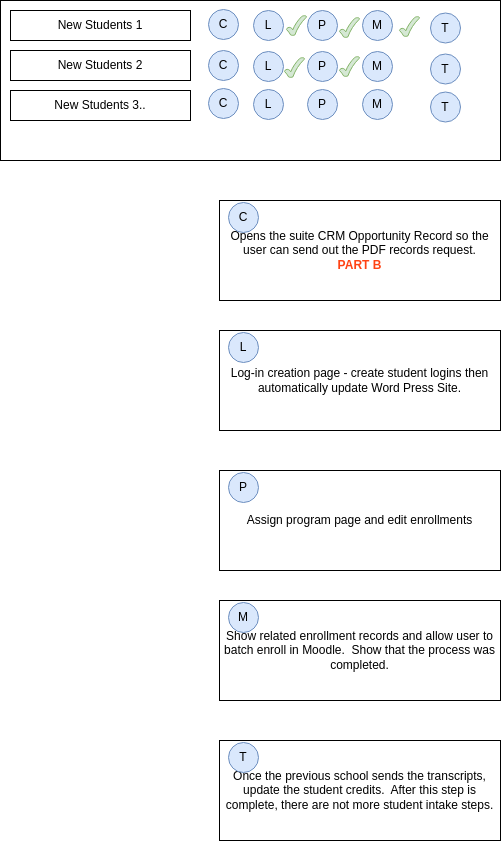
# New Student Intake

### Intake Steps

Intake represents all the steps required to get a student assigned their first courses in Moodle. In PEMS, the HOMEROOM Module is primary used to complete this workflow. However, communication like sending signed contracts to parents and invoicing clients is completed in the CRM module. The PEMS SIS does not provide any capability to store or send (pdf) documents to and from parents or schools. The CRM is used for this function.

The trigger to start the intake process is a parent submitting an enrollment form (gravity form) on the Word Press site. The completion of the process is the assignment of courses in Moodle.

### Part A - Parent Submits Form and is Accepted/Rejected into the SIS

Part A is triggered when a parent signs up for an account on a client(facility) Word Press website. The submitted enrollment form is reviewed and updated then accepted or rejected. Part A ends with the parent being prompted to pay tuition to the client (facility).

<table border="1" id="bkmrk-step-1-word-press-si" style="border-collapse: collapse; width: 114.074%; height: 2270.02px;"><colgroup><col style="width: 10.754%;"></col><col style="width: 12.1137%;"></col><col style="width: 12.979%;"></col><col style="width: 32.7565%;"></col><col style="width: 18.665%;"></col><col style="width: 12.7318%;"></col></colgroup><tbody><tr style="height: 46.5938px;"><td style="height: 46.5938px;">**Sequence**</td><td style="height: 46.5938px;">**Application**</td><td style="height: 46.5938px;">**Module**</td><td style="height: 46.5938px;">**Description**</td><td style="height: 46.5938px;">**TEST PLAN**</td><td style="height: 46.5938px;">**Known Issues**</td></tr><tr style="height: 124.953px;"><td style="height: 124.953px;">1</td><td style="height: 124.953px;">Word Press</td><td style="height: 124.953px;">  
</td><td style="height: 124.953px;"><span style="background-color: rgb(194, 224, 244);">USER</span> Parent makes Account on enrollment website, verified by email

</td><td style="height: 124.953px;">Sign up for new account, check email received, verify account, check its verified in WP

</td><td style="height: 124.953px;">Email for new site not configured

</td></tr><tr style="height: 63.3906px;"><td style="height: 63.3906px;">2</td><td style="height: 63.3906px;">Word Press</td><td style="height: 63.3906px;">gravity forms</td><td style="height: 63.3906px;"><span style="background-color: rgb(194, 224, 244);">USER</span> Parent logs in and completes form on Word Press Site to enroll student</td><td style="height: 63.3906px;">Complete gravity form</td><td style="height: 63.3906px;">  
</td></tr><tr style="height: 63.3906px;"><td style="height: 63.3906px;">3</td><td style="height: 63.3906px;">Word Press</td><td style="height: 63.3906px;">gravity forms</td><td style="height: 63.3906px;"><span style="background-color: rgb(194, 224, 244);">USER</span> Parent signs all legal forms to submit the forms, for both the enrollment client and Studia Nova</td><td style="height: 63.3906px;">  
</td><td style="height: 63.3906px;">  
</td></tr><tr style="height: 46.5938px;"><td style="height: 46.5938px;">4</td><td style="height: 46.5938px;">SIS</td><td style="height: 46.5938px;">HOMEROOM</td><td style="height: 46.5938px;"><span style="background-color: rgb(191, 237, 210);">INTEGRATION</span> - Form is entered into <span style="text-decoration: underline;">**applicants table** </span>in the SIS</td><td style="height: 46.5938px;">Check form in SIS</td><td style="height: 46.5938px;">  
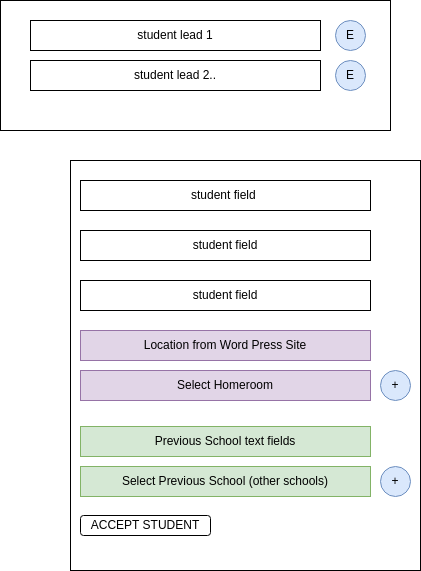
</td></tr><tr style="height: 80.1719px;"><td style="height: 80.1719px;">5</td><td style="height: 80.1719px;">SIS</td><td style="height: 80.1719px;">HOMEROOM</td><td style="height: 80.1719px;"><span style="background-color: rgb(194, 224, 244);">USER </span> reviews the form on the dashboard - clicking the form opens the "applicant record"

</td><td style="height: 80.1719px;"></td><td style="height: 80.1719px;"></td></tr><tr style="height: 63.3906px;"><td style="height: 63.3906px;">5.1</td><td style="height: 63.3906px;"><span style="color: rgb(126, 140, 141);">asterix</span></td><td style="height: 63.3906px;">  
</td><td style="height: 63.3906px; padding-left: 40px;"><span style="background-color: rgb(194, 224, 244);">USER </span> to validate all information received in form by <span style="text-decoration: underline;">**calling** </span>parent (make mobile phone required)</td><td style="padding-left: 40px; height: 63.3906px;">  
</td><td style="padding-left: 40px; height: 63.3906px;">  
</td></tr><tr style="height: 108.172px;"><td style="height: 108.172px;">5.2</td><td style="height: 108.172px;">SIS</td><td style="height: 108.172px;">HOMEROOM</td><td style="height: 108.172px; padding-left: 40px;"><span style="background-color: rgb(194, 224, 244);">USER </span> selects correct previous school ([other school](https://cs.studianova.org/admin/otherschools)) in the SIS record. (WP does not have select menu, user types in previous school)</td><td style="padding-left: 40px; height: 108.172px;">  
</td><td style="padding-left: 40px; height: 108.172px;">  
</td></tr><tr style="height: 124.969px;"><td style="height: 124.969px;">5.3</td><td style="height: 124.969px;">SIS &amp; CRM</td><td style="height: 124.969px;">HOMEROOM&amp; CRM Accounts</td><td style="padding-left: 40px; height: 124.969px;"><span style="background-color: rgb(194, 224, 244);">USER </span> - If other school is not in SIS table, user enters new record and then selects the correct school in the **SIS record <span style="color: rgb(224, 62, 45);">before accepting the student. </span>**<span style="color: rgb(224, 62, 45);"><span style="color: rgb(0, 0, 0);">See <span style="color: rgb(35, 111, 161);">*[Suite CRM Integration](https://bsa.lynops.com/books/personal-education-management-system/page/suite-crm-integration "Suite CRM Integration").*</span></span></span></td><td style="padding-left: 40px; height: 124.969px;">  
</td><td style="padding-left: 40px; height: 124.969px;">  
</td></tr><tr style="height: 147.375px;"><td style="height: 147.375px;">5.4</td><td style="height: 147.375px;">SIS</td><td style="height: 147.375px;">HOMEROOM</td><td style="padding-left: 40px; height: 147.375px;"><span style="background-color: rgb(194, 224, 244);">USER </span> selects the correct Homeroom from menu (*the parent selects location in the WP gravity form, but the location name in WP may not be exact same as homeroom name, therefore allow the user to select correct name*)</td><td style="padding-left: 40px; height: 147.375px;">  
</td><td style="padding-left: 40px; height: 147.375px;">  
</td></tr><tr style="height: 63.3906px;"><td style="height: 63.3906px;">6</td><td style="height: 63.3906px;">SIS</td><td style="height: 63.3906px;">HOMEROOM</td><td style="height: 63.3906px;"><span style="background-color: rgb(194, 224, 244);">USER </span>- Accept / reject the Student</td><td style="height: 63.3906px;">Check WP status is approved or disapproved.</td><td style="padding-left: 40px; height: 63.3906px;">  
</td></tr><tr style="height: 46.5938px;"><td style="height: 46.5938px;">7</td><td style="height: 46.5938px;">SIS</td><td style="height: 46.5938px;">STUDENT</td><td style="height: 46.5938px;"><span style="background-color: rgb(236, 202, 250);">AUTOMATION</span> - create the student record in SIS from the applicant record.</td><td style="height: 46.5938px;">  
</td><td style="padding-left: 40px; height: 46.5938px;">  
</td></tr><tr style="height: 108.172px;"><td style="height: 108.172px;">8</td><td style="height: 108.172px;">SIS</td><td style="height: 108.172px;">STUDENT</td><td style="height: 108.172px;"><span style="background-color: rgb(236, 202, 250);">AUTOMATION </span>- create all the student term records needed for the student until the end of their current grade span. [3. Create Student Term Records](https://bsa.lynops.com/books/personal-education-management-system/page/3-create-student-term-records "3. Create Student Term Records")</td><td style="height: 108.172px;">  
</td><td style="height: 108.172px;">  
</td></tr><tr style="height: 63.3906px;"><td style="height: 63.3906px;">9</td><td style="height: 63.3906px;">Word Press</td><td style="height: 63.3906px;">  
</td><td style="height: 63.3906px;"><span style="background-color: rgb(191, 237, 210);">INTEGRATION</span> - Parent is notified student is accepted, status is changed in the Parent's WP account.</td><td style="height: 63.3906px;">  
</td><td style="height: 63.3906px;">  
</td></tr><tr style="height: 46.5938px;"><td style="height: 46.5938px;">10</td><td style="height: 46.5938px;">Word Press</td><td style="height: 46.5938px;">PayPal integration</td><td style="height: 46.5938px;"><span style="background-color: rgb(194, 224, 244);">USER </span>Parent is able to pay with paypal the <span style="text-decoration: underline;">client </span>(facility account).</td><td style="height: 46.5938px;">  
</td><td style="height: 46.5938px;"> </td></tr></tbody></table>

###  

### Part B - Gather Required Documents from Parents or Other Schools - Mainly CRM functions

Trigger - a new opportunity record is made in Suite when the student is accepted in the SIS. This function alerts the CRM user to start getting the required documentation from parents and schools to support the enrollment. Suite is also used to send invoices to the client(facility), ensuring that every students is billed for. Part B ends with a status change to the student record that allows the student to be provided log-ins to Moodle.

<table border="1" id="bkmrk-sequence-application" style="border-collapse: collapse; width: 114.074%; height: 2270.02px;"><colgroup><col style="width: 10.754%;"></col><col style="width: 12.1137%;"></col><col style="width: 12.979%;"></col><col style="width: 32.7565%;"></col><col style="width: 18.665%;"></col><col style="width: 12.7318%;"></col></colgroup><tbody><tr style="height: 46.5938px;"><td style="height: 46.5938px;">**Sequence**</td><td style="height: 46.5938px;">**Application**</td><td style="height: 46.5938px;">**Module**</td><td style="height: 46.5938px;">**Description**</td><td style="height: 46.5938px;">**TEST PLAN**</td><td style="height: 46.5938px;">**Known Issues**</td></tr><tr style="height: 107.141px;"><td style="height: 107.141px;">1</td><td style="height: 107.141px;">CRM</td><td style="height: 107.141px;">  
</td><td style="height: 107.141px;"><span style="background-color: rgb(191, 237, 210);">INTEGRATION</span> - When the student is accepted, Suite CRM records are created. The parent is a contact record the student is an opportunity . See [Suite CRM Integration](https://bsa.lynops.com/books/personal-education-management-system/page/suite-crm-integration "Suite CRM Integration").</td><td style="height: 107.141px;">  
</td><td style="height: 107.141px;">  
</td></tr><tr style="height: 124.938px;"><td style="height: 124.938px;">2</td><td style="height: 124.938px;">CRM

*add $$ sig module to SUITE*

</td><td style="height: 124.938px;">(no dev required)

</td><td style="height: 124.938px;"><span style="background-color: rgb(194, 224, 244);">USER</span> sends Parent an e-sign document to dis enroll student from previous school and enroll in Studia Nova *(contract pdf template in Suite)*</td><td style="height: 124.938px;">  
</td><td style="height: 124.938px;">  
</td></tr><tr style="height: 87.5469px;"><td style="height: 87.5469px;">3</td><td style="height: 87.5469px;">CRM</td><td style="height: 87.5469px;">(no dev required)</td><td style="height: 87.5469px;"><span style="background-color: rgb(194, 224, 244);">USER</span> Once above document is signed, an invoice is sent to the <span style="text-decoration: underline;">client </span>(facility account) for the new student, and/or notification based on billing terms. </td><td style="height: 87.5469px;">  
</td><td style="height: 87.5469px;">  
</td></tr><tr style="height: 63.3906px;"><td style="height: 63.3906px;">4</td><td style="height: 63.3906px;">CRM</td><td style="height: 63.3906px;">(no dev required)</td><td style="height: 63.3906px;">After the parent esigns the document request, the pdf is emailed to the other school to request transcripts.</td><td style="height: 63.3906px;">  
</td><td style="height: 63.3906px;">  
</td></tr><tr style="height: 46.5938px;"><td style="height: 46.5938px;">5</td><td style="height: 46.5938px;">SIS</td><td style="height: 46.5938px;">STUDENT</td><td style="height: 46.5938px;"><span style="background-color: rgb(194, 224, 244);">USER</span> (or future <span style="background-color: rgb(191, 237, 210);">INTEGRATION) </span>updates the student record as active.</td><td style="height: 46.5938px;">  
</td><td style="height: 46.5938px;">  
</td></tr><tr style="height: 29.7969px;"><td style="height: 29.7969px;">6</td><td style="height: 29.7969px;">SIS</td><td style="height: 29.7969px;">HOMEROOM</td><td style="height: 29.7969px;"><span style="background-color: rgb(194, 224, 244);">USER</span> creates student logins</td><td style="height: 29.7969px;">  
</td><td style="height: 29.7969px;">  
</td></tr><tr style="height: 169.734px;"><td style="height: 169.734px;">7</td><td style="height: 169.734px;">Word Press</td><td style="height: 169.734px;">  
</td><td style="height: 169.734px;"><span style="background-color: rgb(191, 237, 210);">INTEGRATION</span> - Update word press site with student logins so that they may be provided to the <span style="text-decoration: underline;">proctor</span> who provides them to the student.

Also make the logins known to the parent account in the wordpress site.

</td><td style="height: 169.734px;"></td><td style="height: 169.734px;"></td></tr><tr style="height: 80.1875px;"><td style="height: 80.1875px;">8</td><td style="height: 80.1875px;">SIS</td><td style="height: 80.1875px;">  
</td><td style="height: 80.1875px;"><span style="background-color: rgb(236, 202, 250);">AUTOMATION </span>- Auto-assign the first course that provides students directions on how to use Moodle, and have them complete their initial assessment.</td><td style="height: 80.1875px;">  
</td><td style="height: 80.1875px;">  
</td></tr></tbody></table>

### PART C - Assessment and Course Assignment

Part C intakes the student's initial academic assessment scores and allows the admin user to select the correct program of study based on the student's assessment scores.

<table border="1" id="bkmrk-sequence-application-1" style="border-collapse: collapse; width: 114.074%; height: 333.75px;"><colgroup><col style="width: 10.754%;"></col><col style="width: 12.1137%;"></col><col style="width: 12.979%;"></col><col style="width: 32.7565%;"></col><col style="width: 18.665%;"></col><col style="width: 12.7318%;"></col></colgroup><tbody><tr style="height: 46.5938px;"><td style="height: 46.5938px;">**Sequence**</td><td style="height: 46.5938px;">**Application**</td><td style="height: 46.5938px;">**Module**</td><td style="height: 46.5938px;">**Description**</td><td style="height: 46.5938px;">**TEST PLAN**</td><td style="height: 46.5938px;">**Known Issues**</td></tr><tr style="height: 96.9844px;"><td style="height: 96.9844px;">1</td><td style="height: 96.9844px;"><span style="color: rgb(224, 62, 45);">Moodle or other???</span></td><td style="height: 96.9844px;"><span style="color: rgb(224, 62, 45);">  
</span></td><td style="height: 96.9844px;"><span style="color: rgb(224, 62, 45);">Students use the Edwiser in Moodle from to self-enter their scores from IXL. Use the Edwiser activity. Or there may be another way to do this. Make the proctor do this??</span></td><td style="height: 96.9844px;"><span style="color: rgb(224, 62, 45);">  
</span></td><td style="height: 96.9844px;"><span style="color: rgb(224, 62, 45);">  
</span></td></tr><tr style="height: 63.3906px;"><td style="height: 63.3906px;">2</td><td style="height: 63.3906px;">SIS</td><td style="height: 63.3906px;">  
</td><td style="height: 63.3906px;"><span style="background-color: rgb(194, 224, 244);">USER </span>- Admin reviews assessment data, makes determination on which program to assign.</td><td style="height: 63.3906px;">  
</td><td style="height: 63.3906px;">  
</td></tr><tr style="height: 63.3906px;"><td style="height: 63.3906px;">3</td><td style="height: 63.3906px;">SIS</td><td style="height: 63.3906px;">  
</td><td style="height: 63.3906px;"><span style="background-color: rgb(236, 202, 250);">AUTOMATION</span> - Based on the assigned program, SIS <span style="color: rgb(224, 62, 45);">automatically creates the student's enrollments.</span></td><td style="height: 63.3906px;">  
</td><td style="height: 63.3906px;">  
</td></tr><tr style="height: 63.3906px;"><td style="height: 63.3906px;">4</td><td style="height: 63.3906px;">SIS</td><td style="height: 63.3906px;">  
</td><td style="height: 63.3906px;"><span style="background-color: rgb(191, 237, 210);">INTEGRATION </span>- After review of enrollments, the admin triggers the enrollments in courses in Moodle</td><td style="height: 63.3906px;">  
</td><td style="height: 63.3906px;"> </td></tr></tbody></table>

### Student Intake UI

#### PART A - Applicant record to Student Record

<div drawio-diagram="139"><img src="https://bsa.lynops.com/uploads/images/drawio/2024-03/drawing-5-1710024182.png" alt=""/></div>

#### PART B &amp; C - Enroll Student in Courses

<div drawio-diagram="166"><img src="https://bsa.lynops.com/uploads/images/drawio/2024-03/drawing-5-1711819240.png" alt=""/></div>

#### PART C VIEW P - Assign program:

Show:

- Student Name, grade level, first student term name
- Assessment data history:

Select:

- Program of Study \[  *programs menue* \]

*based on the selected program, list template records below:*

<table border="1" id="bkmrk-term-1---grade-x-ter" style="border-collapse: collapse; width: 100%; height: 388.36px;"><colgroup><col style="width: 31.8912%;"></col><col style="width: 10.136%;"></col><col style="width: 46.3555%;"></col><col style="width: 11.6173%;"></col></colgroup><tbody><tr style="height: 29.7969px;"><td style="height: 29.7969px;">term 1 - grade x term x</td><td style="height: 29.7969px;">button</td><td style="height: 29.7969px;">*&lt;no student term found&gt;*</td><td>  
</td></tr><tr style="height: 29.7969px;"><td style="height: 29.7969px; padding-left: 40px;">template 1</td><td style="height: 29.7969px;">***<span style="color: rgb(53, 152, 219);">enroll&gt;</span>***</td><td style="height: 29.7969px;">*create enrollment record based on template*</td><td>*delete/edit*</td></tr><tr style="height: 29.7969px;"><td style="height: 29.7969px; padding-left: 40px;">template 2</td><td style="height: 29.7969px;">***<span style="color: rgb(53, 152, 219);">enroll&gt;</span>***</td><td style="height: 29.7969px;">  
</td><td>  
</td></tr><tr style="height: 29.7969px;"><td style="height: 29.7969px; padding-left: 40px;">template 3..</td><td style="height: 29.7969px;">***<span style="color: rgb(53, 152, 219);">enroll&gt;</span>***</td><td style="height: 29.7969px;">  
</td><td>  
</td></tr><tr style="height: 29.7969px;"><td style="height: 29.7969px;">term 2 grade x term x</td><td style="height: 29.7969px;">  
</td><td style="height: 29.7969px;">student term 1</td><td>  
</td></tr><tr style="height: 29.7969px;"><td style="height: 29.7969px; padding-left: 40px;">template 1</td><td style="height: 29.7969px;">***<span style="color: rgb(53, 152, 219);">enroll&gt;</span>***</td><td style="height: 29.7969px;">  
</td><td>  
</td></tr><tr style="height: 29.7969px;"><td style="height: 29.7969px; padding-left: 40px;">template 2</td><td style="height: 29.7969px;">***<span style="color: rgb(53, 152, 219);">enroll&gt;</span>***</td><td style="height: 29.7969px;">  
</td><td>  
</td></tr><tr style="height: 29.7969px;"><td style="height: 29.7969px; padding-left: 40px;">template 3..</td><td style="height: 29.7969px;">***<span style="color: rgb(53, 152, 219);">enroll&gt;</span>***</td><td style="height: 29.7969px;">  
</td><td>  
</td></tr><tr style="height: 29.7969px;"><td style="height: 29.7969px;">term 2 grade x term x</td><td style="height: 29.7969px;">  
</td><td style="height: 29.7969px;">student term 2</td><td>  
</td></tr><tr style="height: 29.7969px;"><td style="height: 29.7969px; padding-left: 40px;">template 1</td><td style="height: 29.7969px;">***<span style="color: rgb(53, 152, 219);">enroll&gt;</span>***</td><td style="height: 29.7969px;"> </td><td>  
</td></tr><tr style="height: 29.7969px;"><td style="height: 29.7969px; padding-left: 40px;">template 2</td><td style="height: 29.7969px;">***<span style="color: rgb(53, 152, 219);">enroll&gt;</span>***</td><td style="height: 29.7969px;">  
</td><td>  
</td></tr><tr style="height: 30.7969px;"><td style="height: 30.7969px; padding-left: 40px;">template 3..</td><td style="height: 30.7969px;">***<span style="color: rgb(53, 152, 219);">enroll&gt;</span>***</td><td style="height: 30.7969px;">  
</td><td>  
</td></tr><tr style="height: 29.7969px;"><td style="height: 29.7969px;">  
</td><td style="height: 29.7969px;">  
</td><td>  
</td></tr></tbody></table>

<span style="background-color: rgb(251, 238, 184);">**SAVE PROGRAM**</span>

- When the user changes the program, change the list on the left side.
- If the user makes enrollment records, then changes the program, always show all enrollment records made on the left side
- Allow the user to delete/edit the enrollment record.

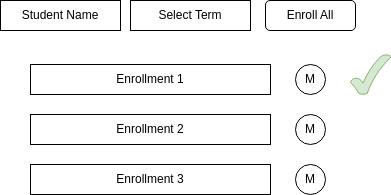
#### PART B View M - Moodle Enrollment UI - per Student View

<div drawio-diagram="142"><img src="https://bsa.lynops.com/uploads/images/drawio/2024-03/drawing-5-1710025871.png" alt=""/></div>

- User can click each M button to enroll the student in the courses in Moodle, or the user can enroll on in a batch process.

####  

#### PART B View M - Moodle Enrollment UI - All Students View

Show same as above but all student enrollments for current term

#### T - Enter Transcript -TBD