
New Student Intake
Intake Steps
Intake represents all the steps required to get a student assigned their first courses in Moodle.
| Sequence | Application | Module | Description | TEST PLAN | Known Issues |
| 1 | Word Press |
Parent makes Account on enrollment website, verified by email |
Sign up for new account, check email received, verify account, check its verified in WP |
Email for new site not configured |
|
| 2 | Word Press | gravity forms | Parent logs in and completes form on Word Press Site to enroll student | Complete gravity form | |
| 3 | Word Press | gravity forms | Parent signs all legal forms to submit the forms, for both the enrollment client and Studia Nova | ||
| 4 | SIS | HOMEROOM | Form is entered into applicants table in the SIS | Check form in SIS | |
| 5 | SIS | HOMEROOM |
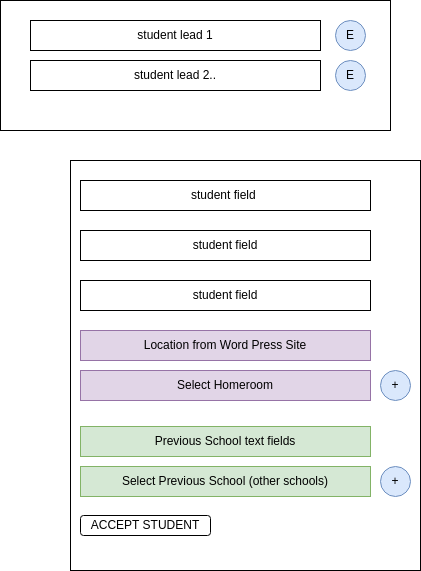
User reviews the form on the dashboard - clicking the form opens the "applicant record" |
|
|
| 5.1 | asterix | User to validate all information received in form by calling parent (make mobile phone required) | |||
| 5.2 | SIS | HOMEROOM | User selects correct previous school (other school) in the SIS record. (WP does not have select menu, user types in previous school) | ||
| 5.3 | SIS & CRM | HOMEROOM& CRM Accounts | If other school is not in SIS table, admin enters new record and then selects the correct school in the SIS record before accepting the student | ||
| 5.4 | SIS | HOMEROOM | User selects the correct Homeroom from menu (the parent selects location in the WP gravity form, but the location name in WP may not be exact same as homeroom name, therefore allow the user to select correct name) | ||
| 5.5 | SIS | HOMEROOM | Accept / reject the Student | Check WP status is approved or disapproved. | |
| SIS | STUDENT | AUTOMATION - create the student record in SIS from the applicant record. | |||
| CRM | Contacts & Opportunities | AUTOMATION - create the parent contact record and student opportunity record in CRM | |||
| 6 | SIS | STUDENTS | AUTOMATION - create all the student term records needed for the student until the end of their current grade span. 3. Create Student Term Records | ||
| 9 | Word Press | Parent is notified student is accepted and can then pay tuition to the client on the Word Press Site. | |||
| Suite CRM Automation - when the student is accepted, Suite CRM records are created. The parent is a contact record linked to the website owner (facility) Account, the student is an opportunity linked to the website owner (Facility) Account. A Suite CRM registrar record is created based on the other school selected. See Suite CRM Integration. | |||||
| 10 | CRM | Send Parent an e-sign document to disenroll student from previous school and enroll in Studia Nova (contract pdf template in Suite) | |||
| 11 | CRM | Once above document is signed, an invoice is sent to the client (facility account) for the new student, and/or notification based on billing terms. (This is managed by the opportunity record created in suite from the student enrollment) | |||
| 12 | CRM | After the parent esigns the document request, the pdf is emailed to the other school to request transcripts. | |||
| 13 | SIS | User creates student logins | |||
| 14 | Word Press |
Update word press site with student logins so that they may be provided to the proctor who provides them to the student.
Also make the logins known to the parent account in the wordpress site. |
|
|
|
| 15 | SIS | Auto-assign the first course that provides students directions on how to use moodle, and have them complete their initial assessment. | |||
| Moodle or other??? | Students use the Edwiser in Moodle from to self-enter their scores from IXL. Use the Edwiser activity. Or there may be another way to do this. Make the proctor do this?? | ||||
| 16 | deleted | ||||
| 17 | SIS | Admin reviews assessment data, makes determination on which program to assign. | |||
| 18 | SIS | Based on the assigned program, SIS automatically creates the student's enrollments. | |||
| 19 | SIS | After review of enrollments, the admin triggers the enrollments in courses in Moodle | |||
Student Intake UI
Step 1 - accept enrollment
Step 2 Enroll Student in Courses
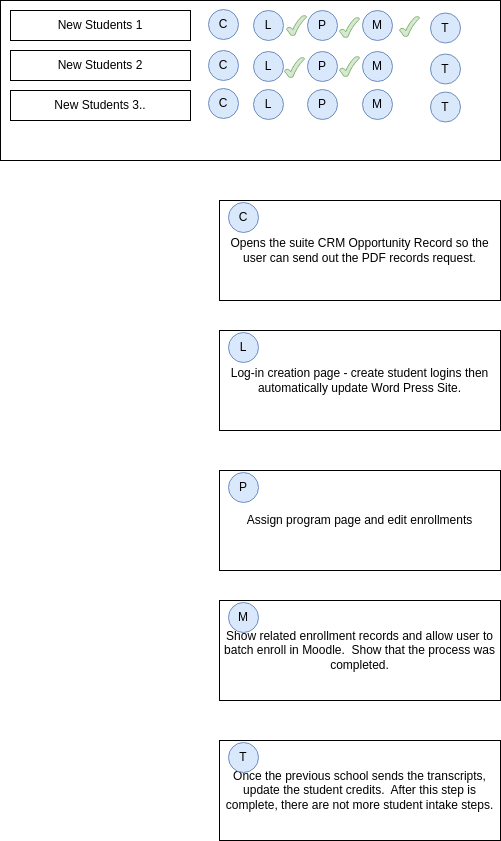
P - Assign program UI:
Student Name, grade level, first student term name
Show Assessment data history:
Select Program [ programs ]
based on the selected program, list template records below:
| term 1 - grade x term x | button | <no student term found> | |
| template 1 | enroll> | create enrollment record based on template | delete/edit |
| template 2 | enroll> | ||
| template 3.. | enroll> | ||
| term 2 grade x term x | student term 1 | ||
| template 1 | enroll> | ||
| template 2 | enroll> | ||
| template 3.. | enroll> | ||
| term 2 grade x term x | student term 2 | ||
| template 1 | enroll> | ||
| template 2 | enroll> | ||
| template 3.. | enroll> | ||
SAVE PROGRAM
- When the user changes the program, change the list on the left side.
- If the user makes enrollment records, then changes the program, always show all enrollment records made on the left side
- Allow the user to delete/edit the enrollment record.
M - Moodle Enrollment UI - per Student
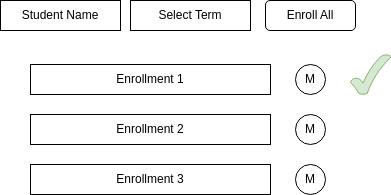
M - Moodle Enrollment UI - All Students
Show same as above but all student enrollments for current term